
The 'Videos & Files' page in the TORSH Talent mobile app lists all of the videos and files from within your TORSH Talent account. You can see videos and files that you uploaded via the mobile application or the web version here!
When a video or file is uploaded from the mobile app to the TORSH Talent platform, it syncs automatically. This means that the artifact appears on both the web and mobile versions.
When you upload a video or file from the web application, you can see it and perform actions on it via your mobile app when you have an internet connection. If you are going to be offline without any connection - for example, when you are traveling - you may want to download the video or file to your device. Once it is on your device, you will be able to see it, even if you do not have an internet connection, and comment on the video.
How to Sync a Video/File
To sync a video or file from the web browser with your mobile app, follow the steps below:
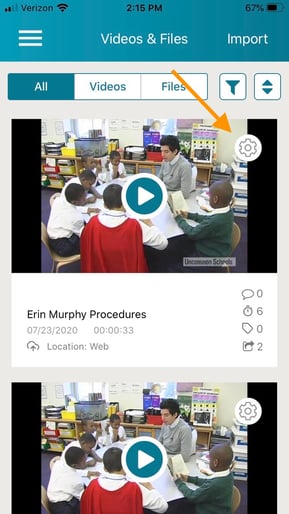
First, click the gear icon next to the video or file on the 'Videos & Files' page.
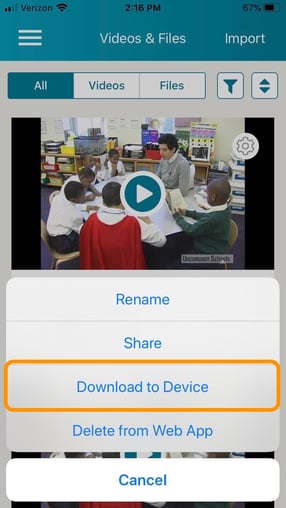
Then select 'Download to Device.'
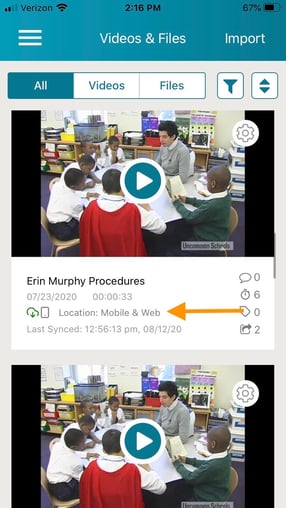
Your video or file will now be stored on your mobile app and will be accessible without an internet connection.
Don't worry! Any comments you leave on a video will be automatically updated on the artifact once you are connected to the internet again.
Rather watch a video? Check out our tutorial on Syncing in the TORSH Talent app here. HIPAA users, click here.