
NOTE: An individual module can only be added to one course at a time. One specific module cannot exist within two separate courses.
If you would like to add a Learning Path module to a course, you can do so via (2) different methods:
Add Modules via Course Settings
If you have already created a Course, go to 'Modules Management' and click 'Courses' on the far, left-side panel. Find your course and click 'View.' This will load the Course's webpage.

From here, click the 'Add Modules' button.
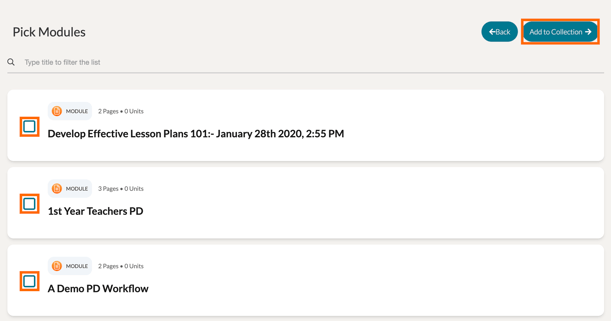
On the next page, check the checkboxes for the modules you would like to add to the course. When you are done with your selection(s), click 'Add To Course' in the top, right-hand corner.
Your added modules will now appear on your Course's page! You can adjust their placement by clicking and dragging the 'stacked group icon' on the left side of each module.

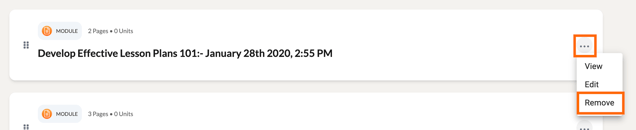
To remove a module from the course, click the '...' icon on the far right side of the module and select 'Remove.'
Add Modules via Module Settings
You can also add individual modules to existing courses via a module's Settings page. To reach this page, navigate to your module and click 'View.' This will take you to the module's 'Contents' page. Click on the 'Settings' tab.

On the module's Settings page, scroll down to 'Course' setting. Click 'Add To a Course.'

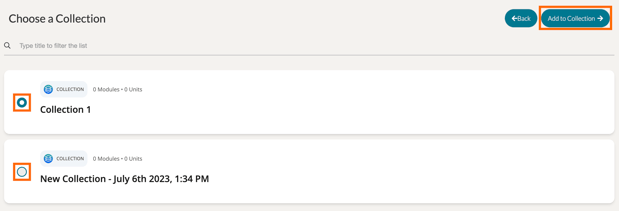
This will take you to a page with all of your system's courses listed. Select the course you would like to add the module to. Then click 'Add To Course.'
The course name will now appear in your module's Course setting. If you would like to remove this module from the course, click the 'Remove From Course' button.
