
In a Learning Path Module , you as a Learner (or participant) might be tasked to read articles, review videos, post written or recorded responses, complete a quiz, and participate in discussions. Learn more about the different components below!
Selection Options
A learning path module may have you complete various Selection Option components that quiz you on different subjects or task you with selecting a specific option. This may take the form of a set of radio options wherein only one answer is requested, or it may take the form of a dropdown list, or a checkbox wherein you can select multiple answers at once. Lastly, you may even be tasked to complete a true/false question.
Be sure to read the instructions carefully and answer to the best of your ability!


Discussions
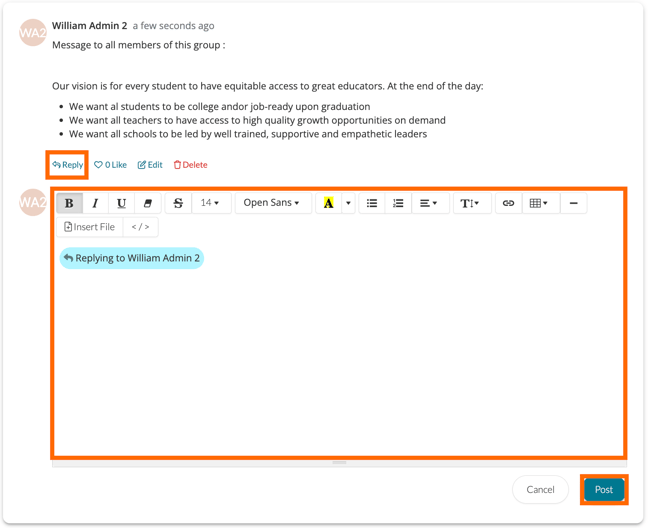
To contribute to a Discussion, you can type and format a response, add links, emojis, and even attach videos and files. Click ‘Post’ when you’re done.

You can reply to another user’s post by clicking ‘Reply’ beneath their response. Click 'Post' to save your response.
You can also like a response or edit/delete a response you made.
Text Responses
If you are expected to provide a typed response, click inside of the text box provided and type and your response. The text you enter will automatically save.

Video/File and URL Responses
You may be directed to submit a video, file, or URL as a response. If so, click on the ‘Add Video/File’ button or the 'Add URL' button depending on the instructions provided and the formatting of the question.

Choose to upload a new file or select one that you already uploaded to TORSH Talent. Click ‘Continue’ when you’re done.

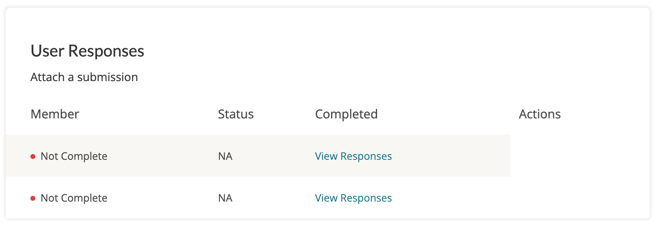
The Learning Path author may allow you to view other users' responses to this component. If this is enabled, click ‘View Responses’ to see the added responses of other members to this specific item.
Feedback
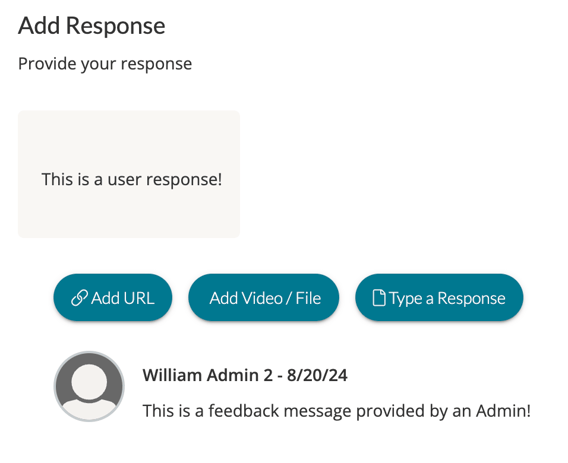
If someone adds feedback to any of your responses, you will see it beneath your response.
Marking Your Page Complete
To accurately track your progress throughout a Learning Path Module, make sure you click ‘Mark as Complete’ on each page when complete. This option can be found at both the top and bottom of a module's page.

Awards and Digital Certificates
Once you have marked all pages within your module as complete, you will automatically be routed to your module's Results page.
Results

Graded Modules
If your module is graded, you may be routed to complete some complementary material before retaking the module again, or you may be presented with a message that clarifies whether or not you passed or failed the training material. Depending on the message the author provides, it may request that you enroll into a subsequent module.
Digital Certificates
If your module awards a digital certificate, your certificate will automatically be emailed to the primary inbox of the email address associated with your TORSH Talent account upon completing the module.
If you are completing a Learning Path course with multiple modules, you may need to complete all of the modules contained therein in order to be awarded a digital certificate for the entire course.
To learn more about how to print a digital certificate upon completion, learn more here.