As a System Admin, you can create and manage all Roles and their associated permissions within your system! With Roles & Permissions, you can modify all existing roles in your system and assign them to any existing users. You can even manage the level of access each role has to every feature in the platform, giving you the freedom to further define what users can and cannot interact with at every level.
Contents:
I. Navigating Roles & Permissions
II. How To Modify Existing Roles & Permissions
IV. How To Create a New Role Based on an Existing Role
V. How To Delete An Existing Role
Navigating Roles & Permissions
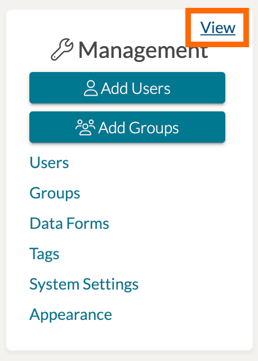
To reach the Roles & Permissions settings of your system, first navigate to the Management Panel on your homepage and click on the 'View' option in the top, right-hand corner.
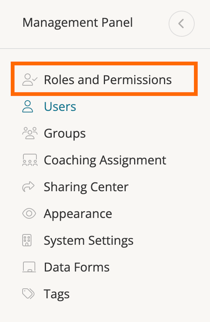
On the next page, look to the left-side panel and click on 'Roles & Permissions.'
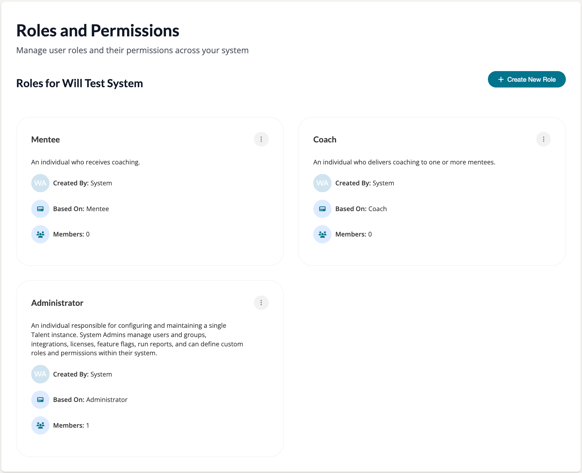
You will then be brought to your Roles & Permissions Management page. From here, you can view and modify any of the existing Role types in your system. You can also clone and create new roles as needed! By default, your system will contain the following roles:
- Administrator - An individual responsible for configuring and maintaining a single Talent system. System Admins manage users and groups, integrations, licenses, features, and can define custom roles and permissions within their system.
- Coach - An individual who delivers coaching to one or more mentees.
- Mentee - An individual who receives coaching.
Each role will display as a card listing who it was Created By, what role it was Based On, and the total count of Members (users) assigned to that role.
How To Modify Existing Roles & Permissions
To modify existing Roles in your system, simply find the Role card and click on it. Or find the Role card's '...' icon and select 'Edit Details' or 'Manage Permissions' from the dropdown list.

Edit Details
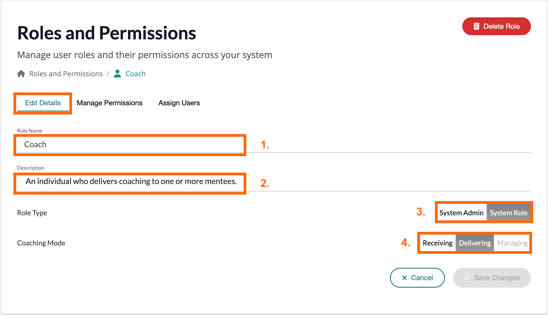
On the 'Edit Details' tab of a Role, you can modify the name and description of the role. You can also modify whether it is a System Admin role type or a System Role type.
Depending on the type of role chosen, you will have various Coach Modes to choose from. These modes designate whether or not the role is Managing coaching, Delivering coaching, or Receiving coaching.
Manage Permissions
On the 'Manage Permissions' tab of a Role, you can modify the various access and permission settings the role has to every tool in the platform. Simply click on the associated tab for the overall feature and modify the permission labels for each tool to the right-hand side of each permission setting.

If you wish to know what each tool option does, simply hover over its circled 'info icon,' and a short pop-up description will provide further clarity beside it.

Once your changes have been made, click the 'Save Changes' button found in the bottom, right-hand corner of the Edit Details or Manage Permissions tab to finalize your settings.
Assign Users
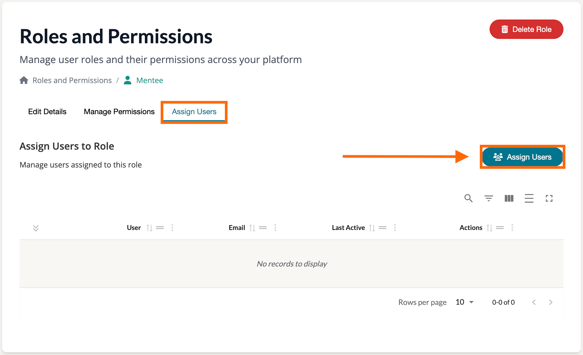
Lastly, visit the 'Assign Users' tab of a Role. Here you can assign the existing role to any existing users in your system. Click the 'Assign Users' button to the right, and a new pop-up will appear listing each user in the system.
To assign this role to each user, simply click on the '+' icon to the right-hand side of each listing. The role re-assignment will happen automatically.

How To Create a New Role
If you wish to create a brand new Role from scratch in your system, navigate to your Roles & Permissions Management page and click on the '+ Create New Role' button find in the top, right-hand corner of the page.
From there, you will be brought to the 'Edit Details' page of the new role.
Edit Details
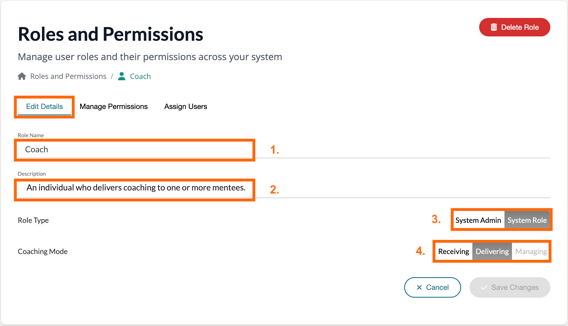
On the 'Edit Details' tab of a Role, you can add the name and description of the new role. You can also designate whether it is a System Admin role type or a System Role type.
Depending on the type of role chosen, you will have various Coach Modes to choose from. These modes designate whether or not the role is Managing coaching, Providing coaching, or Receiving coaching.
Manage Permissions
On the 'Manage Permissions' tab of the new role, you can set the various access and permission settings the role has to every tool in the platform. Simply click on the associated tab for the overall feature and modify the permission labels for each tool to the right-hand side of each permission setting.

If you wish to know what each tool option does, simply hover over its circled 'info icon,' and a short pop-up description will provide further clarity beside it.

Once your changes have been made, click the 'Save Changes' button found in the bottom, right-hand corner of the Edit Details or Manage Permissions tab to finalize your settings.
Assign Users
Lastly, visit the 'Assign Users' tab of a Role. Here you can assign the new role to any existing users in your system. Click the 'Assign Users' button to the right, and a new pop-up will appear listing each user in the system.
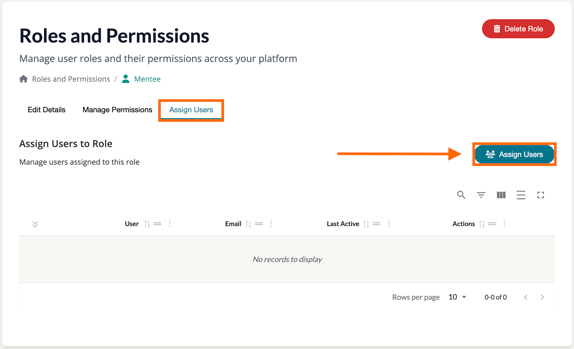
To assign this role to each user, simply click on the '+' icon to the right-hand side of each listing. The role re-assignment will happen automatically.

How To Create a New Role Based on an Existing Role
If you wish to create a new Role with most of the same settings as an existing role in your system, you can easily do so via a role's 'Clone & Modify' function!
This role authoring method can be very helpful if, for instance, you would like to create a Lead Coach role that manages coaching for other coaches in your system. Perhaps you would like a Coach role with Learning Path authoring enabled? Maybe it would be helpful to have an Admin role that has greater or lesser management capability than other Admins in your system?
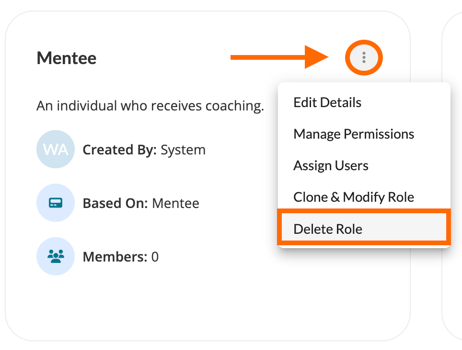
To get started, first navigate to your Roles & Permissions Management page and click on the '...' icon for the specific role card you would like to base your new role on. In the dropdown list, click 'Clone & Modify Role.'
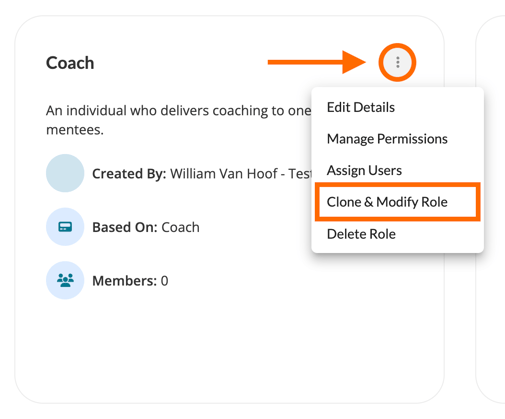
From there, you will be brought to the 'Edit Details' page of the newly cloned role.
Edit Details
On the 'Edit Details' tab of the cloned role, you can modify the name and description of the role. You can also modify whether it is a System Admin role type or a System Role type.
Depending on the type of role chosen, you will have various Coach Modes to choose from. These modes designate whether or not the role is Managing coaching, Providing coaching, or Receiving coaching.

Manage Permissions
On the 'Manage Permissions' tab of the cloned role, you can modify the various access and permission settings the role has to every tool in the platform. Simply click on the associated tab for the overall feature and modify the permission labels for each tool to the right-hand side of each permission setting.

If you wish to know what each tool option does, simply hover over its circled 'info icon,' and a short pop-up description will provide further clarity beside it.

Once your changes have been made, click the 'Save Changes' button found in the bottom, right-hand corner of the Edit Details or Manage Permissions tab to finalize your settings.

Assign Users
Lastly, visit the 'Assign Users' tab of a Role. Here you can assign the new role to any existing users in your system. Click the 'Assign Users' button to the right, and a new pop-up will appear listing each user in the system.

To assign this role to each user, simply click on the '+' icon to the right-hand side of each listing. The role re-assignment will happen automatically.

How To Delete An Existing Role
If you wish to delete an existing Role in your system, you will first need to ensure that all members (users) of that role are first re-assigned to another Role. You cannot delete a role that is currently assigned to a user in the system.
Once there are no longer any members for the role, click on the role's '...' icon and select 'Delete Role' from the dropdown.