
As a System Admin, you can easily purchase more licenses and increase the overall User Limit of your system directly from the Users Management page of the Management Panel.
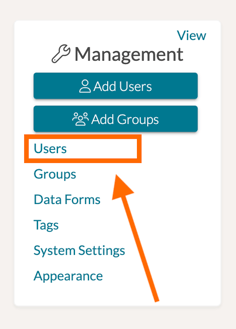
To do so, first navigate to the Management Panel on the left-hand side of your homepage. Then select 'Users.'
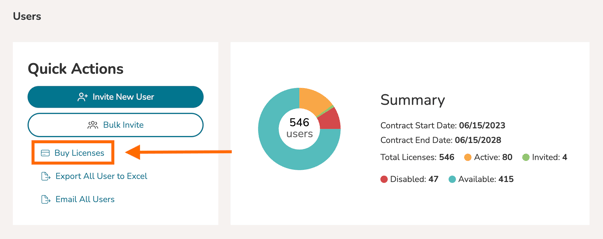
On the Users Management page, click on the 'Buy Licenses' option.
- In the pop-up that appears, insert the number of licenses you would like to purchase.
- Next, select a designated End Date (Term Ending Date).
- If you would like for the End Date to match the current End Date for your overall system, select 'Contract End Date.' Note: The end date cannot be after your system's contracted end date, which is shown in the Summary above.
- After you have input the necessary information, click 'Review Order.'

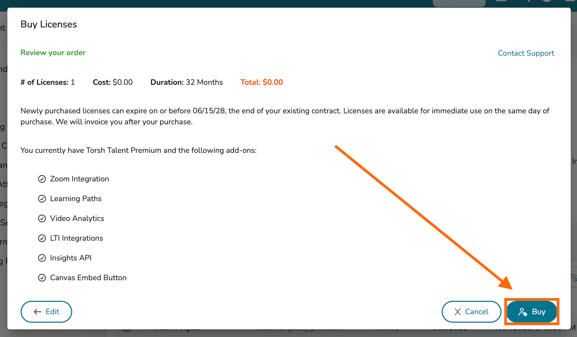
Please review the order summary. If you need to edit your purchase, select 'Edit' in the bottom, left-hand corner of the window.
Click 'Buy,' to finalize your purchase. You - and any designated Sales people for your system - will automatically receive an invoice detailing the purchase.
Want to learn more about Managing License Terms? View our help article here on adding new licenses with contract dates and renewal options.