
For users who have not yet activated their TORSH Talent accounts, you as a System Admin can resend their TORSH Talent invitations. This way those users will see a fresh email in their inbox, reminding them to activate their account in your system.
To do so, first navigate to your Management Panel on your Homepage and select 'Users.' This will bring you to your Users Management page.
Contents:
I. Resending Account Invitations Individually
II. Resending Account Invitations in Bulk
Resending Account Invitations Individually
To view your users who have not yet accepted their account invitations, first click on the 'Show Filters' toggle icon in the top, right-hand corner of the Active Licenses table to display the search filters. Then find the 'Status' column and select 'Invited' in the dropdown menu to display all of your users who are still at the Invited status.

Next, find the specific users you would like to resend an account invitation to and hover over their '...' icon. Then click 'Edit User.' This will load the Edit User Details pop-up.

In the Edit User Details pop-up window, find the '...' icon in the top, right-hand corner and select 'Re-send Invite' in the dropdown menu. This will send a new account invitation email to the email address associated with the account.

Resending Account Invitations in Bulk
As a System Admin, you can also bulk email multiple users their TORSH Talent invitations at once. To mass resend account invitations, first click on the 'Show Filters' toggle icon in the top, right-hand corner of the Active Licenses table to display the search filters. Then find the 'Status' column and select 'Invited' in the dropdown menu to display all of your users who are still at the Invited status.

From there, select all users by clicking on their associated checkboxes. Then click on the 'Bulk' button located in the top, right-hand corner of the user listings table. In the dropdown list, select 'Re-Send Invite Email(s).'
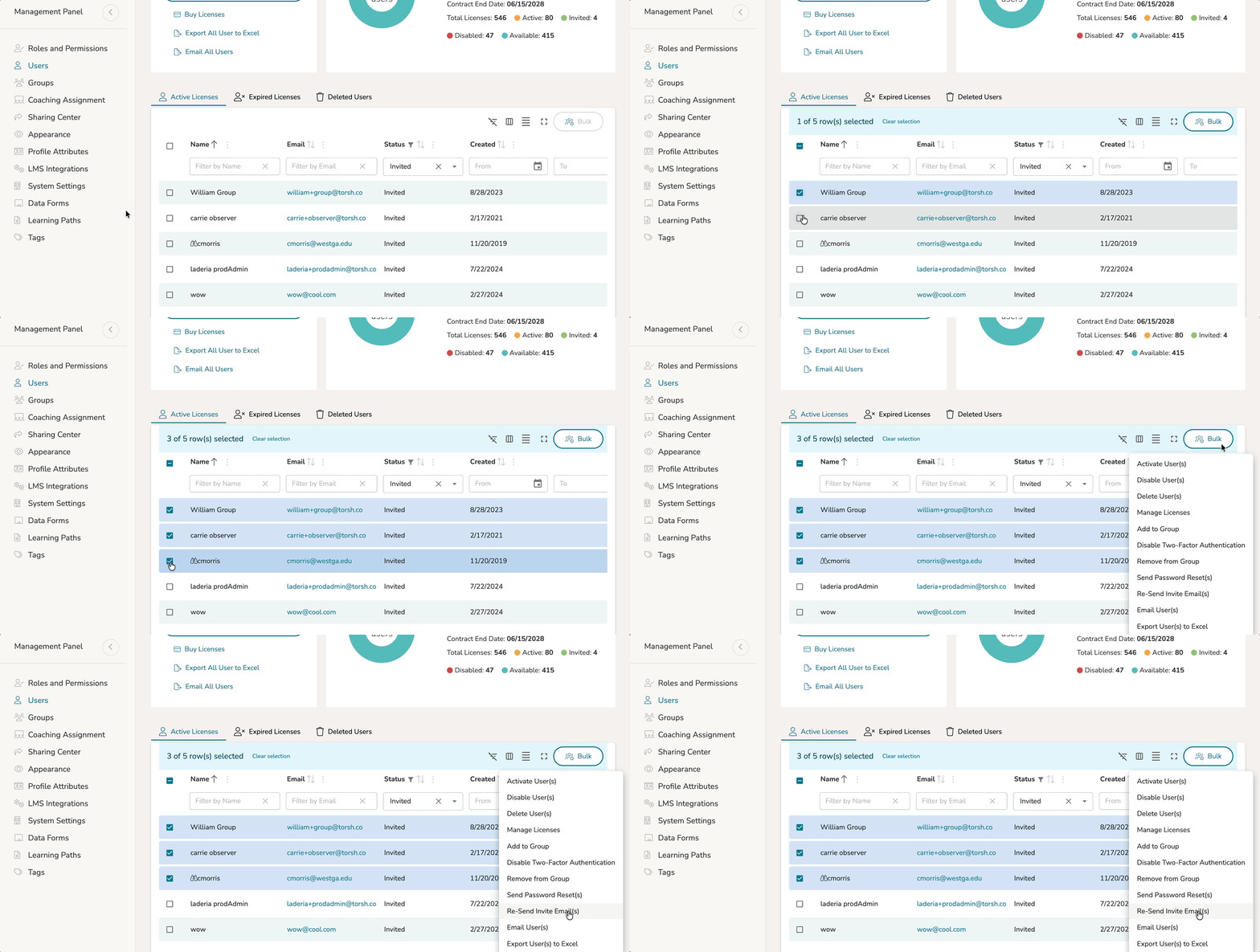
Make sure you select all the users on the following page as well (if there are any other pages to select from on your Users Management page). This will resend the invitation to all users who have not signed up for TORSH Talent yet.