
Any video that has full uploaded to the TORSH Talent website via the TORSH Talent mobile app can be shared with other users in your system!
NOTE: Your video file MUST be fully uploaded to the web platform before it can be shared via the TORSH Talent mobile app. To check if your video file has been uploaded to the web platform, look at its video description below the preview thumbnail picture and ensure that it says either 'Location: Web' or 'Location: Mobile & Web.' If the description only reads as 'Location: Mobile' it has not yet been uploaded to the web platform and will need to be uploaded in order to be shared.
Contents:
I. How To Share Your Upload in the Mobile App
II. How To Modify Share Settings for a Shared Upload
How To Share Your Upload in the Mobile App
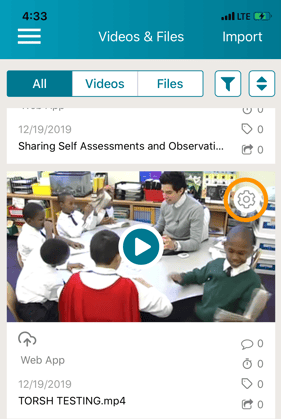
- In order to share a video/file on the TORSH Talent mobile app, first navigate to the 'Videos & Files' page from the menu. Scroll to the video or file you would like to share and tap on its 'gear icon' in the upper right-hand corner.
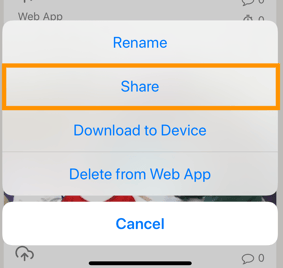
- After tapping the gear icon, tap 'Share' in the dropdown menu.
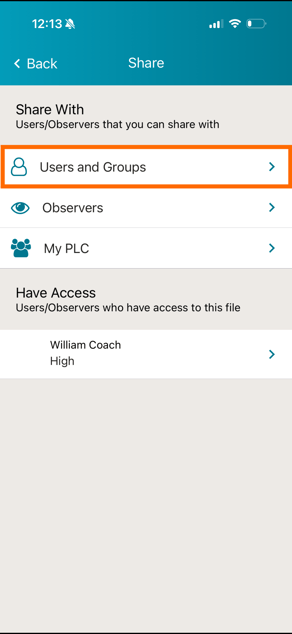
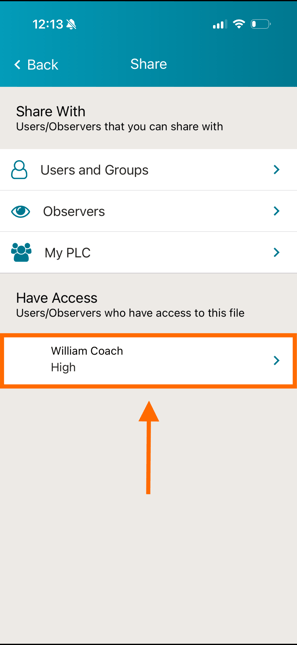
- On the next page, choose the type of user you would like to share with (Users and Groups, Observers, or My PLC). Tap 'Users and Groups' if you merely wish to share with someone in the same system as you.
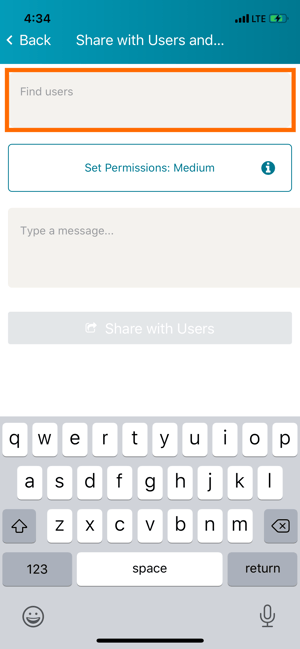
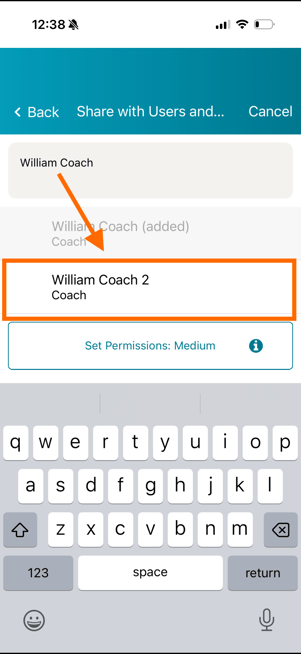
- On the next page, tap on the 'Find users' field and type in who you would like to share with. The list of users will filter out accordingly.
- Tap on the name(s) of the user(s)/group(s) you wish to share the artifact with to make your selection.
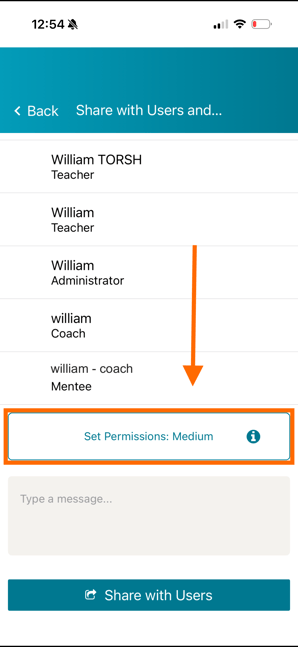
- Once you have selected the people you wish to share with, scroll down to the bottom of the page and set your Sharing Permission . By default, it will be set to 'Medium.' You can tap on the 'Set Permissions' button to change this.
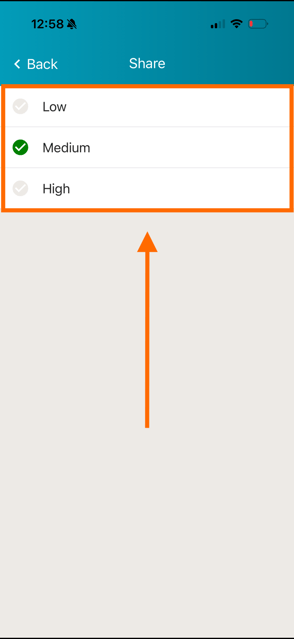
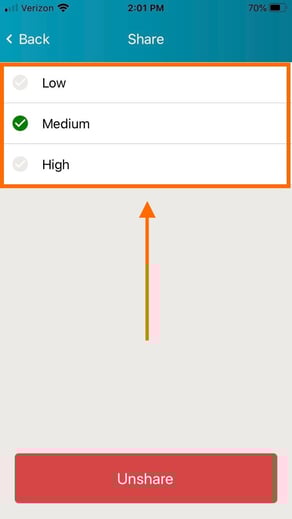
- When you do so, you will be brought to the Permissions page. Tap on any of the setting options, and your change will save automatically.
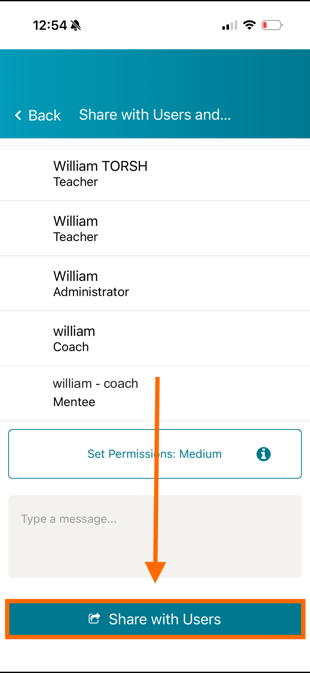
- Finally, tap 'Share with Users' to share the video out.
How To Modify Share Settings for a Shared Upload
- To modify the share settings for a previously shared upload in the mobile app, first navigate to the 'Videos & Files' page from your menu. Scroll to the video or file you would like to modify the share settings of and tap on its 'gear icon' in the upper right-hand corner.
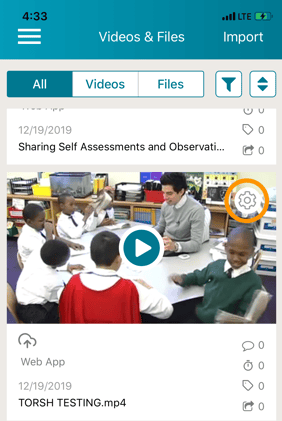
- After tapping the 'gear icon,' tap 'Share' in the dropdown menu.
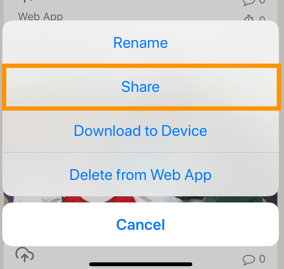
- You will be brought to the Share page of the video. At the bottom, you will see a list of each user/group this upload is currently shared with. Tap on the name to modify its settings.
- Within that share listing, you will then find the current Sharing Permission selected. Tap on a different Permission Level, and the change will save automatically. Or, if you wish to remove the user's share access to the file, tap 'Unshare' at the bottom.
Rather watch a video? Check out our tutorial on Sharing in the TORSH Talent app here . HIPAA users, click here .