
When uploading a video/file to TORSH Talent, the video must first successfully upload to the website. From there is undergoes an encoding process to be made viewable on the website for playback. Learn more about each process below!
Contents:
a. Uploading on the Mobile App
a. Encoding Failed Error Message
Uploading
First, your video needs to upload to the platform. This process sends your video file to your Talent account via our AWS servers.
Uploading on the Mobile App
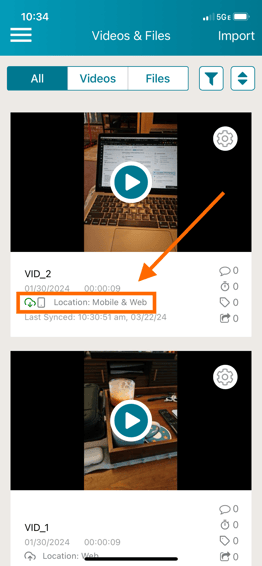
If you are uploading using the TORSH Talent mobile app, you will be see the 'Location' description change to 'Location: Web' or 'Location: Mobile & Web.' As long as this description appears with 'Web,' then the file was received by our servers to the website platform.
NOTE: Do not delete any videos off of the mobile app until you see that they have successfully uploaded to your account on the TORSH Talent web platform.
Uploading on the Website
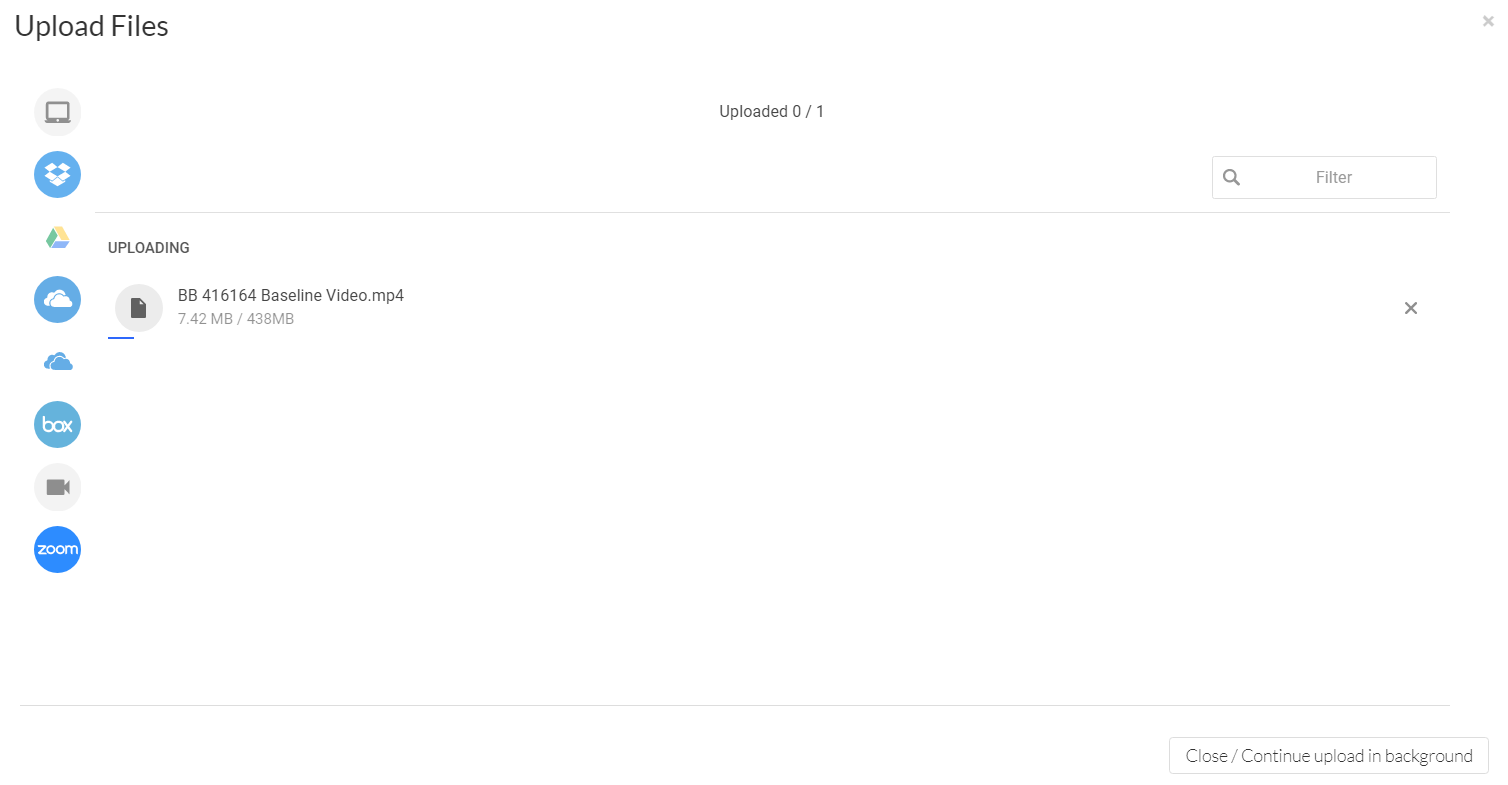
If you are uploading using the TORSH Talent website, then your Upload screen will show 100% progress and then disappear. You will then find your video on your 'Videos & Files' page.
Encoding
Encoding Failed Error Message
Did you record the video using the TORSH Talent app? If so, you can choose to upload another copy by navigating to the video in your app's Video & Files page and tapping on the 'gear icon' of your video. In the menu that appears, tap 'Upload Another Copy.'
If you uploaded the video via the website version of TORSH Talent and you have a copy of the video file on your device (or in cloud storage) you can re-upload the video by clicking the blue 'Upload' button in the top, right-hand corner of the webpage.
If neither of these options work, please check that you are able to successfully play the video all the way through and that the video file is in a compatible format.