
If your TORSH Talent mobile app upload is stuck and will not upload, there are a number of reasons that could cause this issue. But the most likely causes of this are:
If you are attempting to import a video into the TORSH Talent mobile app, and the import will not progress, please read this Help Center article instead.
I. Troubleshooting - Interrupted Upload/Re-Upload Video
If your video upload in the TORSH Talent mobile app is stuck without any further progression, it's possible it may have experienced an interruption, causing the video upload to stall/fail. You will need to cancel and restart the video upload once more.
What Causes an Interrupted Upload?
- A minor interruption in internet connection, either from accessing a new cell tower or a new WiFi network as you move, or from a brief disruption or delay to your current internet connection.
- Your video file is very large and requires a stronger internet connection.
- Closing/navigating out of the TORSH Talent mobile app before your video upload finishes.
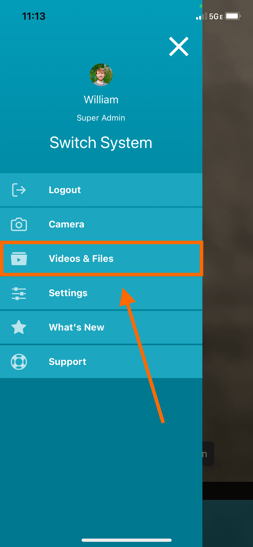
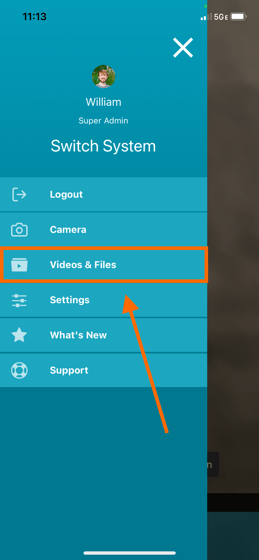
To resolve this, first open and login to the TORSH Talent mobile app. Tap on the 'menu icon' in the top, left-hand corner. Then tap 'Videos & Files.'
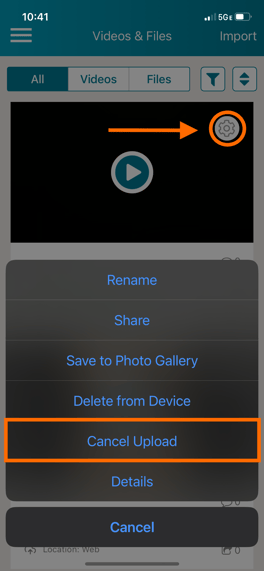
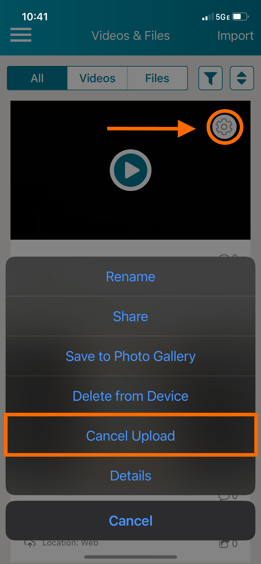
On your Videos & Files page, find the video you are attempting to upload. Tap on its 'gear icon' next to the video and tap 'Cancel Upload' in the menu that appears.
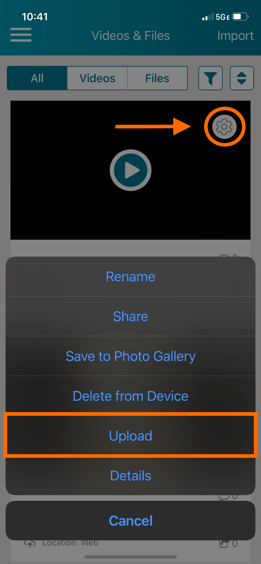
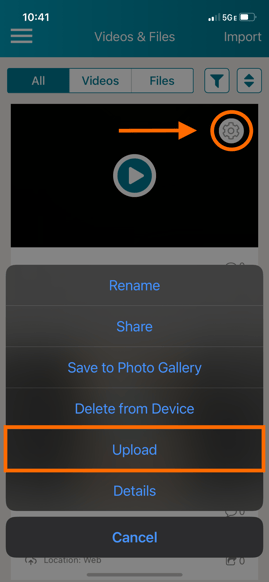
Once the video upload is cancelled, tap on its gear icon once more. Then tap 'Upload.'
Keep your mobile app open until the upload completes. Until your video has completed the upload process, the TORSH Talent mobile app must sustain a strong WiFi connection. Make sure that the progress percentage reaches 100% and that the video's status changes to 'Location: Mobile & Web' or 'Location: Web.'
II. Troubleshooting - Storage Space Unavailable/Clear Up Space
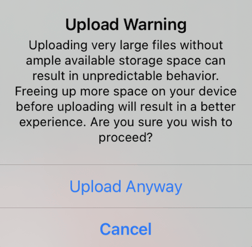
If your video upload in the TORSH Talent mobile app is stuck without any further progression, and you receive an upload warning pop-up stating:
NOTE: Uploading very large files without ample available storage space can result in unpredictable behavior.
Freeing up more space on your device before uploading will result in a better experience. Are you sure you wish to proceed?
Your mobile device is running out of storage space and most likely does not have enough storage space to provision the upload at all. In order for videos and files to upload to the internet, your immediate device not only needs enough space to create the video file, but it also needs the same amount of space as the created video file to temporarily process an upload copy that is then sent to our web servers for storing the video file copy.
The 'Recording Time Available' shown on the TORSH Talent mobile app's Camera page is dependent on how much space is available on your mobile device to save the video. Usually this is a good reference point for how much space you have available on your device.
To free up storage on the TORSH Talent mobile app, you can delete any old photos, videos, or unused apps. You can learn more about how to quickly manage your storage space here.
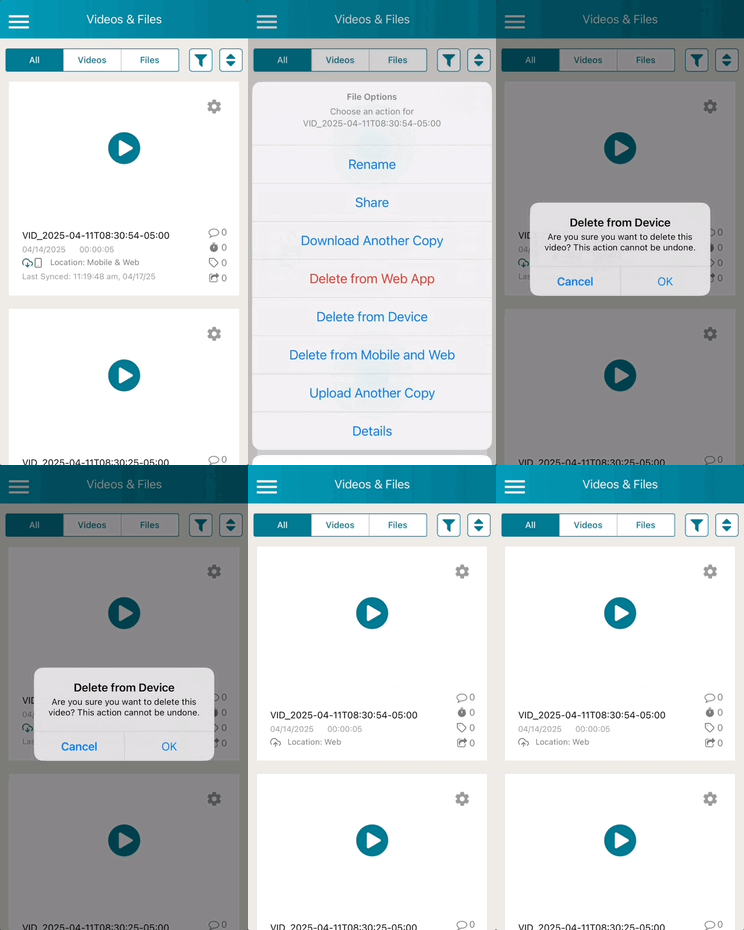
Additionally, if any of your videos in the TORSH Talent mobile app have been successfully uploaded to the Talent web platform and display with a Status of 'Location: Mobile & Web', they can be deleted from the mobile app by tapping the gear icon of each video on the Videos & Files section of the mobile app and selecting 'Delete from Device.' Doing so will leave the web copy but delete the copy that is stored on your device.
Once you have freed up further space on your device, please try your video upload again using these steps. Tap on the 'menu icon' in the top, left-hand corner. Then tap 'Videos & Files.'
On your Videos & Files page, find the video you are attempting to upload. Tap on its 'gear icon' next to the video and tap 'Cancel Upload' in the menu that appears.
Once the video upload is cancelled, tap on its gear icon once more. Then tap 'Upload.'
Keep your mobile app open until the upload completes. Until your video has completed the upload process, the TORSH Talent mobile app must sustain a strong WiFi connection. Make sure that the progress percentage reaches 100% and that the video's status changes to 'Location: Mobile & Web' or 'Location: Web.'
NOTE: If your system has any Mobile App settings in place, it's possible your video recordings will automatically appear as either 'Location: Web' if the upload was successful and only exists on the web platform, or 'Location: Mobile' if the upload was unsuccessful and only exists on your device's TORSH Talent mobile app to make sure it's available for reupload.
To learn more about these Mobile App system settings your organization manages, please see this Help Center article here.