
When uploading videos & files to TORSH Talent, internet connection strength and speed are important factors to keep in mind. The FCC legally defines high-speed internet or “broadband” as an internet connection with a Download Speed of 25 Mbps or higher and an Upload Speed of 3 Mbps or higher. If your connection is below that range, it may cause issues with uploading from your device.
Please read the following Help Center article for further information about upload speed and video upload time estimates:
Testing WiFi Connection Strength
There are several ways to test your WiFi speed. When doing so, make sure that you are testing it through the device you are uploading your videos & files from, as it may vary between devices.
If you are using a mobile device, make sure that your 'Cellular Data' setting is turned OFF so that you can ensure the internet connection reading is for your WiFi connection specifically; otherwise, it may throw off your reading.
Open your web browser app and go to Google Search. Type in ‘internet speed test.’

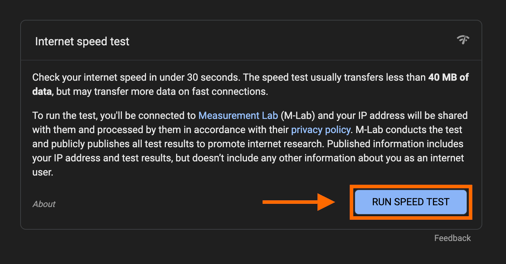
The first option on your Search page should list a giant ‘RUN SPEED TEST’ button. Click ‘RUN SPEED TEST.’

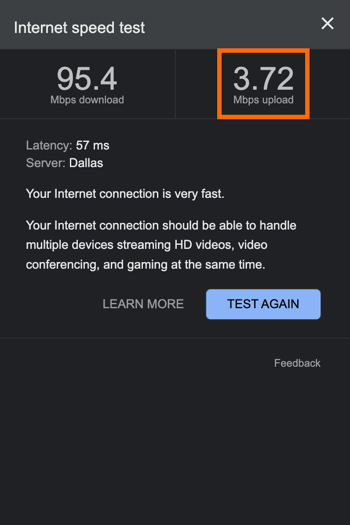
After the test generates, you should see your Download and Upload speed. The Upload Speed will be your determining factor for video uploads. An Upload Speed of 3 Mbps or higher should be stable enough to process your upload (though, keep in mind that a very large file over 1GB in size may also lead to a slower than usual upload process).
Testing Cellular Data Connection Strength
If the device you are using has Cellular Data capability, you may find that you have a stronger internet connection when connected to Cellular Data.
NOTE: Your Cellular Data plan will apply to uploads made through the TORSH Talent mobile app when enabling the 'Cellular Data' option in the mobile app.
To determine your Cellular Data connection strength, first turn OFF your WiFi connection in your device's settings. Then turn ON your Cellular Data connection.
Open your web browser app and go to Google Search. Type in ‘internet speed test.’

The first option on your Search page should list a giant ‘RUN SPEED TEST’ button. Click ‘RUN SPEED TEST.’
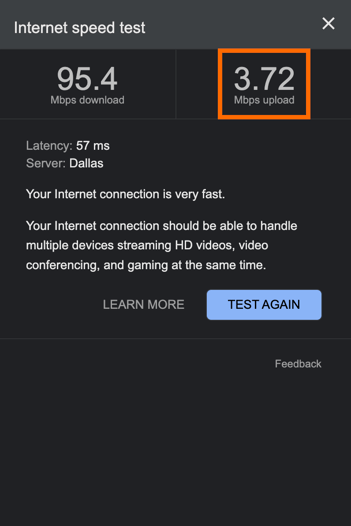
After the test generates, you should see your Download and Upload speed. The Upload Speed will be your determining factor. An Upload Speed of 3 Mbps or higher should be stable enough to process your upload (though, keep in mind that a very large file over 1GB in size may also lead to a slower than usual upload process).
Connecting to WiFi
If your internet connection is stronger when connected to a WiFi network, we suggest turning OFF your Cellular Data setting on your device and allowing the upload to process without Cellular Data enabled.
Connecting to Cellular Data in the Mobile App
If your internet connection is stronger when connected to Cellular Data, we suggest turning OFF your WiFi setting on your device and allowing the upload to process with the 'Cellular Data' setting enabled in the TORSH Talent mobile app.
NOTE: Your Cellular Data plan will apply to uploads made through the TORSH Talent mobile app when enabling the 'Cellular Data' option in the mobile app.
Most mobile apps will have Cellular Data capability enabled by default; however, for the TORSH Talent mobile app, you will need to manually enable this setting.
To do so, open the TORSH Talent mobile app and login. Then tap the 'menu icon' in the top, left-hand corner and select 'Settings.'

On your Settings page, find 'Cellular Data' and tap on the button beside it so that it displays as 'BLUE/ON.' Your TORSH Talent mobile app will now be able to upload using your device's Cellular Data.
