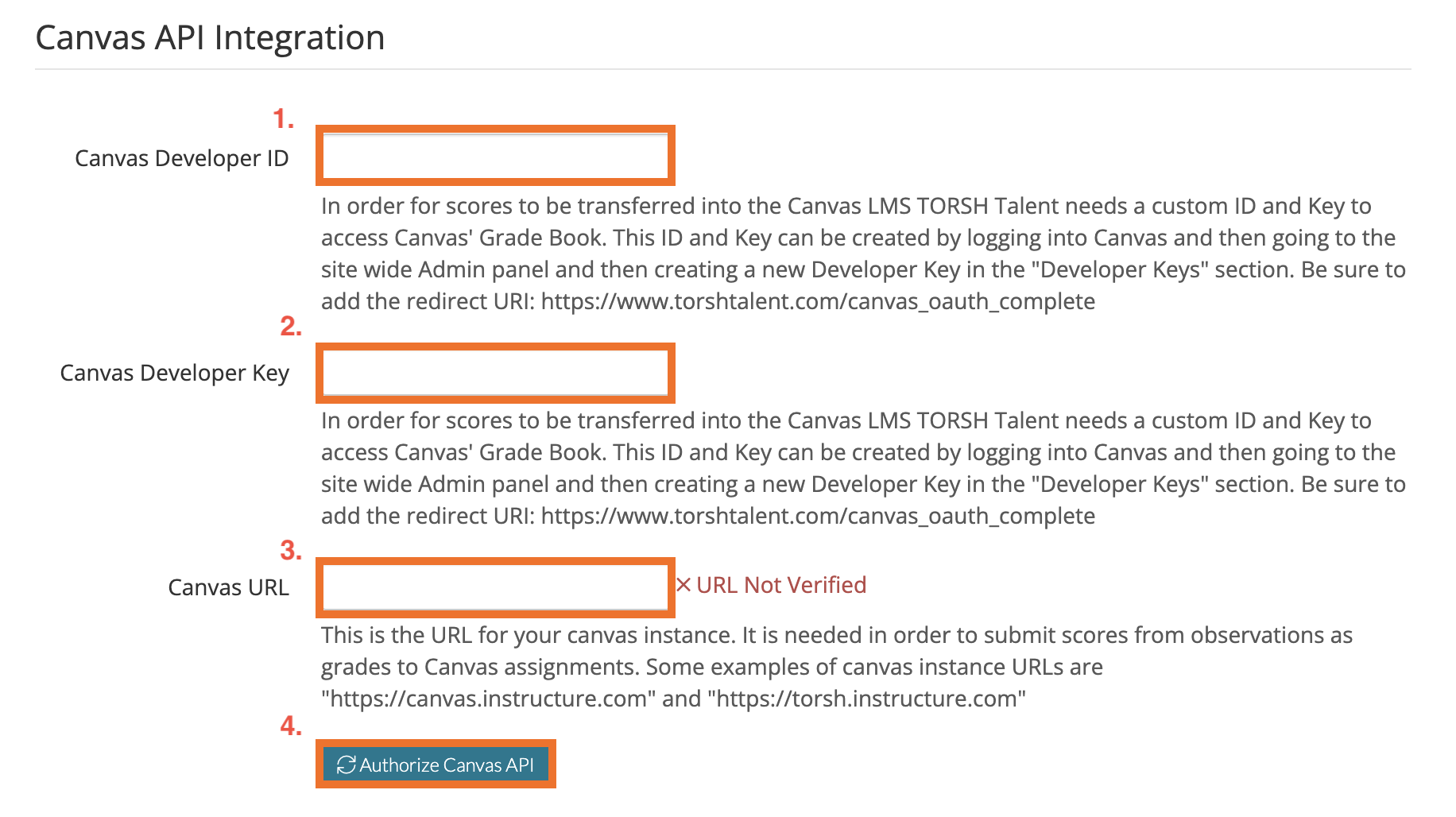
With our Canvas LMS Integration, we support the use of Developer API Keys, which Canvas Admins can utilize to gather specific data from their Talent system's course data. In order for scores to be transferred into the Canvas LMS, TORSH Talent needs a custom ID and Key to access Canvas's Grade Book.
Creating a Developer Key
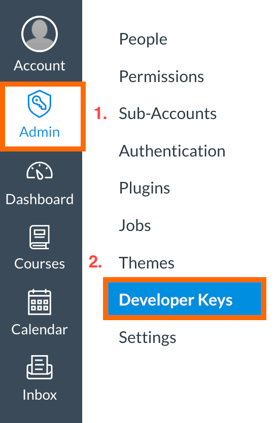
To create a Developer Key, first login to Canvas with your Admin account. Then go to your Admin Panel. From your Admin Panel, choose 'Developer Keys.'
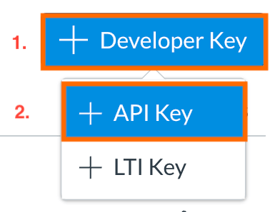
From your Developer Keys page, click '+ Developer Key.' A dropdown list will appear, choose 'API Key.'
A new window will appear.
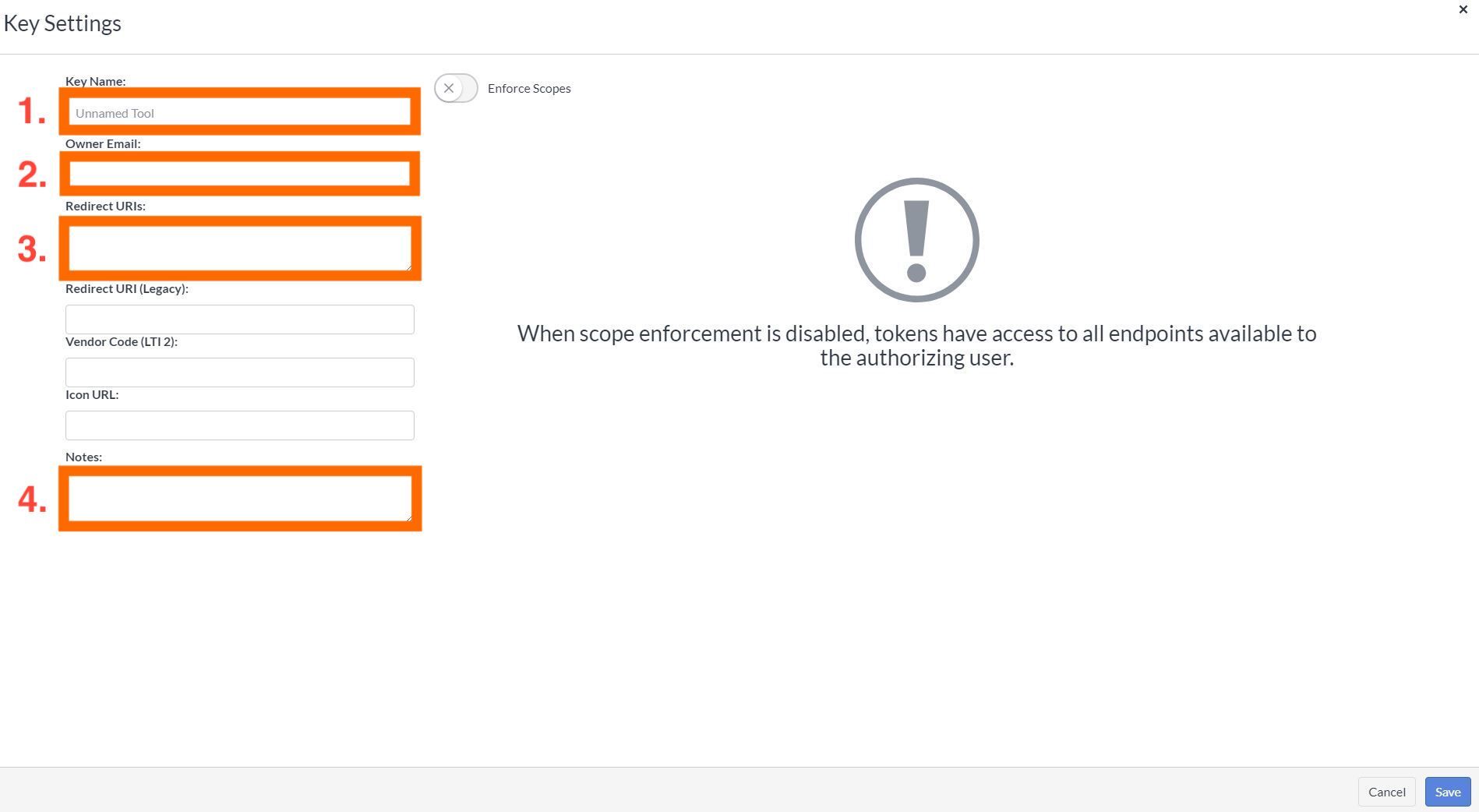
Only enter information for the following fields:
- Key Name - Usually your app, company name, or the name of the platform you are integrating. This field will be shown when users are asked to approve access to their Canvas account on your behalf.
- Owner Email - The email of the admin creating the developer key.
- Redirect URIs - The domain(s) where tokens are requested. These URIs are not your Canvas URL. To avoid mixed content browser concerns, use https. Your Redirect URI will depend on the Talent domain you are currently using:
- For Talent, use - https://www.torshtalent.com/canvas_oauth_complete
- For Talent HS, use - https://hs.torshtalent.com/canvas_oauth_complete
- Notes - Any notes about the developer key, such as the reason it was created.
Enforcing Scopes
Once you have entered this information, you can choose to 'Enforce Scopes.' The API key's scopes allow you to customize specific access to the key.
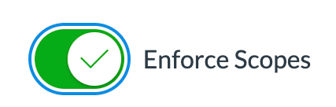
NOTE: You do not need to Enforce Scopes for your API Key to function. If you choose to not enforce your scopes, the key will have access to all endpoints available to the authorizing user.
After you have filtered your selected scopes, please click 'Save Key' in the bottom, right-hand corner to save your API Key.

Turn Developer Key On
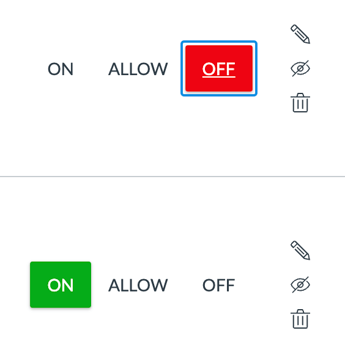
You will now find your Developer Key listed on the Developer Keys page. To enable the developer key, the State must be turned ON.
If the State is OFF, the developer key will not work. Note that when the key is created, the default state is OFF.
Linking the Developer Key To Talent
To properly link this key to your Talent system, you will need to gather the following:
- Canvas Developer Key ID - the (14) digit number located underneath the 'Details' column of your newly created API key.
- Canvas Developer Key - the string of characters found when you select the 'Show Key' button on your API key.
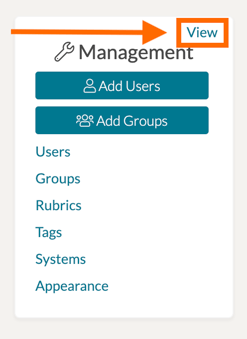
Next, login to Talent. From the Home page, navigate to the Management Panel by selecting 'View' beside the Management Panel on the far-left side of the Talent webpage. This will take you to the Management Panel page.
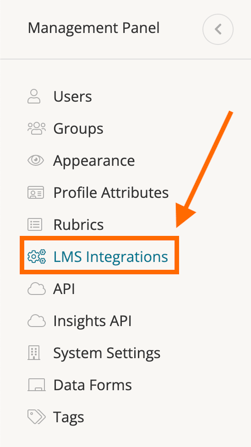
From the Management Panel page, select 'LMS Integrations' on the far-left side panel.
Scroll down to the section titled, 'Canvas API Integration.' Copy/paste your Canvas Developer Key ID and your Canvas Developer Key into the respective text fields.
Lastly, copy/paste your 'Canvas URL.' This is the URL for your canvas instance. It is needed in order to submit scores from observations as grades to Canvas assignments. Some examples of canvas instance URLs are "https://canvas.instructure.com" and "https://torsh.instructure.com"
Click the 'Authorize Canvas API' button to authorize your integrated API key.