
When you upload a video or file to TORSH Talent (or when you view a video shared with you at 'High' Permissions by another user), you can add Content Tags to the artifact to better organize and designate it for specific purposes based on the protocols of your organization.
To add a content tag, first open the video/file's webpage. Next, click on its 'Overview' tab.
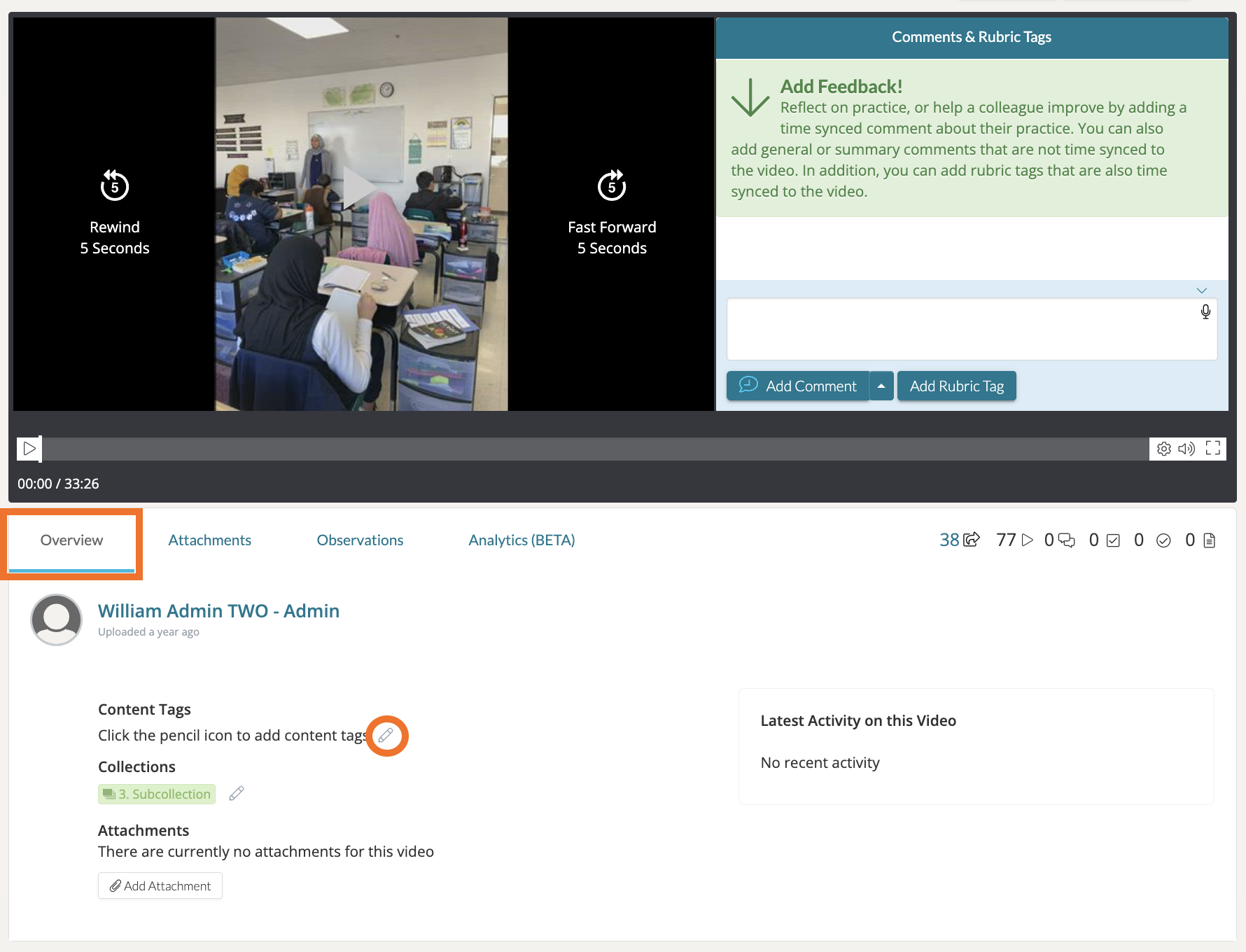
In the Overview section, find the 'Content Tags' listing and click on the corresponding 'pencil icon.' Enter your content tag and save your changes by clicking the 'checkmark icon.'
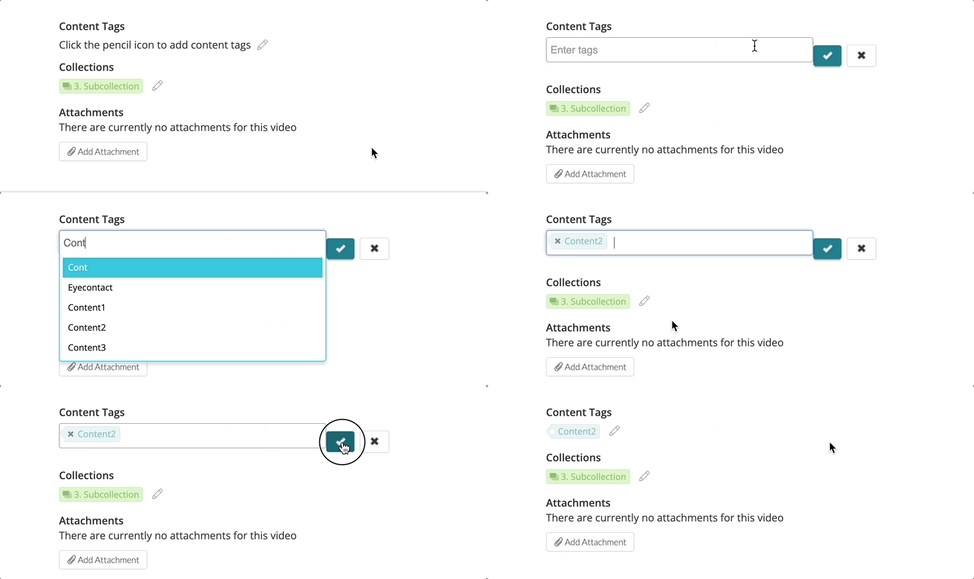
To add a content tag that contains more than one word, put a dash ( - ) or an underscore ( _ ) between the words of the tag. For example, the tag "language arts" would instead be "language-arts" or "language_arts" in Talent.

Rather watch a video? To learn more about Talent's organization features such as Tags, Titles, and Descriptions, check out our video tutorial here. HIPAA users, click here.