
If you would like to disable/archive and/or delete a report in Report Builder, navigate to the Report Builder Hub by going to Insights.
Disabling/Archiving a Report
From the Report Builder Hub, find the report you would like to archive. Next, find the ‘Actions icon’ on the far, right-hand side of it. A dropdown menu will appear. Click ‘Archive.’
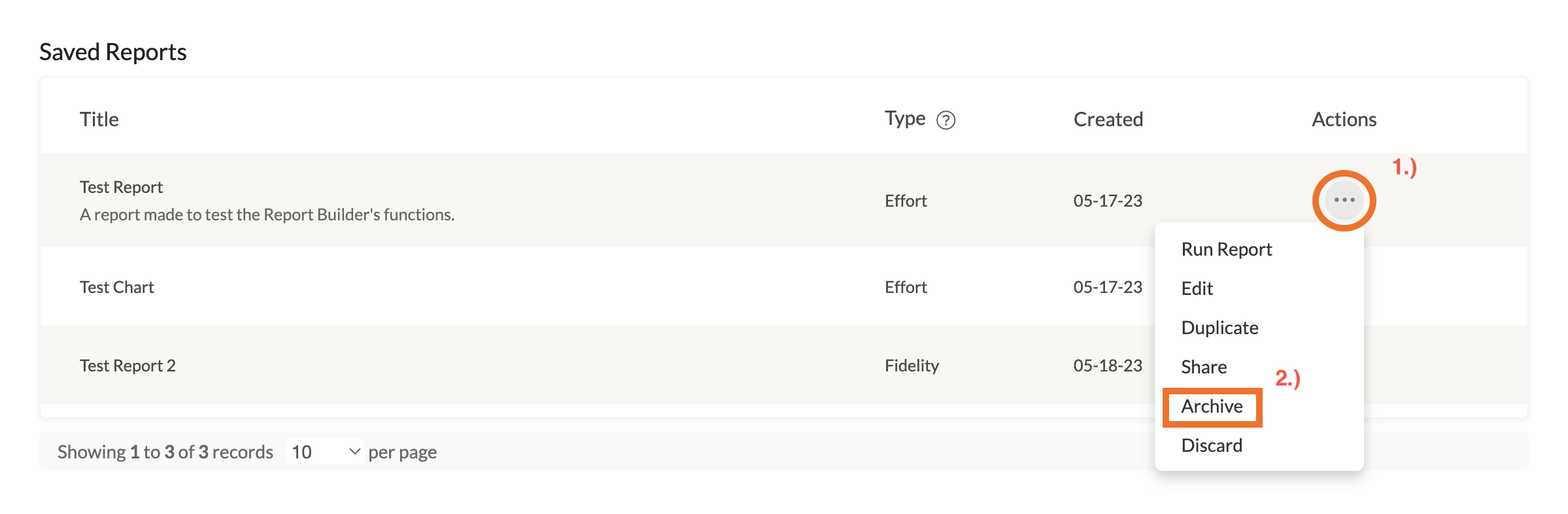
A new window will appear, verifying that you are sure of your decision. Click ‘Archive’ to archive your report. You will now find it under ‘Archived Reports.’
Deleting a Report
If you would like to delete your report, find the ‘Actions icon’ on the far, right-hand side of your report. A dropdown menu will appear. Click ‘Discard.’ A new window will appear, verifying that you are sure of your decision. Click ‘Discard.’ Doing so will discard the report to your Trash.
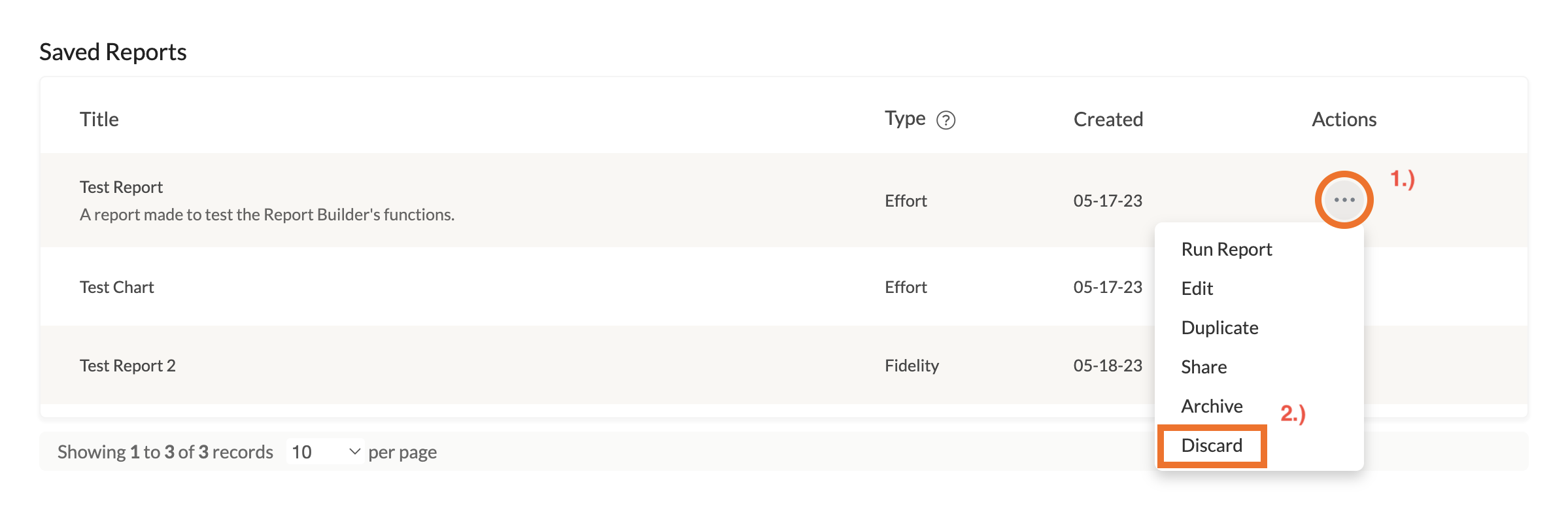
All discarded reports will automatically delete after (30) days; however, if you would like to manually delete your report, you can do so by first visiting your Trash on your Report Builder Hub.
Find your report and then find the ‘Actions icon’ beside it. A dropdown menu will appear. Click ‘Delete.’ A new window will appear, verifying if you would like to permanently delete your report. Click ‘Delete’ to permanently delete your report.