
Note: This feature is only available for Premium Systems.
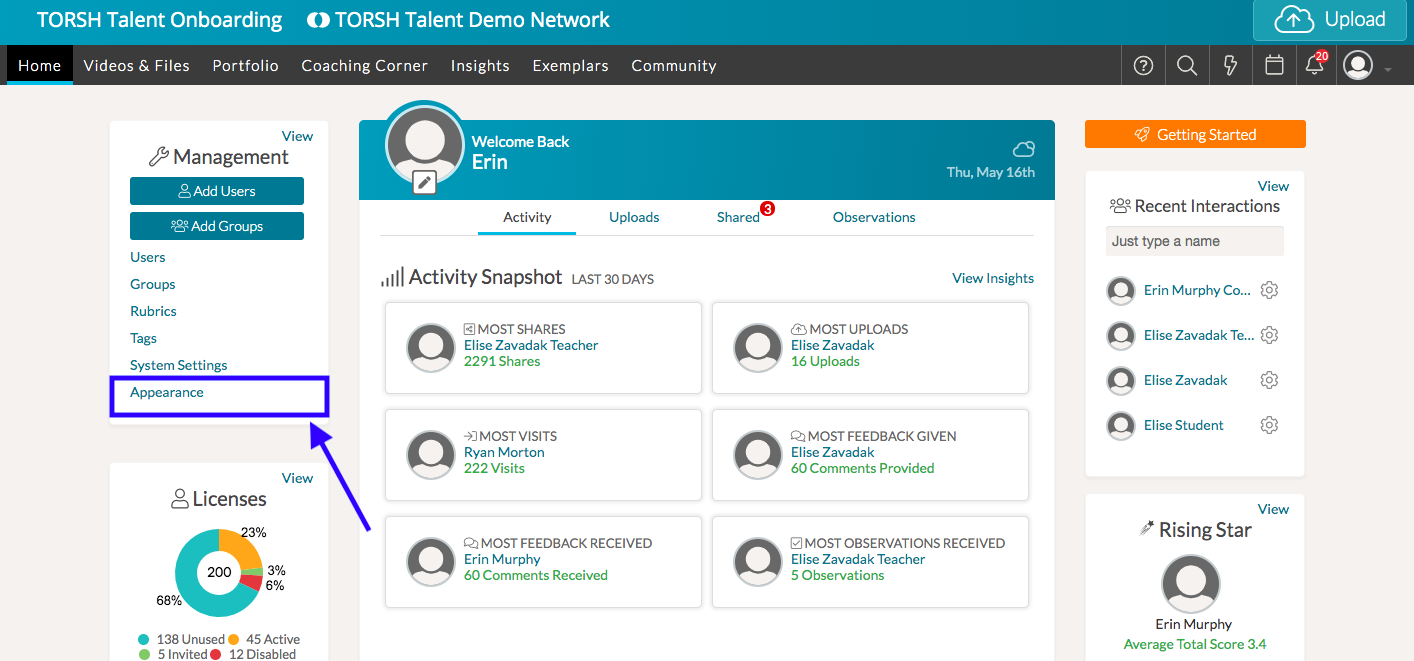
As a System Admin, you can customize the appearance of Talent for your system! You can do this by selecting 'Appearance' on the Management Panel of your homepage.
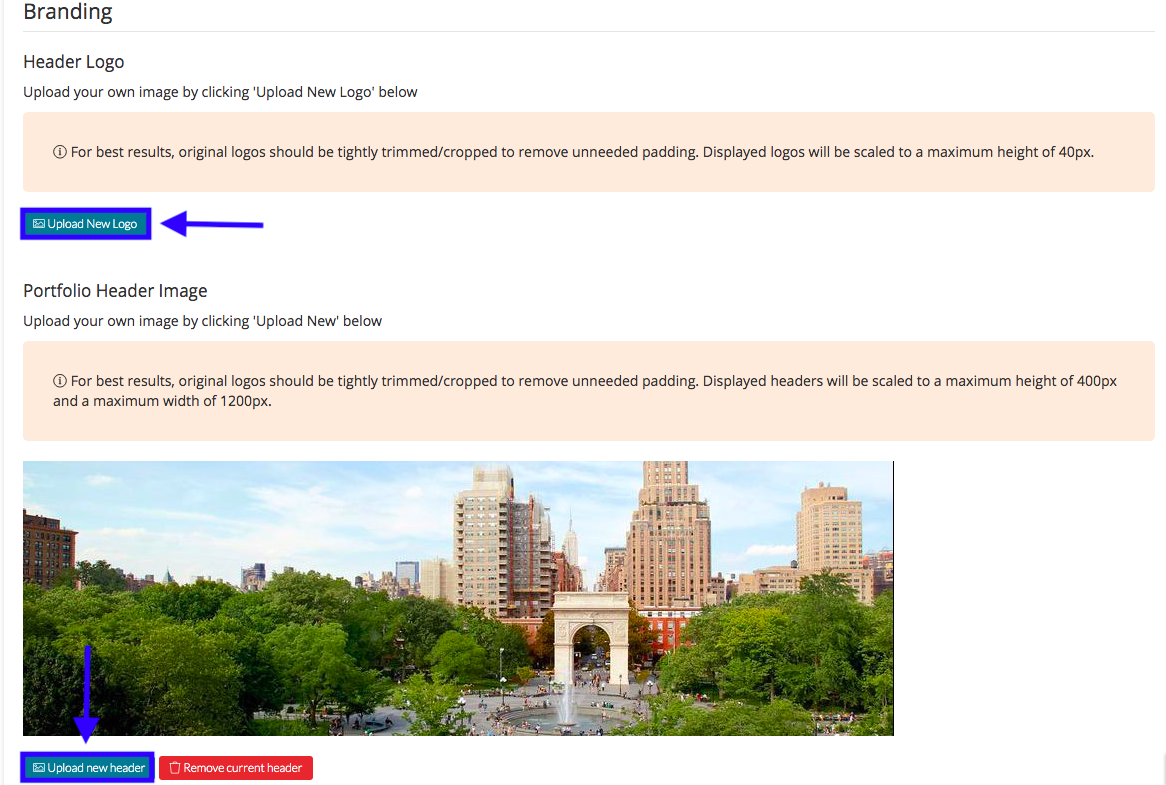
Under 'Branding,' you can upload your school or organization’s logo by selecting 'Upload New Logo.' The logo will appear on the Talent header for everyone in your system. You can also upload a photo for the header of your system's 'Portfolio' page, if your system has that feature enabled.
You can even customize the colors of Talent to match your organization's branding by turning 'Custom Colors On.' You can either select the specific color you like using the color palette, or if you know the specific color code, you can enter it in the appropriate text box. You can change the background color and the text colors of the header, as well as the background and text colors for primary navigation, secondary navigation, and buttons.
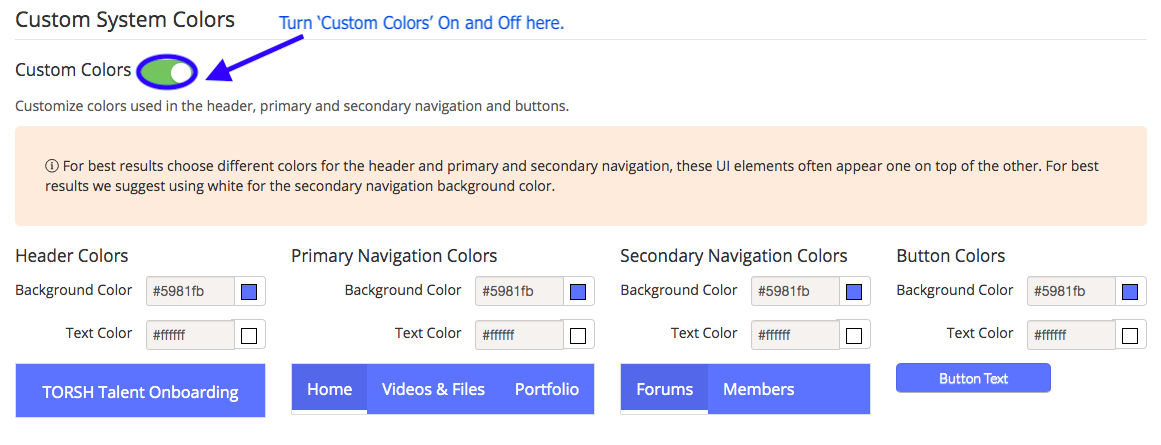
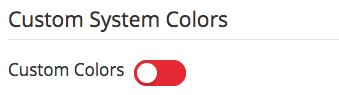
The changes will be made in your system instantaneously. When you view a video, you'll notice that the video timeline color also changes to match the primary navigation colors. You can always revert to the original Talent colors by turning 'Custom Colors Off.'
You can remove the Header logo or the Portfolio header image by clicking the red 'Remove current header' button underneath the image.

Rather watch a video? Check out our video tutorial on Changing System Appearance here. HIPAA users, click here.