
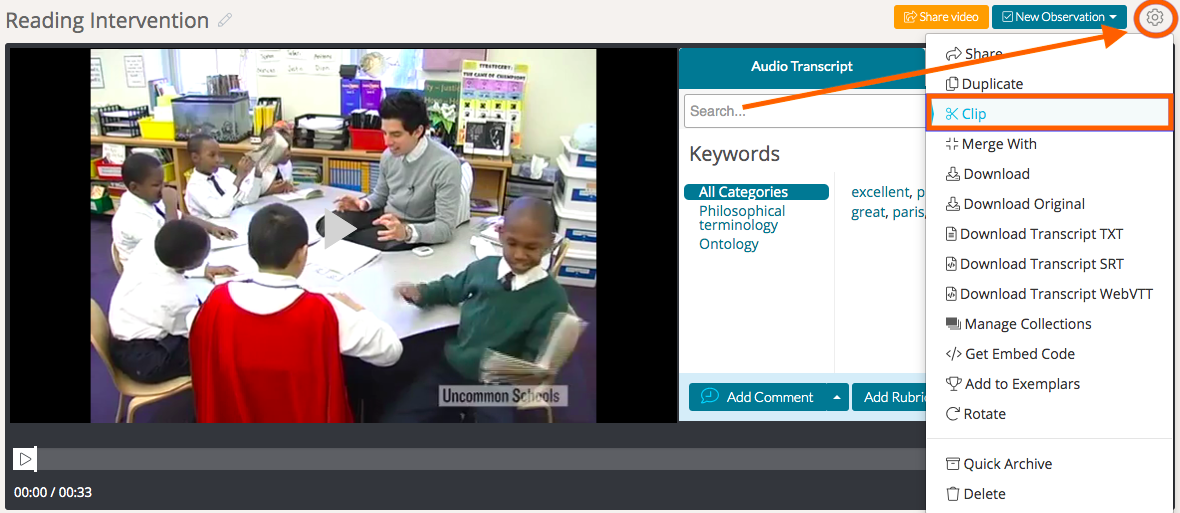
To clip a video in TORSH Talent, open the video you want to clip and hover over its 'gear icon' found in the top, right-hand corner of the video. Then, select 'Clip' from the dropdown menu. Doing so will create a new video upload of the selected clip portion.
NOTE: You can only clip a video if you own the video or if you made a duplicate copy of a video that someone shared with you at the 'High Permissions' level.
You will then be able to click and drag the clip's head and tail markers to only include the part of the video you would like to keep.
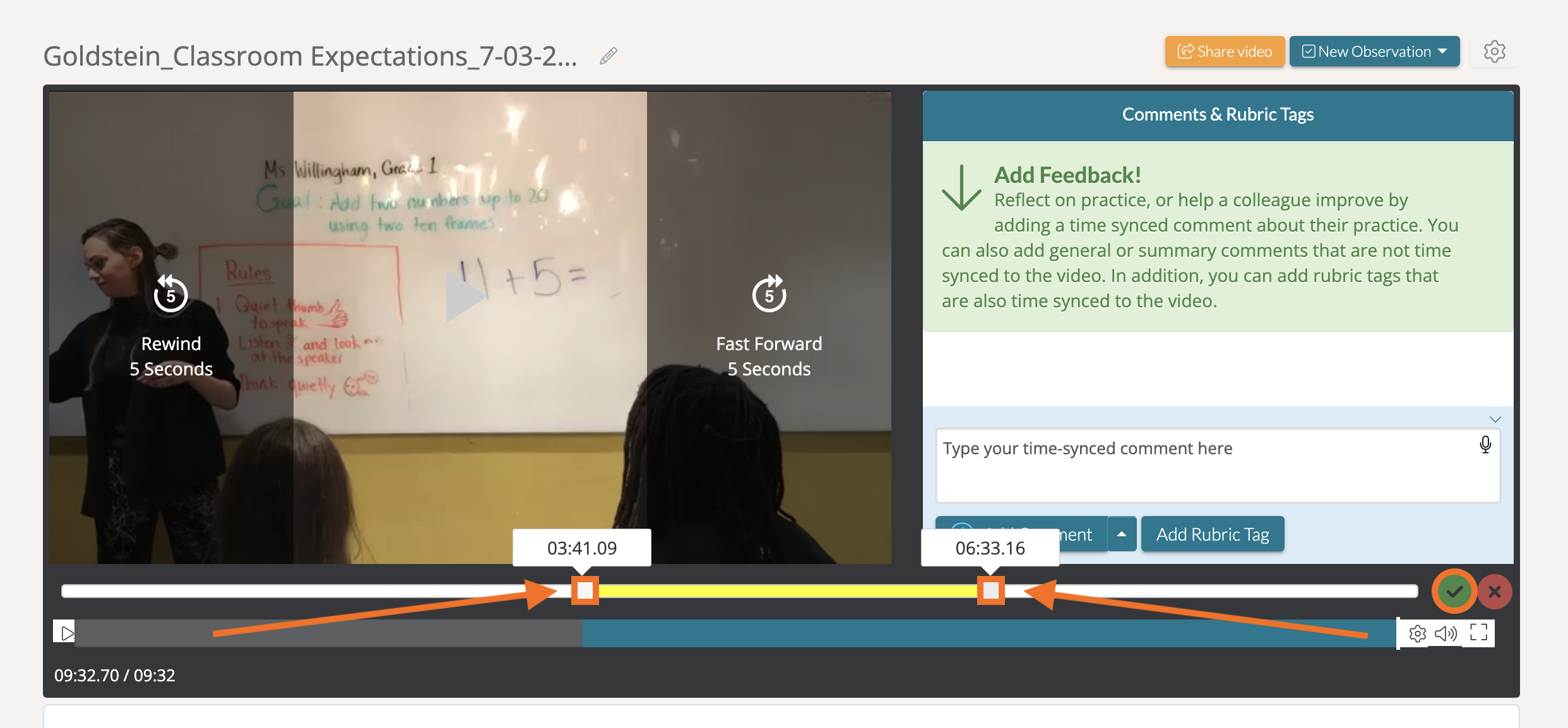
If you would like to further define the exact moment your clip starts and ends, you may do so by clicking on and typing into the displayed timecode box above either the head or the tail of the clip.

Click the green 'checkmark icon' on the far right-hand side of the video timeline when you are done shaping your clip, and your clip begin to encode. Once it is done encoding, you will then be able to find the clipped video on your Videos & Files page. Do note that it may take several minutes for the clipped video to encode/process in order to be viewable.
Rather watch a video? Learn more about how to edit a your videos by watching our video tutorial here. HIPAA users, click here.