
Each Learning Path module leads a learner to a Results message upon completing the module. As an Admin/Coach with Learning Path authoring privileges, you can create a customized Results message for users to see upon completing each of their modules!
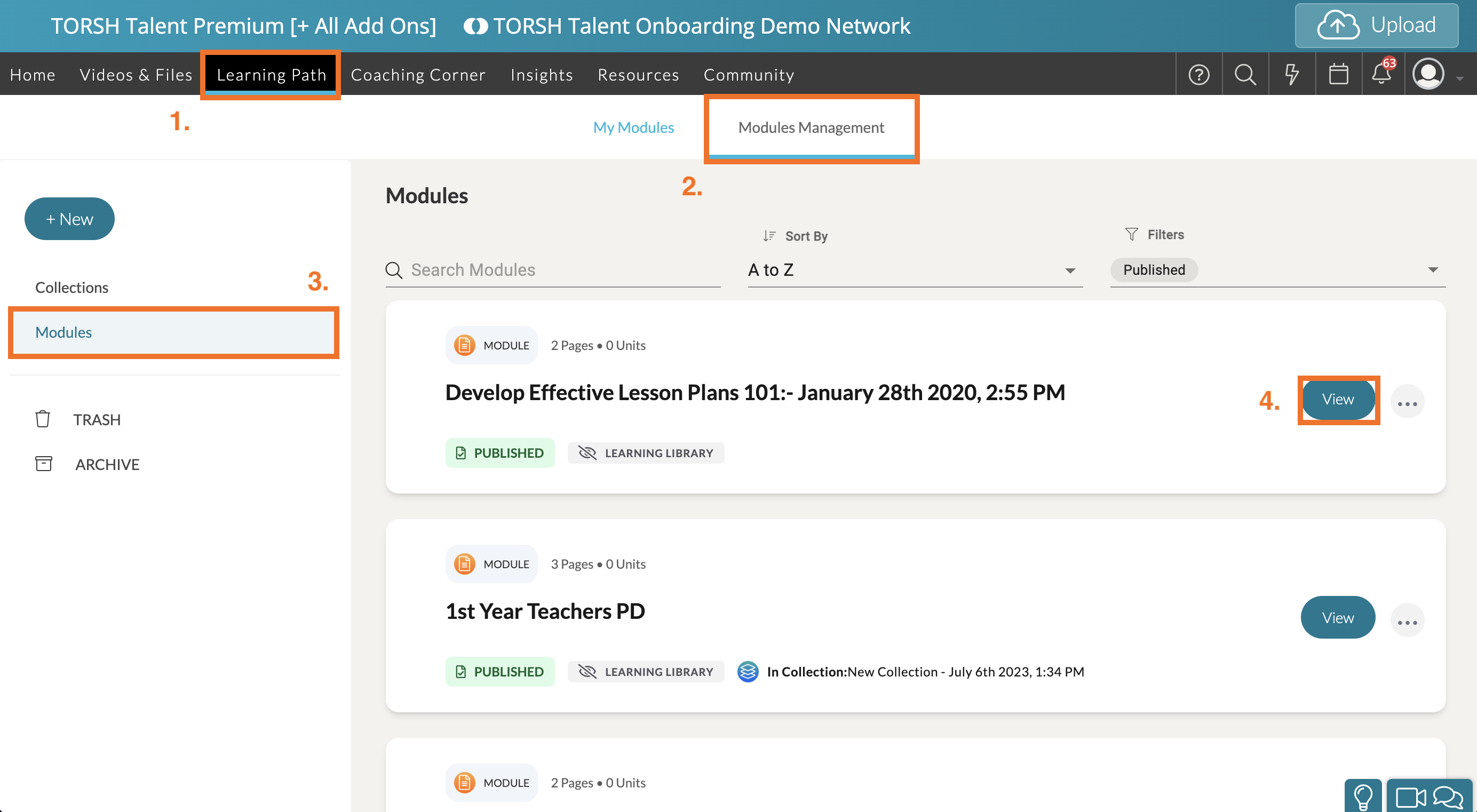
To do so, you will need to navigate to your module's settings. First, navigate to 'Learning Paths.' Then click 'Modules Management.' Click 'Modules' on the far, left-side panel and then find the module you would like to modify. Click 'View.' This will take you to the modules 'Contents' page.
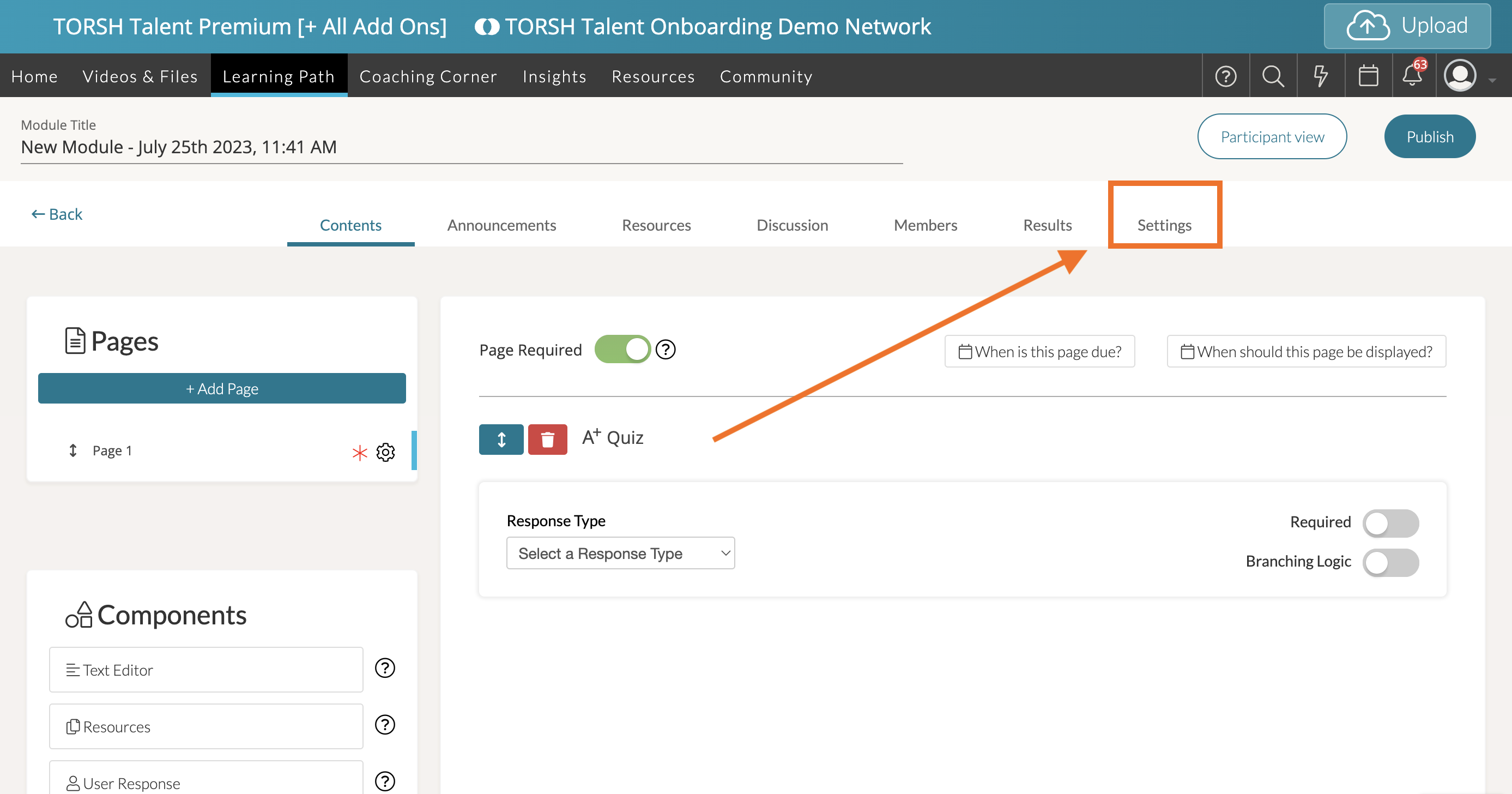
From the module page, click the 'Settings' tab to view the module's settings.
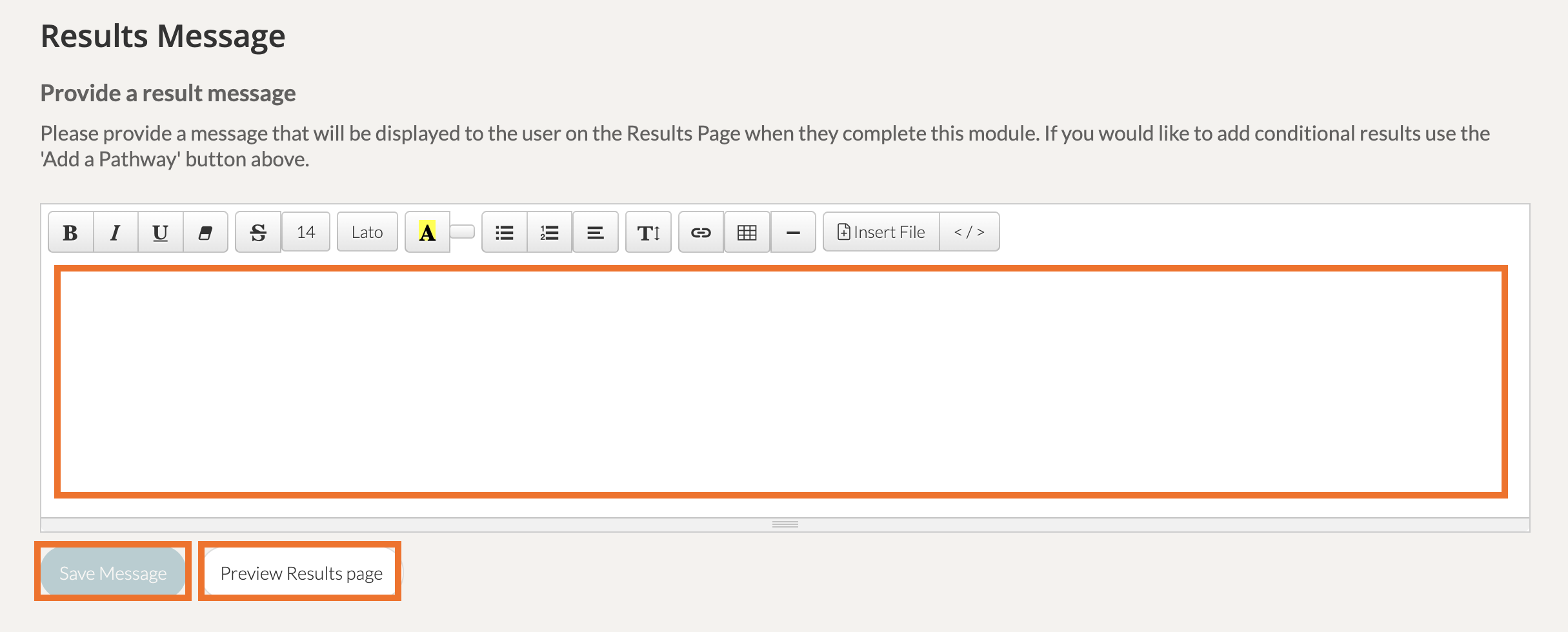
On the Settings page, scroll down to the bottom section labeled 'Results Message.' Here you can type up the generic message that will appear for users who complete the module you created. You can even preview how the message will appear by clicking 'Preview Results page'.
To save your Results Message to your module, click 'Save Message.'
Results Message with Conditions
If you would like to create a Results message with conditions - like in the case of a user not meeting the full criteria of a module, or in the case of a user who has earned access to another module by completing another - you can do so via your Module Completion Pathways. Learn more HERE .