
On your Videos & Files page and the Exemplar Library, you can create Subcollections to further organize your files.
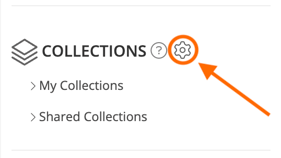
As an example, go to your Videos & Files page and scroll to the Collections list on the left. Use the gear icon to open the Collections Management screen.
When you hover over the title of a collection, you'll see the options for 'Delete' and '+ New Subcollection' appear to the far right.

To create a subcollection inside another collection, click the '+ New Subcollection' option, then give your subcollection a title. Click the 'checkmark icon' to save your new subcollection. Then click 'Save' in the bottom, right-hand corner of the Collections Management pop-up to save your changes to your collections.

Rather watch a video? Check out our tutorial on creating Collections here. HIPAA users, click here.