
All users can create Content Tags in the Overview section of their uploaded videos & files for better organization. As a System Admin, you can create and manage content tags for your system. To do so click on 'Tags' from the Management panel on your Talent homepage.
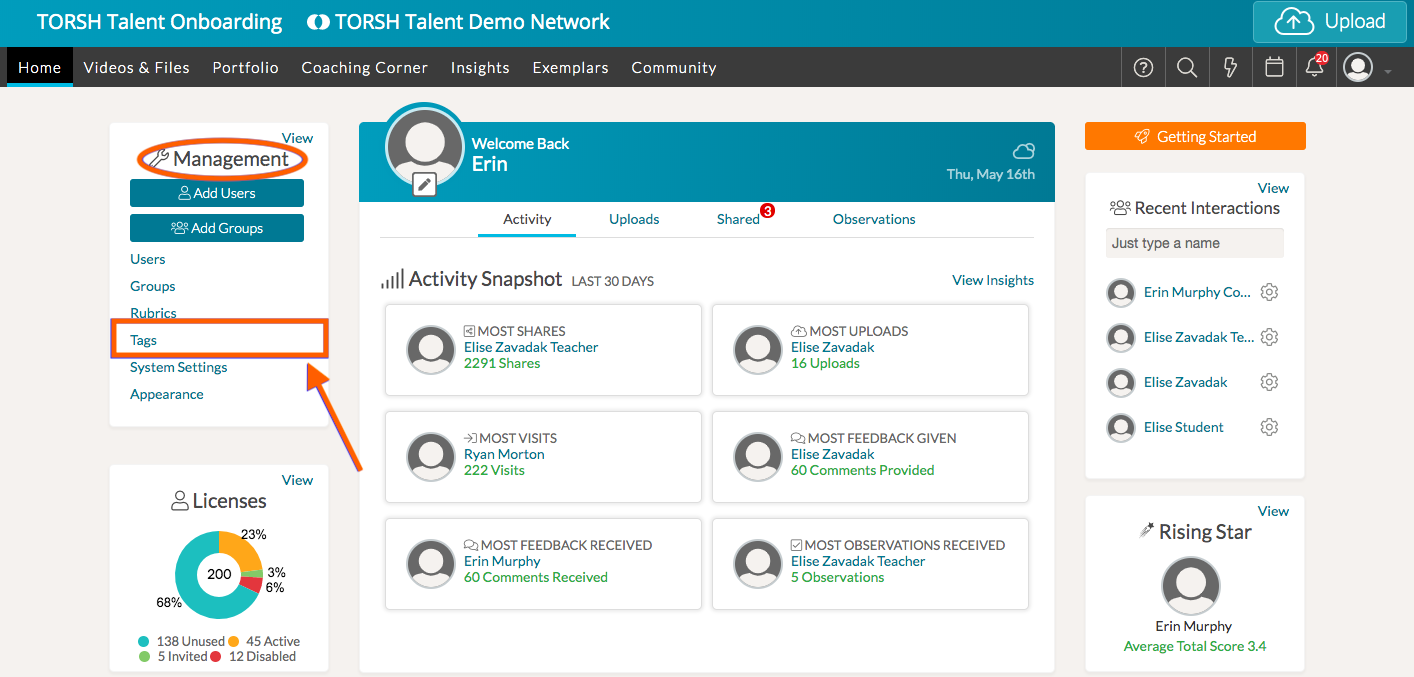
By default, this will take you to the 'Content Tags' tab. To create a new tag for your system, click the orange 'Add New Content Tag' button.
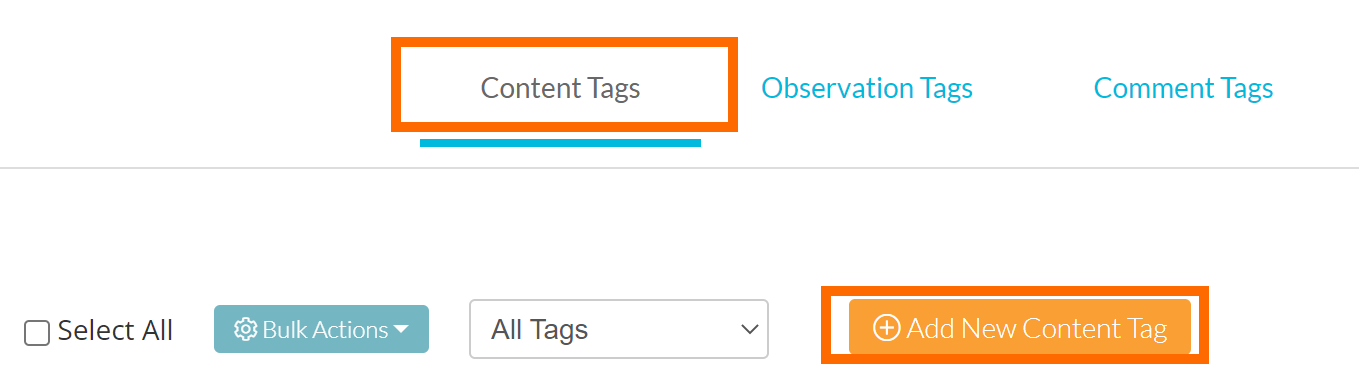
You will then have the opportunity create new tags! The tags you create will be auto-suggested when tagging videos, files, and forums. When entering one or more tag, separate each tag with a space before saving. When entering a multi-word tag, combine the words with a dash or an underscore. Click the blue 'checkmark icon' when you are done.

Suppressing Content Tags
While you cannot delete content tags from the system as a suggestion, you do have the option to suppress content tags. When you suppress a tag, it is no longer auto-suggested when tagging artifacts. To suppress a tag, hover over the 'gear icon' for the specific tag and click the 'red hand icon' that appears.

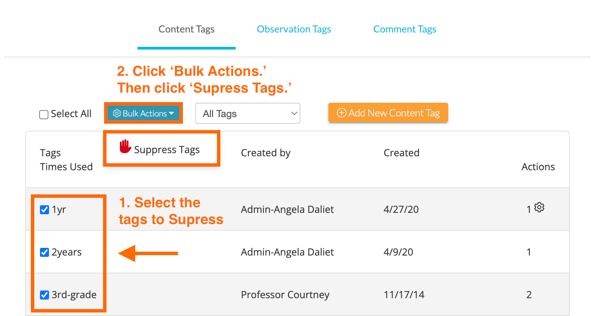
If you would like to suppress more than one tag at a time, select the tags you'd like to suppress then choose 'Suppress Tags' from the 'Bulk Actions' button.
Rather watch a video? Check out our video tutorial about Creating and Managing Tags here. HIPAA users, click here.