
As an Admin, you can create and manage the digital certificate templates assigned to specific Learning Path modules and courses in your system!
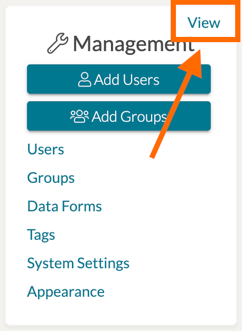
To do so, navigate to your Management Panel on your home page and click 'View.'
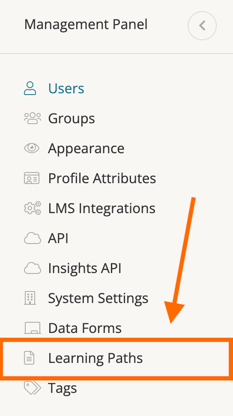
On the left side panel, select 'Learning Paths' to view your system's Learning Paths settings.
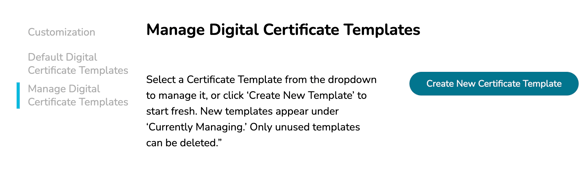
On the Learning Paths settings page, scroll down to the Manage Digital Certificate Templates section.
Creating and Modifying Certificate Templates
Under the Manage Digital Certificate Templates section of your Learning Path system settings, you will find an option to 'Create New Certificate Template.'
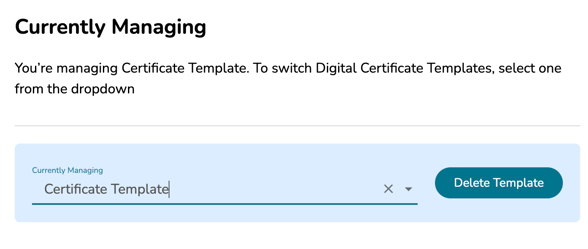
Your new certificate template will then appear under the 'Currently Managing' section. Scroll down to the Currently Managing section.
Click on the Currently Managing dropdown to select your template for modification.
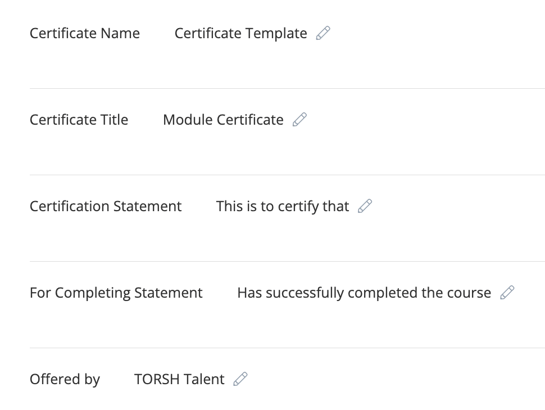
When creating or modifying a certificate template, you can name the template, provide it with a displayable Certificate Title, enter a Certification Statement, enter a For Completing Statement, and then designate who the certificate is offered by.
NOTE: If you would like to add extra text to your digital certificate, such as course ID numbers, training levels, or credit information, etc, you can do so via the 'Settings' tab of the Module or Course it is assigned to. Learn more here .
Uploading a Logo
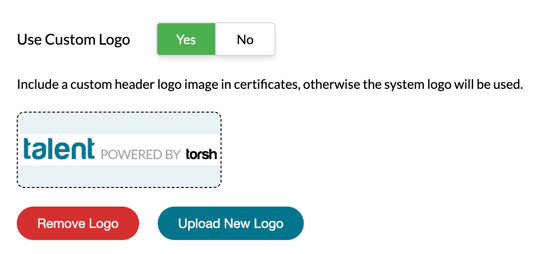
You can then choose to enable the template to display a logo by selecting 'Yes' under 'Use a custom Logo.' Click 'Upload New Logo' and select an image file to display at the top of your certificate. To delete a logo, click 'Remove Logo.'
Uploading a Signature
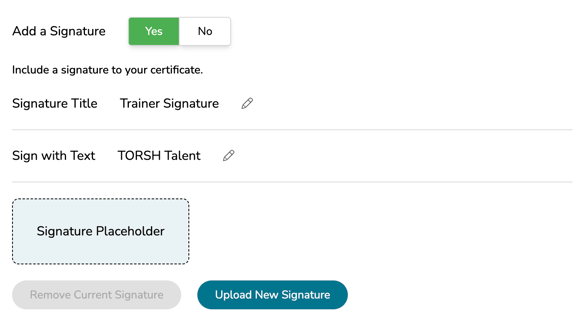
You can also choose to enable the certificate template to display a signature of authorization at the bottom. Provide a Signature Title to display the name of the authorizer in plain text.
You can then either choose to display a 'Sign With Text' automated signature, or you can click 'Upload New Signature' to upload a custom signature.
Modifying the Certificate Background Design
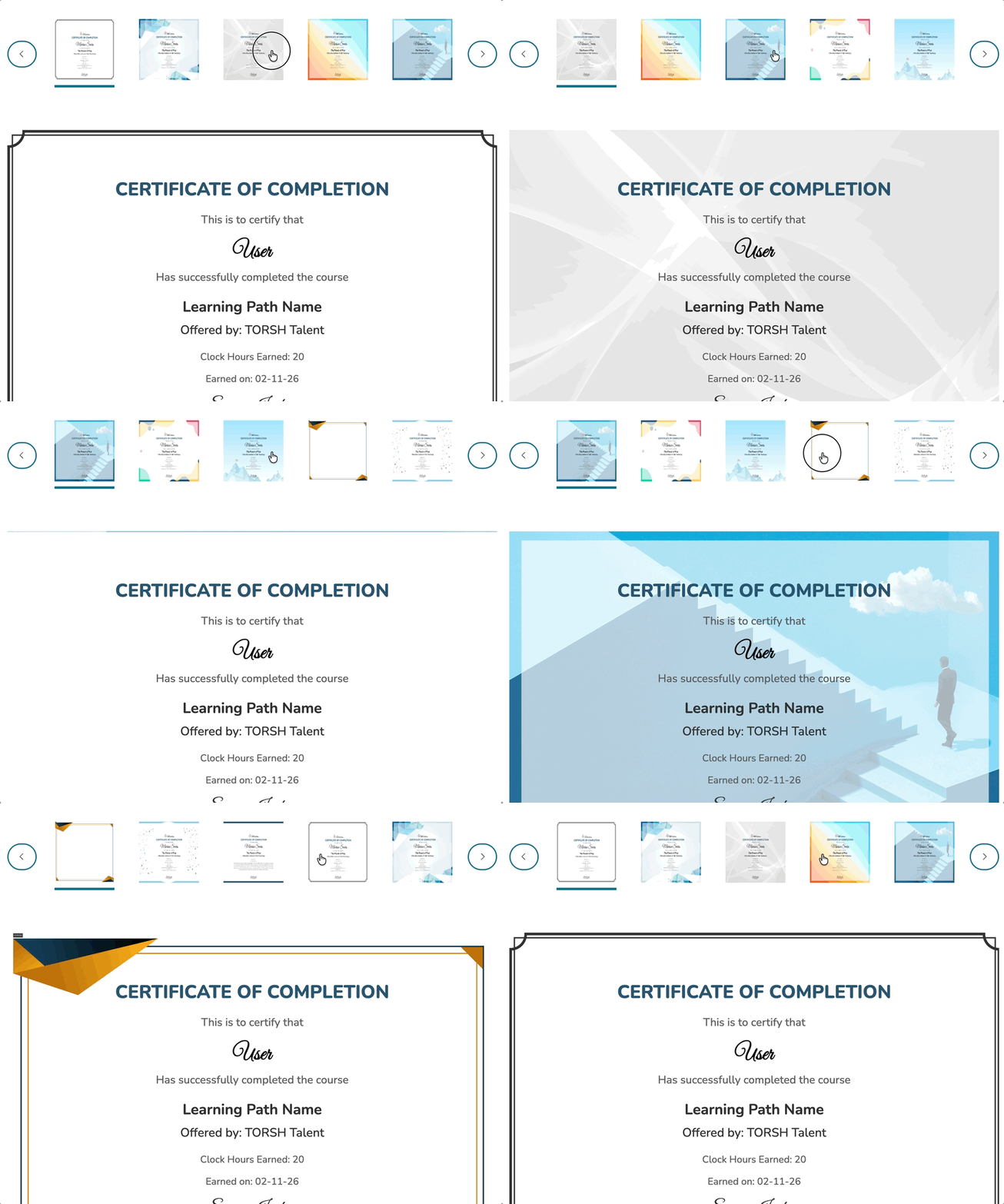
Below your certificate's text settings, you will see a displayable certificate preview. This preview automatically adjusts as you make changes.
Feel free to choose from the various certificate background options we have available by default! Or choose just a solid color background or a custom background of your own choosing.
The background will always display in 8.5x11 inch designs.
For a Letter-sized background image (8.5 x 11 inches):
- Minimum resolution: 625 x 800 pixels.
- This is suitable for digital display but may appear pixelated when printed.
- Recommended resolution: 2,550 x 3,300 pixels
- This ensures high-quality printing and crisp details.
For optimal results:
- File format: PNG or high-quality JPG
File size: Keep under 10 MB for easy uploading and sharing.