
By default, all users in your system will be assigned randomized, default UNID/Alias for their accounts; however, you may want to create custom UNIDs for each of your users. Only System Admins have the ability to modify another user's UNID with a custom UNID.
To modify UNIDs, admins can either perform a bulk edit, making changes to a large number of users at once, or they can edit a specific user's UNID directly.
How To Modify Individual Users' Unique Identifiers (UNIDs)
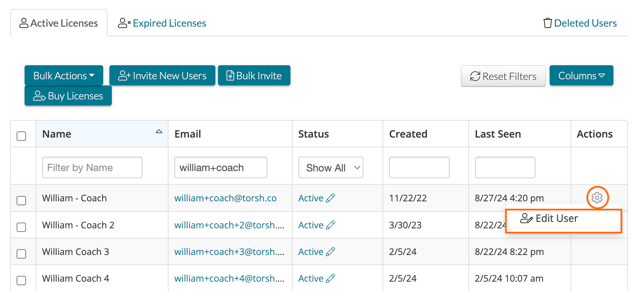
To modify a specific user's UNID, first go to the Users Management page and hover over the specific user's 'gear icon.' Click 'Edit User.' This will open the Edit User pop-up.
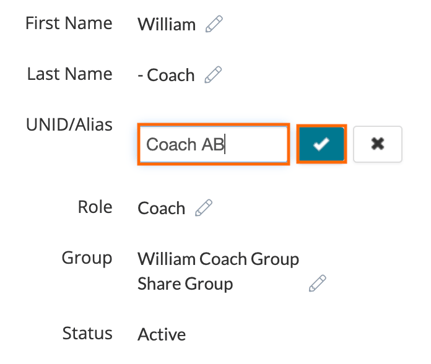
In the Edit User pop-up, find the 'UNID/Alias' field and click on it. Type in the new UNID you would like to appear. Then click the 'checkmark icon' to save your changes.
How To Bulk Modify Unique Identifiers (UNIDs)
To modify multiple active users' UNIDs at once, first generate a report of all users in your system. To do so, go to the Users Management page.
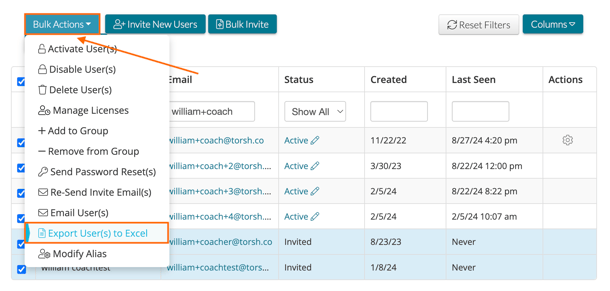
From here, select all of the users you would like to modify by clicking on each user's 'checkbox.' Once all of the necessary users are selected, click the 'Bulk Actions' button at the top of the page.
In the dropdown list, click 'Export User(s) to Excel.' This will export a CSV file of all users your selected based on the columns you had displayed. The file will be called 'Users Export.'
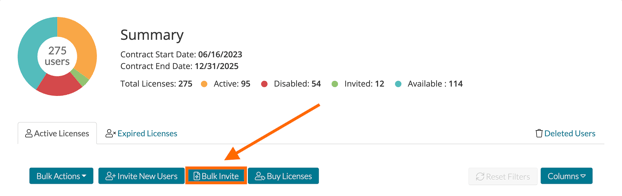
Next, we'll need to upload this information back into Talent but with various adjustments to their UNIDs. To do so, first click the 'Bulk Invite' button.
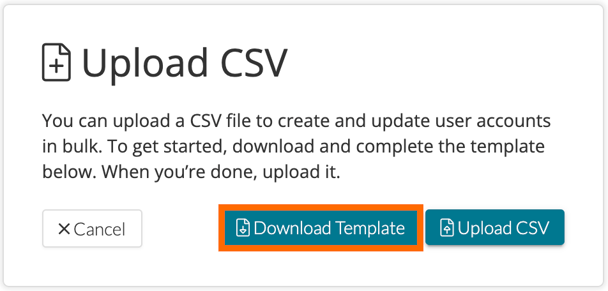
This will open a new window above. Click 'Download Template' to download a template CSV file titled 'User Upload Template.'
Next, open both the Users Export file and your User Upload Template file in your spreadsheet program of choice. Copy the First Name, Last Name, Email, and Role fields from the Users Export file and paste them in to the FirstName, LastName, Email, and Role fields of the User Upload Template.
Next, clear out the remaining fields of the User Upload Template. Then, manually enter your new UNIDs under the UNID field for each user listed. These new UNIDs will be the new custom Unique Identifiers you would like these users to have.
Save your changes to your User Upload Template CSV. Make sure you export your saved changes as a CSV file.
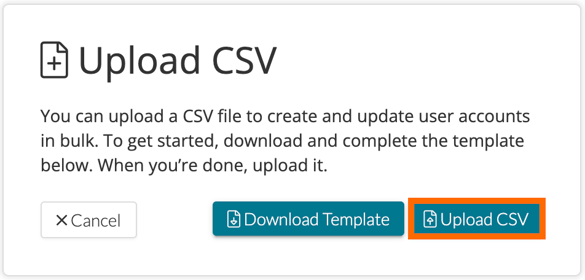
On your Users Management page in Talent, open the 'Bulk Invite' window and select 'Upload CSV.'
Select your modified User Upload Template file and click 'Upload.' Your modifications will process, and your new UNIDs will save for all of the necessary selected users.