
Upon installing the TORSH Talent mobile app, the videos/photos you take through the app will be set to automatically upload by default.
If you prefer to not have your videos/photos upload automatically and would rather upload them individually at a later time, you can 'Disable Automatic Uploads.'
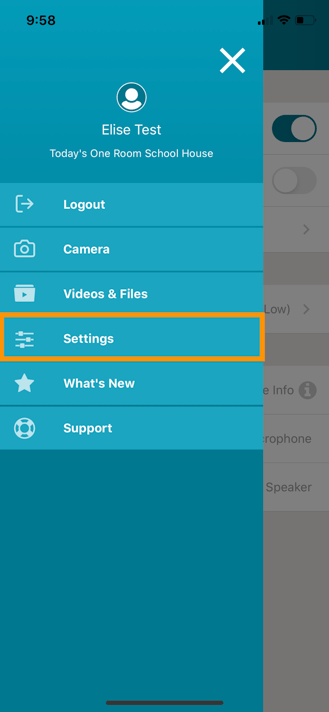
To do so, navigate to the menu icon in the top left corner of the screen and select 'Settings.'
From here, you can tap on the button next to 'Automatic Upload' to turn that feature OFF (white is 'off,' blue is 'on').
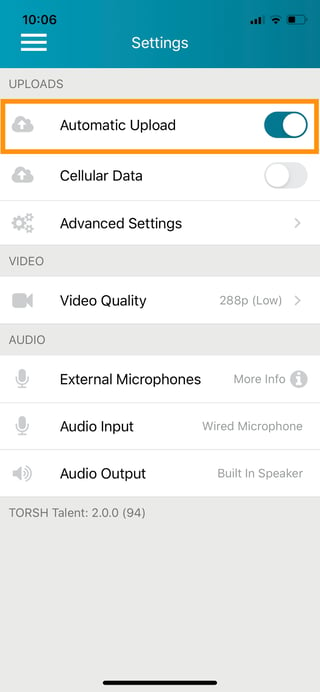
When Automatic Upload is turned OFF, you will have to visit your Video & Files page within the mobile app to manually upload the videos you choose while being connected to Wi-Fi or Cellular Data.
Note: If you are on our HIPAA Secure platform and your system has 'Enable Auto Delete of Uploaded Videos' enabled, Automatic Upload will always be enabled, and the user will not be able to turn that feature off.
Rather watch a video? Check out our tutorial on Disabling Automatic Uploads in the TORSH Talent app here. HIPAA users, click here.