
As an Admin, you can choose to display user grades for both completed modules and the overall courses they are a part of!
Enabling User Grades for Modules
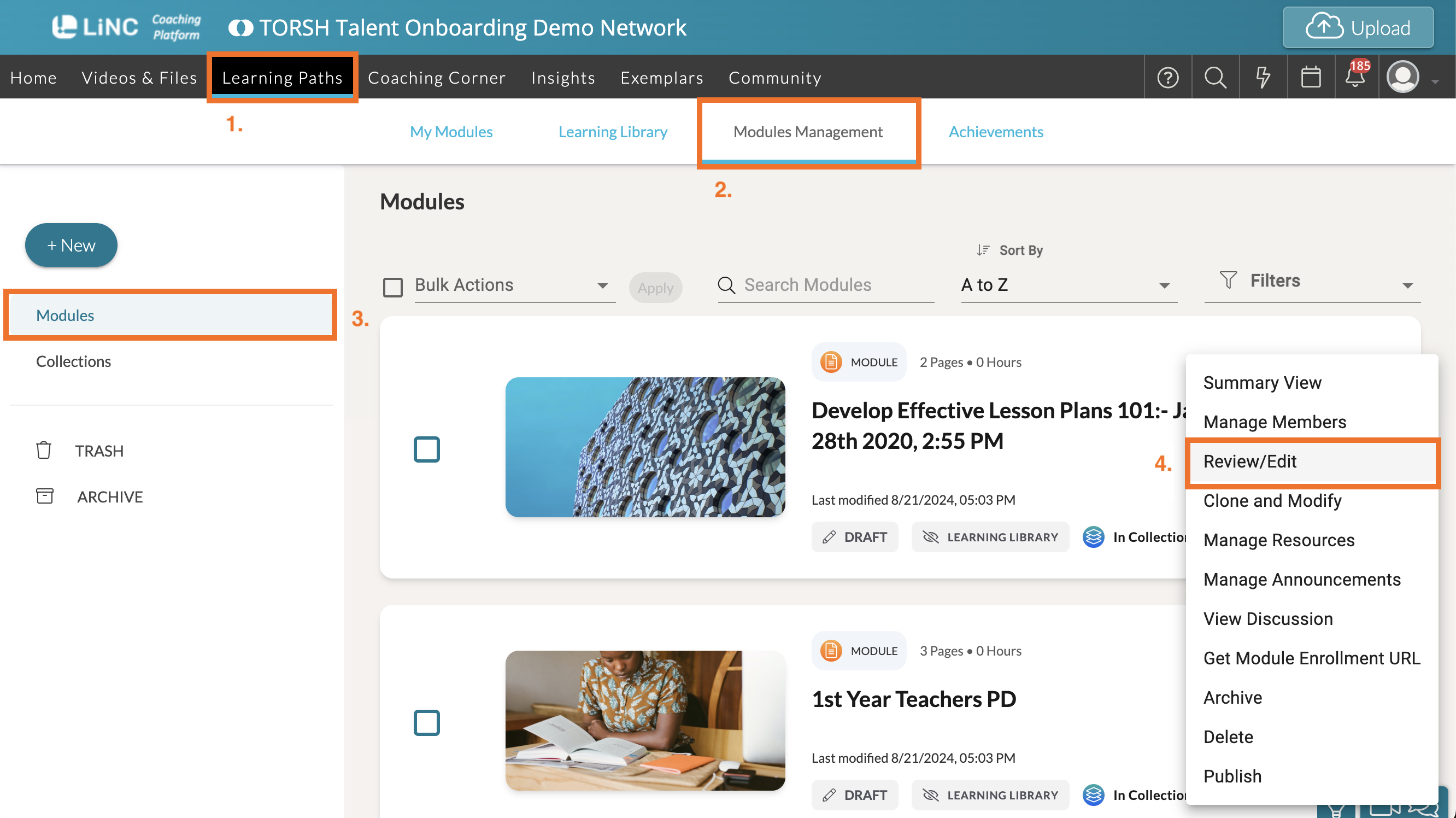
To enable user grades for completed modules, you will need to manage each specific module's settings. To do so, navigate to Learning Paths and choose 'Modules Management.' From there, search for your specific module and then click on its '...' icon. In the dropdown menu, click 'Review/Edit' to modify the module.
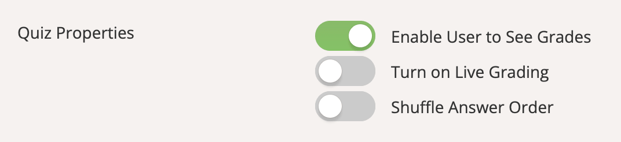
Once the module has loaded, click on its 'Settings' tab. Scroll down to the 'Quiz Properties' section. From here toggle 'Enable User to See Grades' to enable user grades to display for this module. Doing so will allow an average score out of 100 to display on the bottom, right-hand corner of the module card when a user completes the module and sees it on their My Modules page in Talent.
Enabling User Grades for Courses
To enable user grades for completed courses, you will first need to manage each specific module's settings within the course. Follow the steps outline above in the preview section of this Help article. Once every module's settings have been enabled for learners to see grades, then the course will display a Course Score on the bottom, right-hand corner of the course card upon completion of all modules within.
Learners will be able to see the Course Score on their My Modules page in Talent. The Course Score is a cumulative average of all completed modules' scores inside the course.