
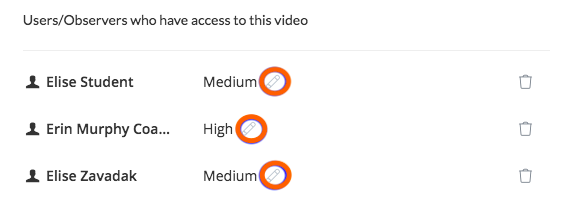
You can only download a video that has been shared with you if it has been shared at the 'High' permission level. High Permissions give you the ability to download, duplicate, and edit the video, as well as the ability to export comments and re-share the video.
Setting High Permissions
If you need High permissions, reach out to the original video uploader and ask if the sharing permission can be changed to 'High.' The user who uploaded the video can change the permission level by clicking on the orange 'Share Video' button on the top right of the video. From the Share pop-up, they can then click the 'pencil icon' next to the current sharing level of your username and select the desired sharing level.
Downloading a Shared Video
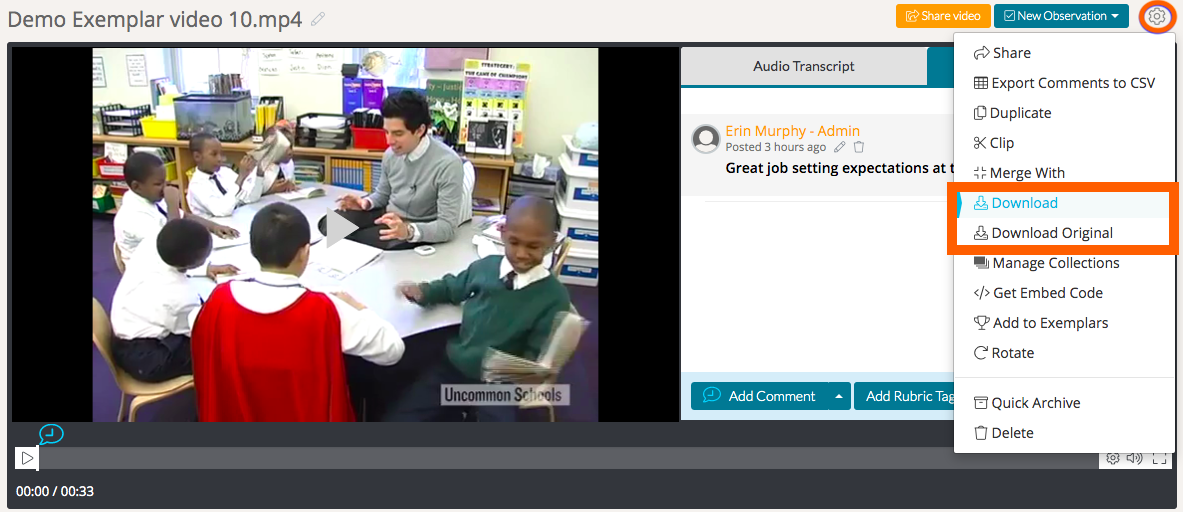
Once you have the right permission level, simply open the video you would like to download from your Files Shared With Me tab on your Videos & Files page. Navigate to the 'gear icon' of your video in the top, right-hand corner of your video and select 'Download Original' or 'Download.'
Clicking 'Download' saves the compressed file that appears on our platform, while clicking 'Download Original' saves the full resolution version that was originally uploaded.
Downloading Comments & Rubric Tags
Downloading the video does not save the comments and rubric tags that have been added to the video. You can download comments and rubric tags separately.
To do so, navigate to the 'gear icon' in the top, right-hand corner of your video and select either 'Export Comments to CSV' or 'Export Comments / Rubric Tags to CSV.' This will export all of the comments and rubric tags from the video to a CSV file.
Rather watch a video? Learn more about downloading videos by watching our video tutorial here. HIPAA users, click here.