
When authoring a Learning Path module, you can embed videos, documents, or images by either inserting it into a Resources component or inserting it into a Text Editor component.
Contents:
I. Embedding Videos/Files Into Resource Component
II. Embedding Videos/Files Into Text Editor
Embedding Videos/Files Into Resources Component
Once you create a page in your Learning Path module and add a Section to, it scroll down and click on the 'Add Components' button.
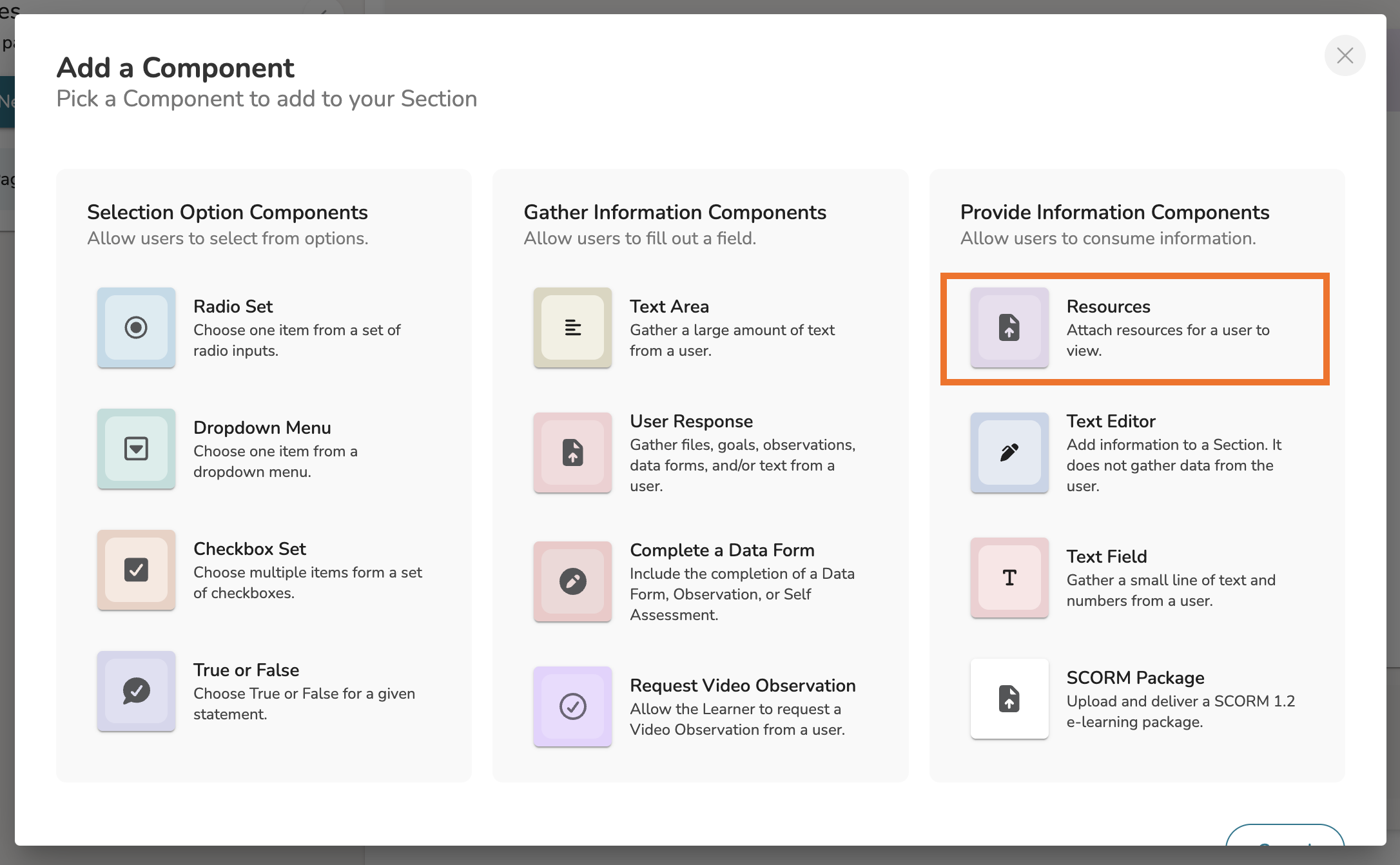
Next, choose the 'Resources' component.
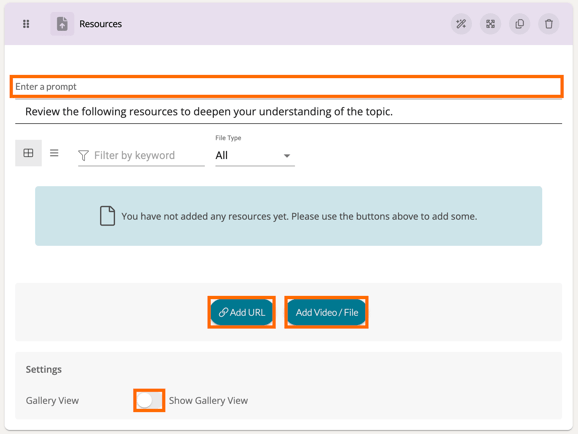
Give the component a name, then click either 'Add URL' or 'Add Video/File' depending on the source of the file being embedded.
If you choose a specific video/file to emphasize, be sure to toggle ON 'Show Gallery View.'
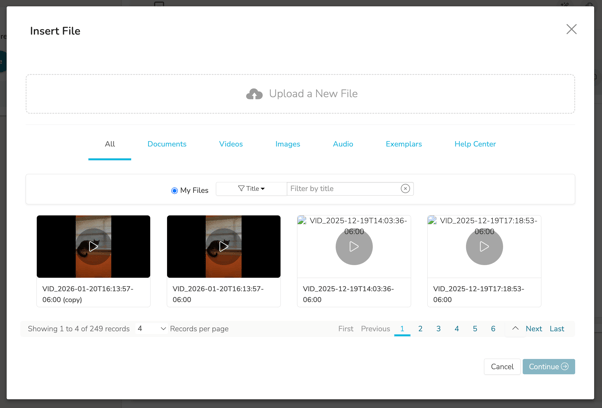
Next, choose the file you would like to embed or upload a new file to embed. Click 'Continue' in the bottom, right-hand corner of the pop-up to embed the file in the component.
Embedding Videos/Files Into Text Editor
Once you create a page in your Learning Path module and add a Section to, it scroll down and click on the 'Add Components' button.
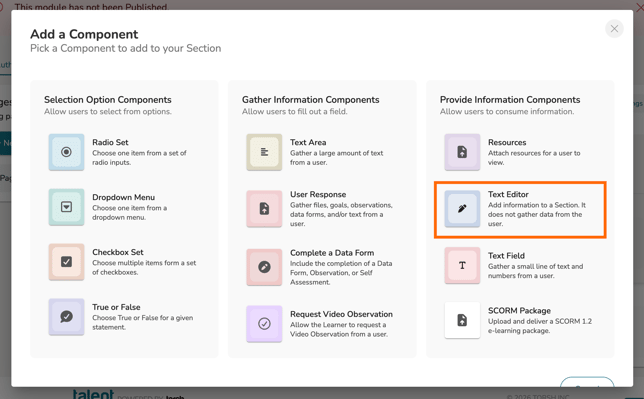
Next, choose the 'Text Editor' component.
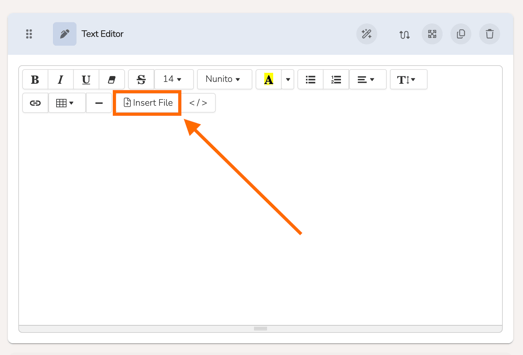
Click on the Text Editor component to modify it. In the top toolbar, click 'Insert File.'
Next, choose the file you would like to embed or upload a new file to embed. Click 'Continue' in the bottom, right-hand corner of the pop-up to embed the file in the component.