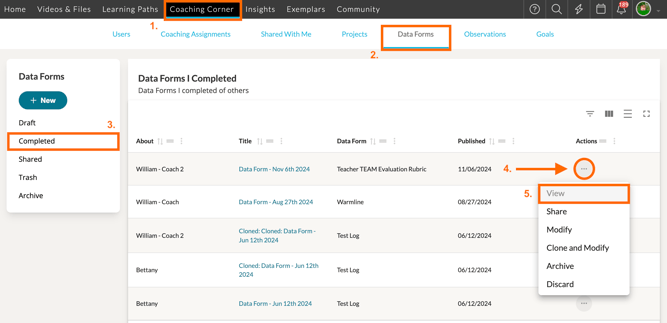
In TORSH Talent, you can export a Data Form to PDF, CSV, or as an artifact in your Videos & Files page! To do so, first navigate to 'Coaching Corner' and click the 'Data Forms' tab.
Click either 'Completed' or 'Draft' on the left-side panel depending on the status of the data form you wish to export. Find the form you wish to export and click on its '...' icon. In the dropdown menu, click 'View.'
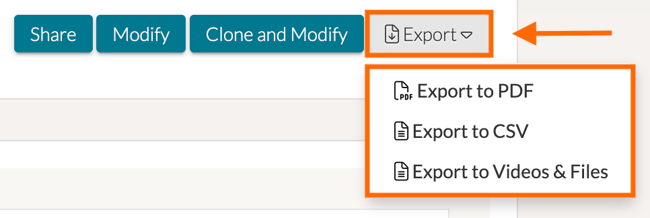
This will bring you to your data form. In the top, right-hand corner of your form, click on the ‘Export’ button and choose your export option from the dropdown list.
- 'Export to PDF' will automatically load the PDF export in another tab. You can then download the PDF to your computer from that page.
- 'Export to CSV' will automatically download the CSV file to your computer.
- 'Export to Videos & Files' will automatically create a PDF copy of your completed data form as an uploaded document artifact in your Videos & Files page of Talent.
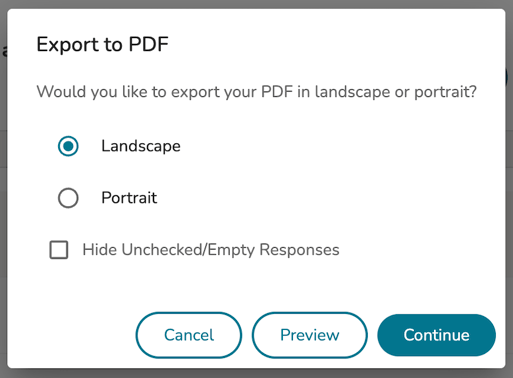
When you choose to Export to PDF, you will then be prompted to choose between Landscape or Portrait orientation. You can even select to 'Hide Unchecked/Empty Responses.'
Choose your orientation, and then click 'Continue,' and the PDF will take a few moments to generate before opening in a new tab; wherein, you can choose to download or print a copy for your records.