When viewing any Drafted or Completed Observations and Self Assessments in Coaching Corner, you can sort and filter which forms display via the various columns presented in each table.
Sorting and Filtering Columns
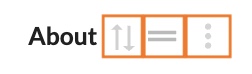
Nearly every column in each table displays with Sort, Move, and Column Actions buttons (from left to right respectively).
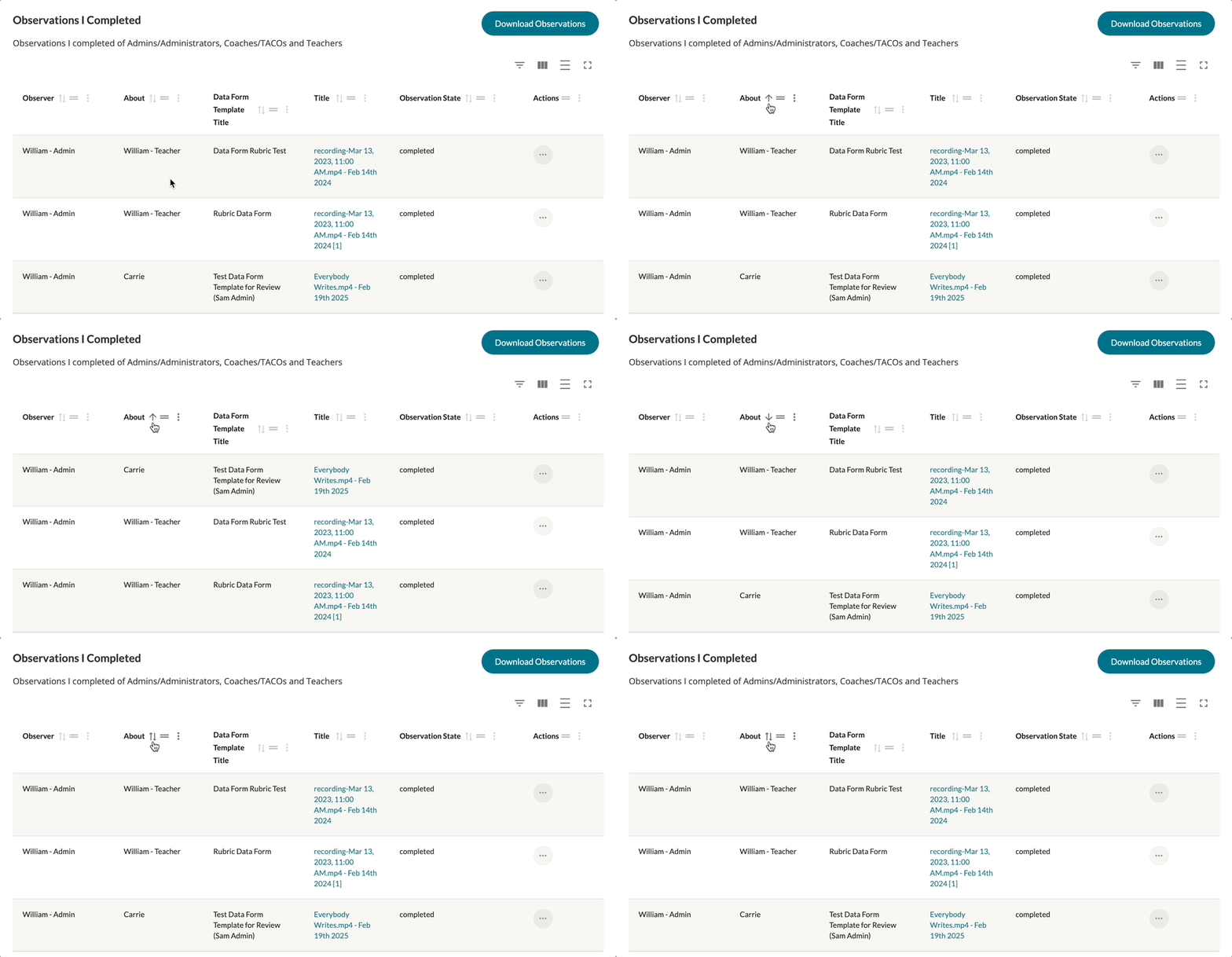
Clicking the 'Sort' button will sort the column alphanumerically in either ascending, descending, or publication order.
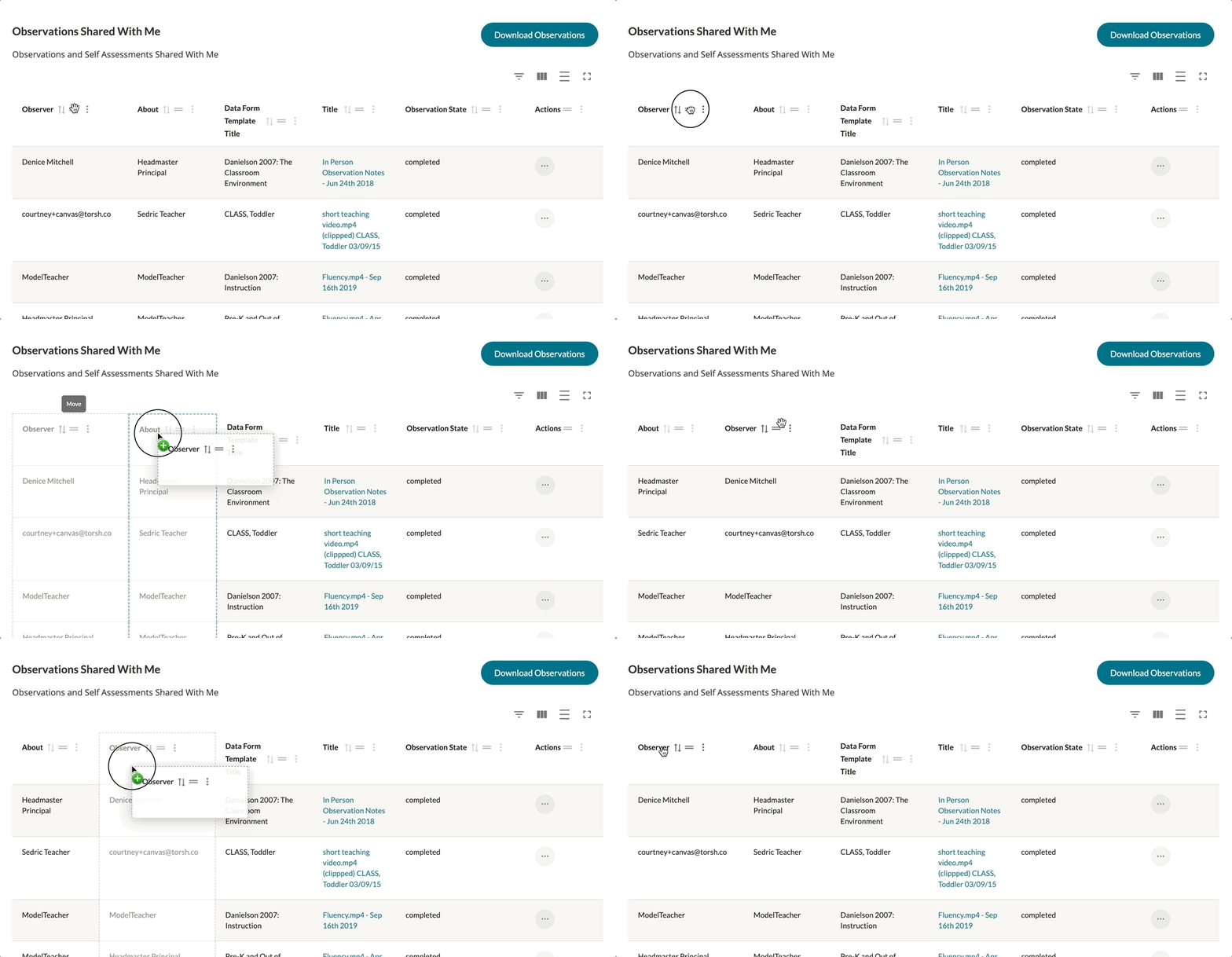
Clicking and holding the 'Move' button will allow you to drag-and-drop the selected column into another spot of the table during your current view of the webpage.
Lastly, the 'Column Actions' button reveals a dropdown of various actions wherein you can choose to sort, filter, or remove any settings currently applied to the column.
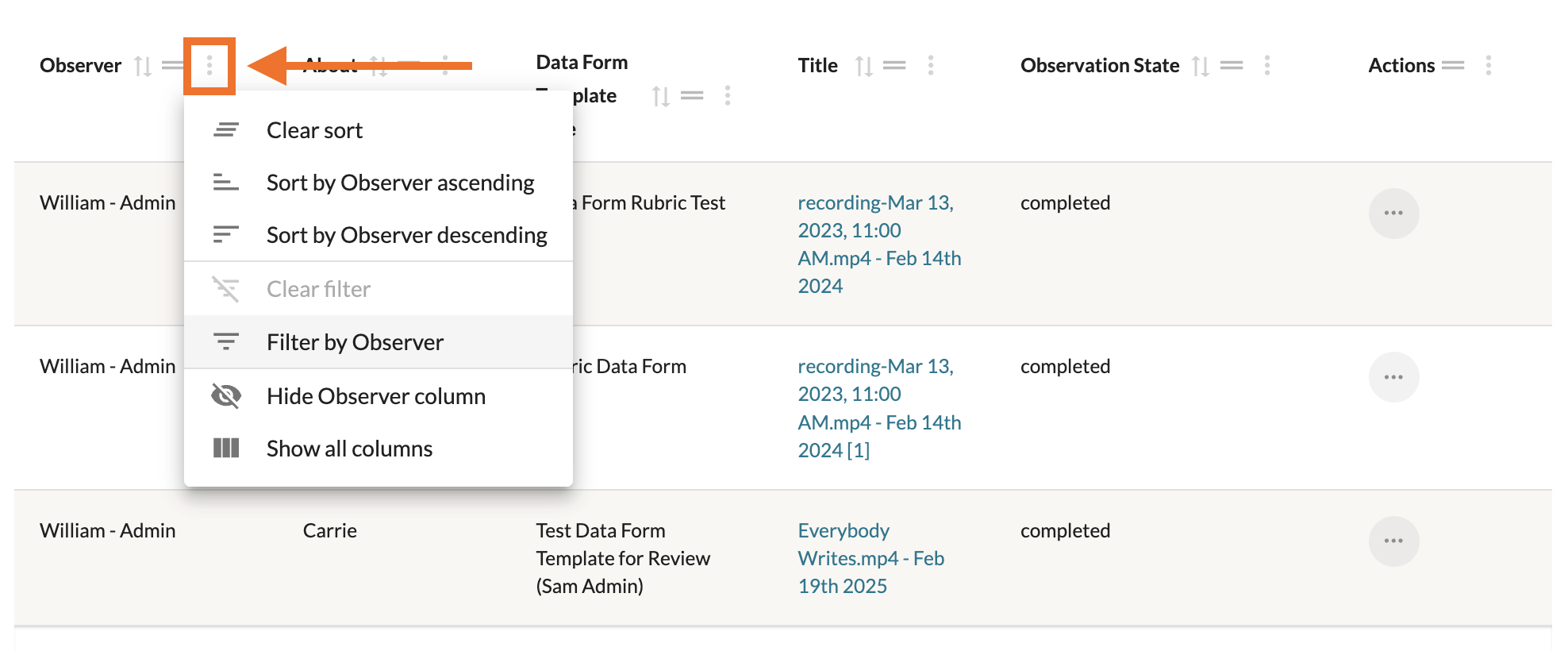
To filter a specific column, click the 'Columns Actions' button and then select the 'Filter by...' option in the dropdown menu. This will reveal a filter text box for each column in the table. Click on the text box and enter the item you wish to filter by, and the table will automatically filter this column for any entry containing your entered text.
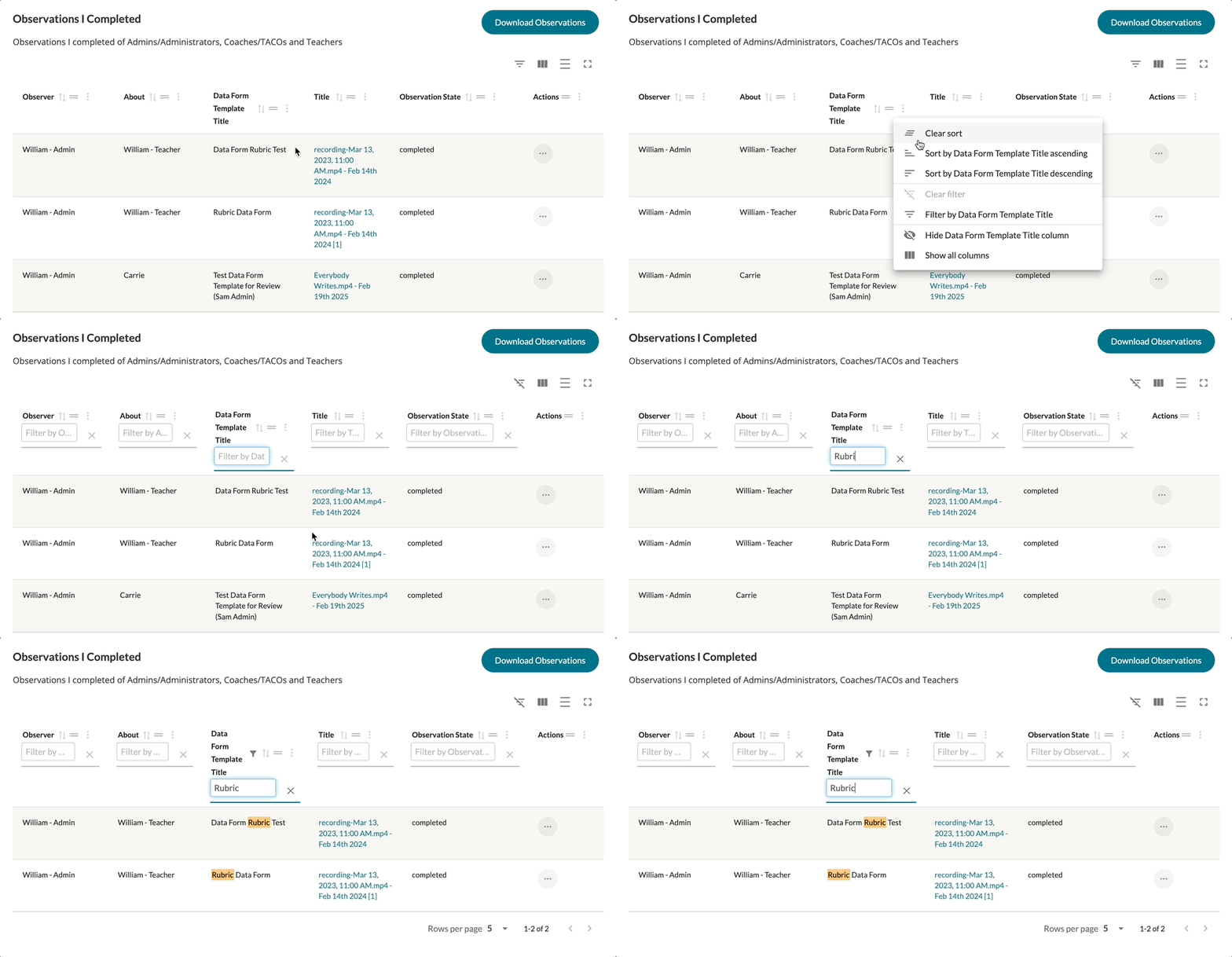
Table Display Options
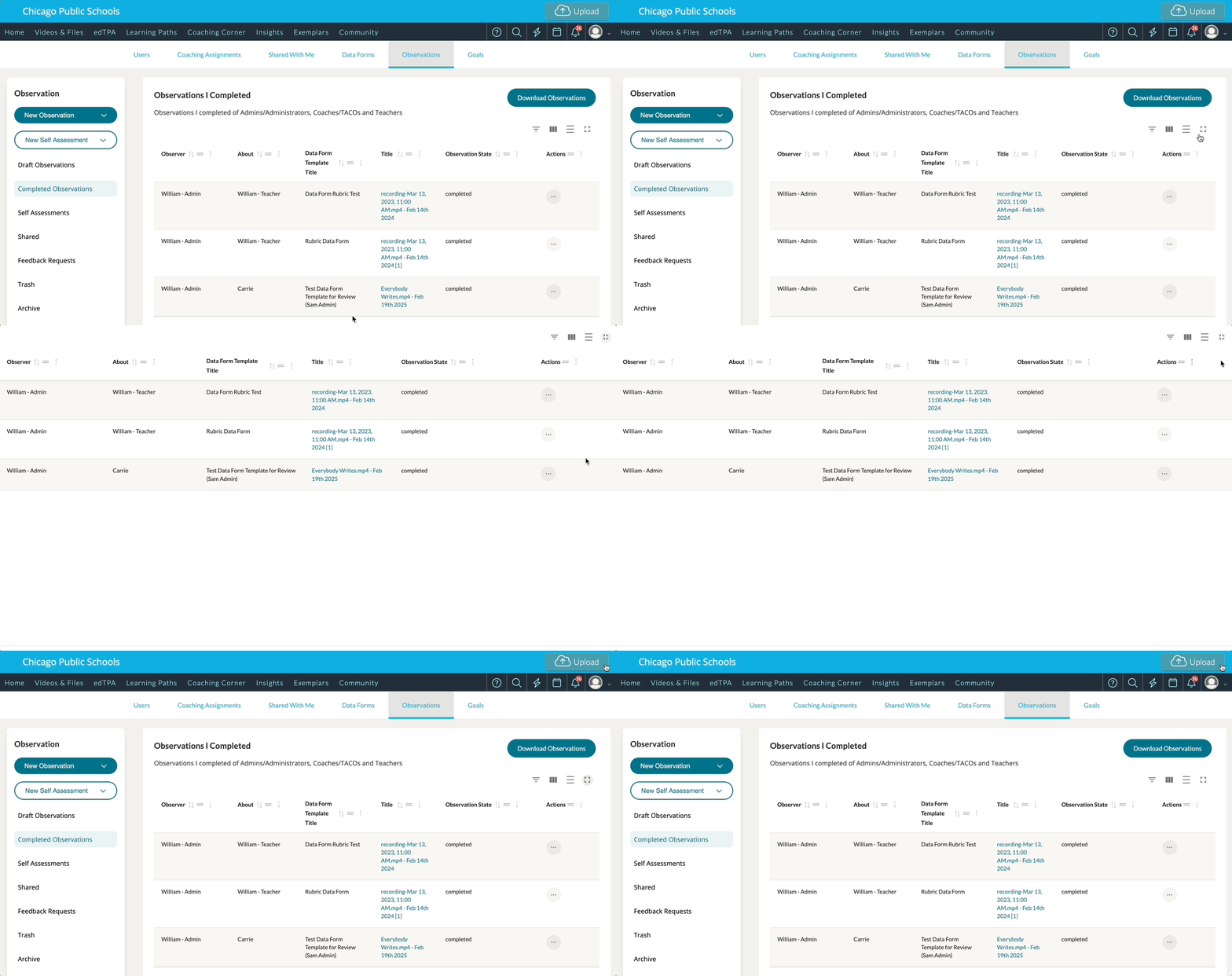
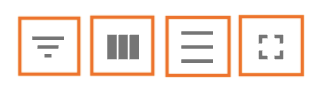
Each table in your Observations and Self Assessments can have their display further modified via the display options found in the top, right-hand corner of each table. Each table displays with a Show/Hide Filters, Show/Hide Columns, Toggle Density, and Toggle Fullscreen buttons (from left to right respectively).
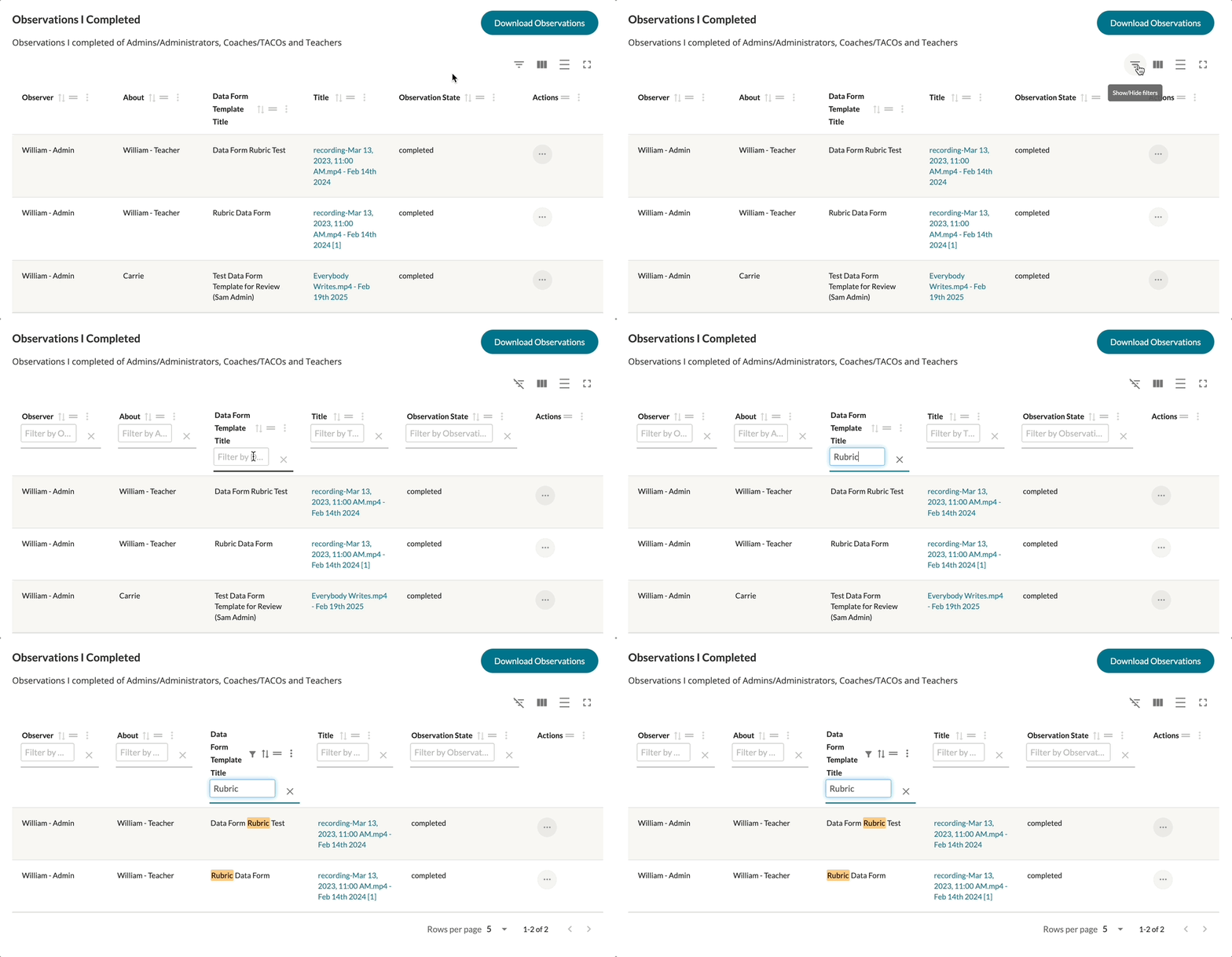
Clicking the 'Show/Hide Filters' button displays all filter text boxes for each column displayed. Click on the text box and enter the item you wish to filter by, and the table will automatically filter table for this column for any entry containing your entered text.
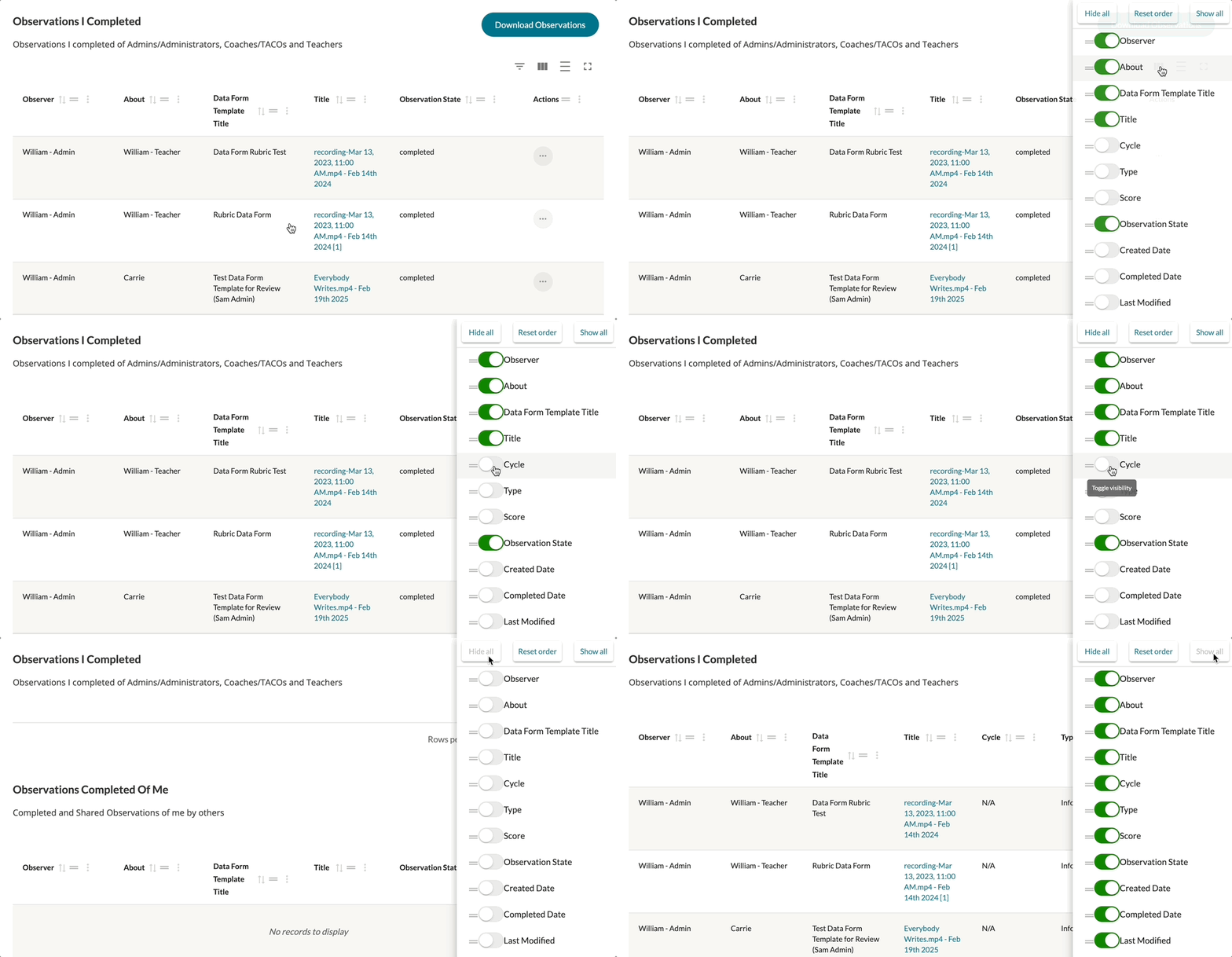
Clicking the 'Show/Hide Columns' button displays a list of all possible columns you can choose to display in your table. Each table displays with different columns by default, but you can further add or display other columns by clicking on each column toggle button to better organize and locate specific forms in each section!
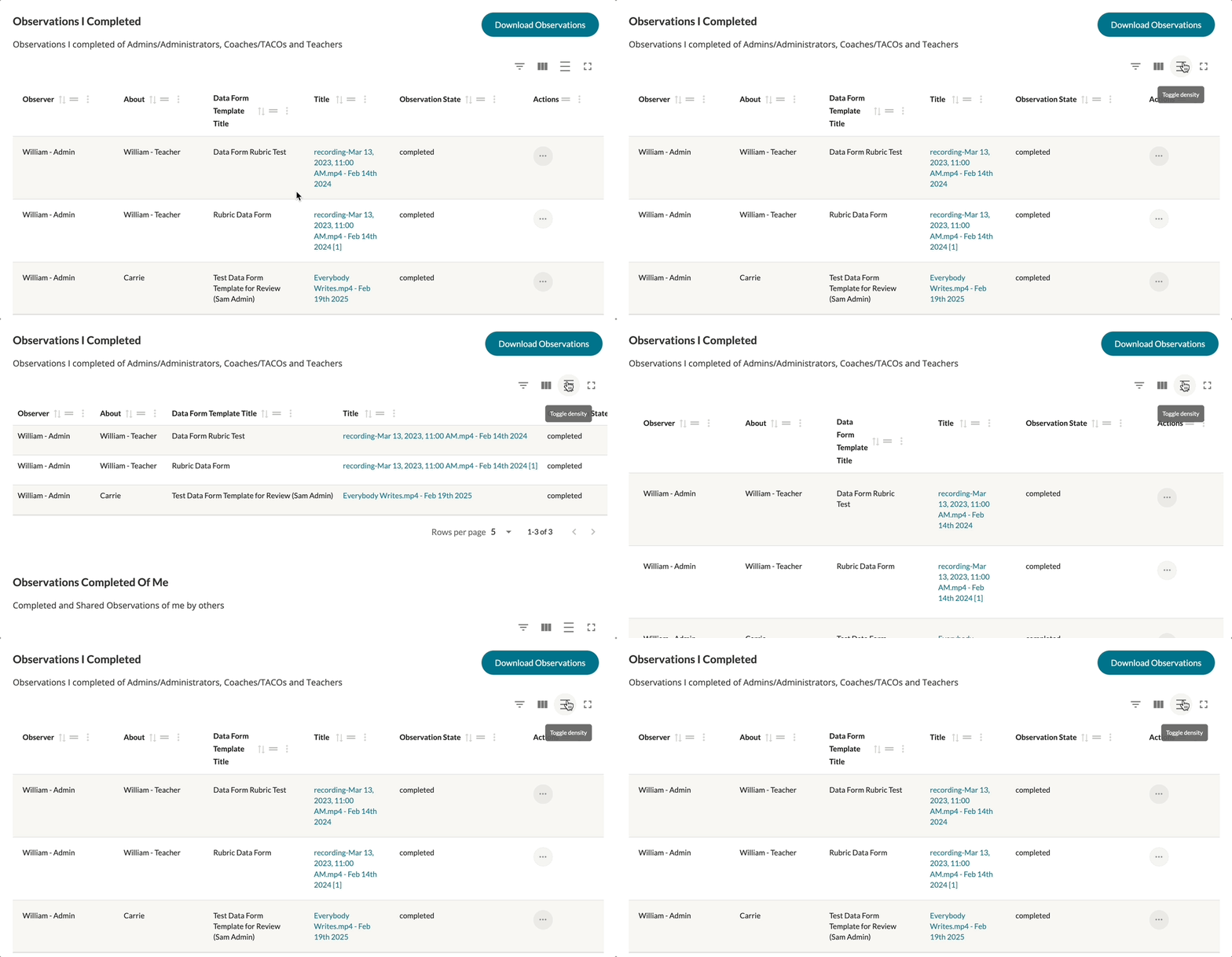
Clicking the 'Toggle Density' button temporarily refines the shape and size of the displayed rows of your table. You have the option to choose a smaller-sized view, a medium-sized view, or a large-sized view.
Clicking the 'Toggle Fullscreen' button temporarily displays the entire table in a fullscreen view, allowing you more room to adjust and organize for the specific section as needed. To return to your original view, simply click the 'Toggle Fullscreen' button again.