Using the Report Builder feature, you can choose to specify which data appears in your columns with the use of filters! Within Report Builder, you have (3) different methods by which you can filter your data:
Filtering with the Filter Button
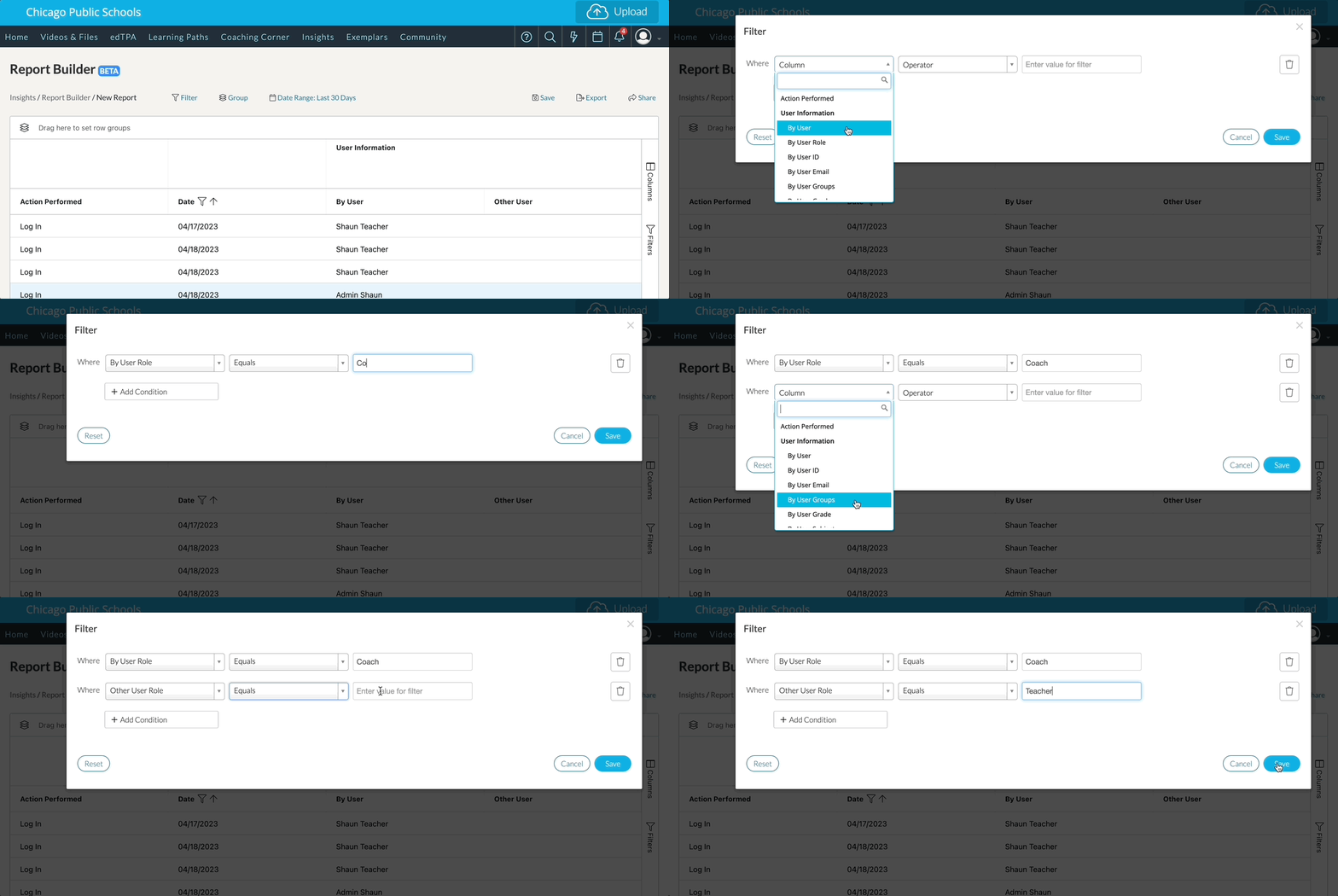
For starters, you can click the ‘Filter’ option above the report. This will load a new window specifying the column you would like to filter, the operator that adjusts the filtering, and the value you would like to filter by. If you would like to add another column filter, you can click ‘Add Condition’ to filter another column’s data. If you would like to delete a filter, simply click the ‘Trash Bin’ icon on the far right, or click ‘Reset’ to delete all of your current filters. Click ‘Save’ to save any changes you make to your filters.
Filtering by a Column's Menu Icon
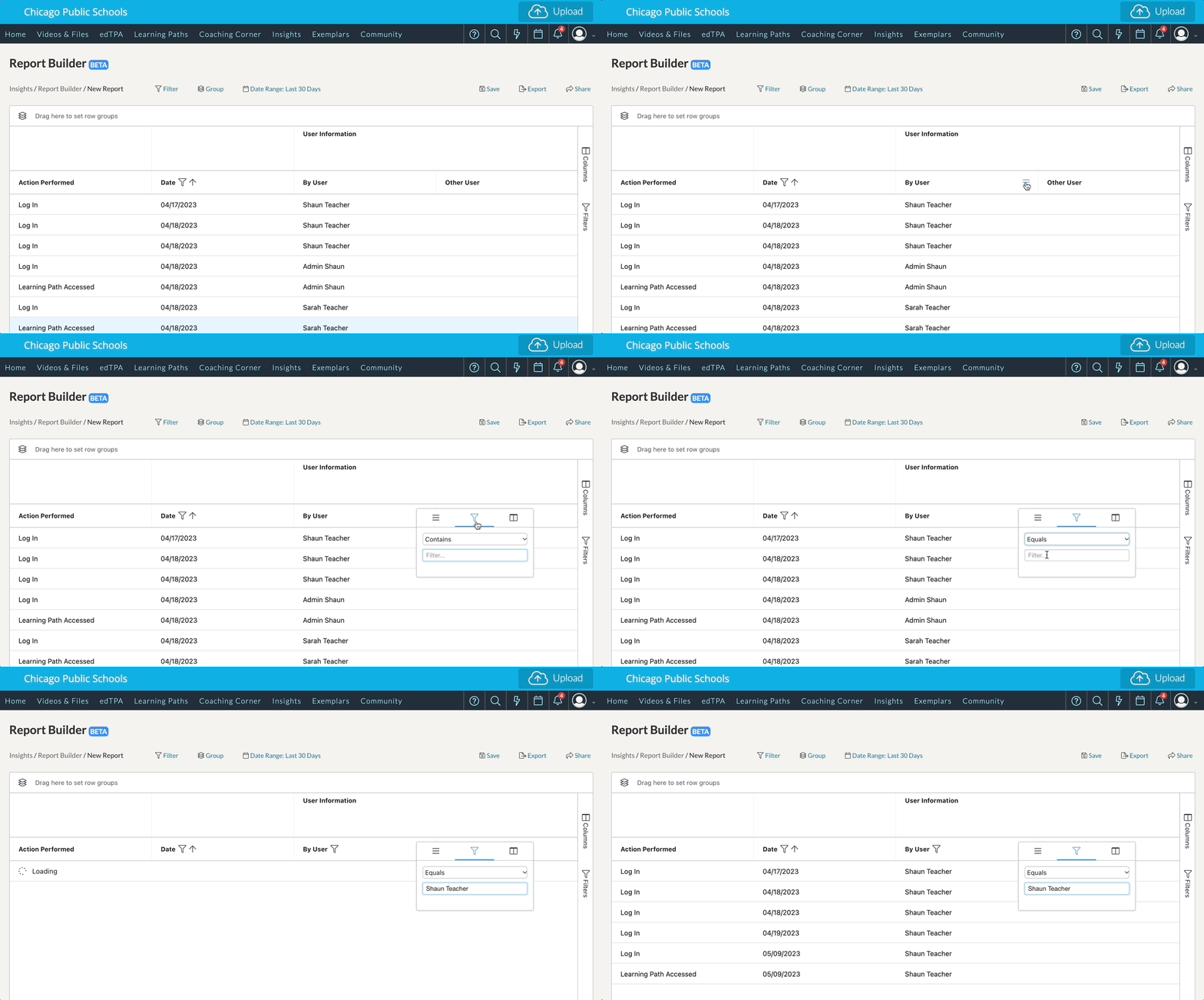
The second way you can filter is by clicking the ‘Menu icon’ found in the column header. This will load a small pop-up menu displaying a Filters menu.
In the Filter menu, click the dropdown menu to change your operator, and in the ‘Filter…’ text box, type the value you would like to filter by.
Filtering with the Filters Menu on the Right
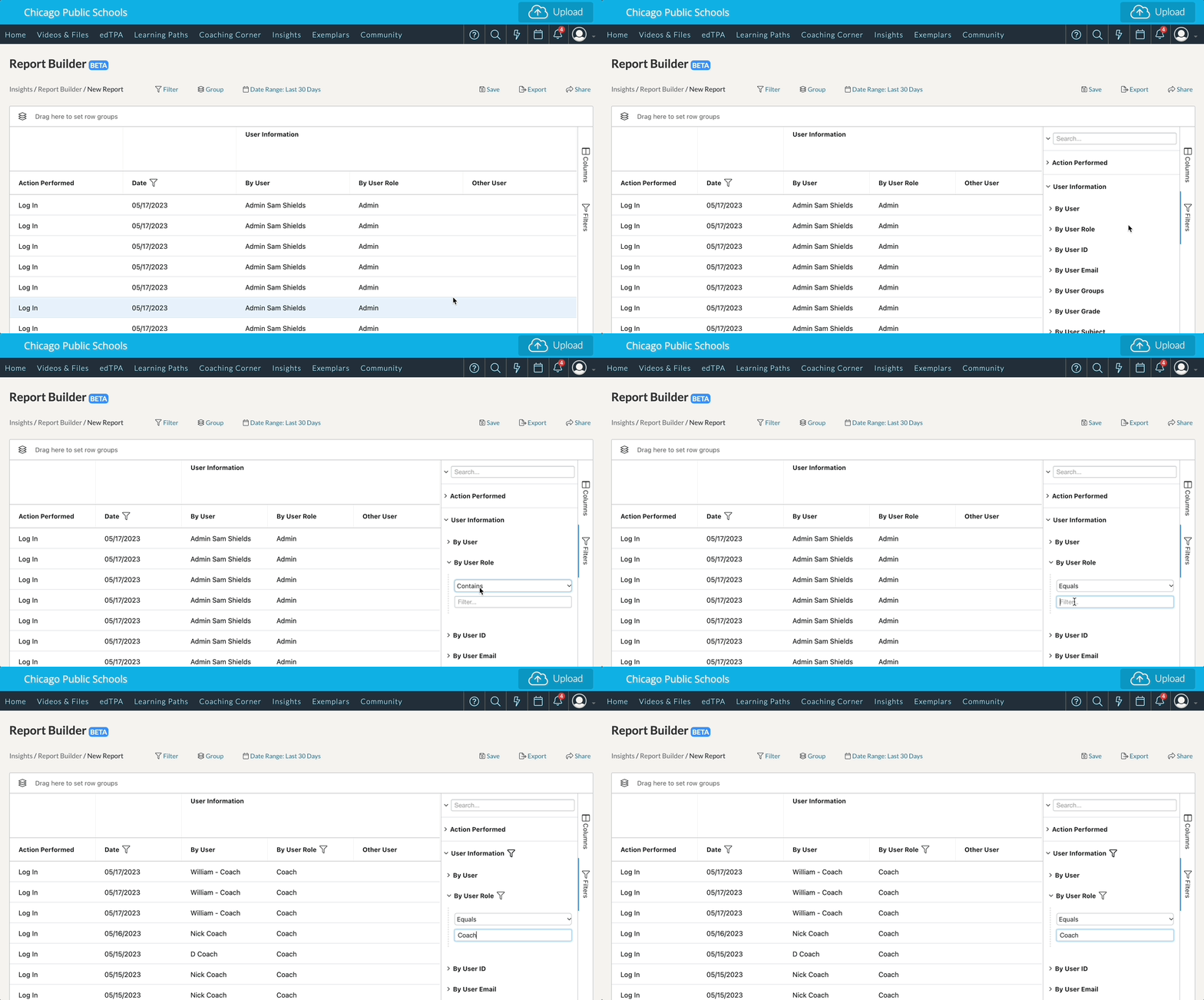
The third way you can filter can be found on the far right side of your report. Here you will also find another Filters menu and a Columns menu. Click ‘Filters’ to open a new window by which you can choose a specific column and adjust its specific filter. Click the dropdown menu to change your operator, and in the ‘Filter…’ text box, type the value you would like to filter by.
As soon as you enter your selections, the data automatically adjusts!
Lastly, you can further sort your column’s data by either ascending or descending values by tapping within the column header.