NOTE: In order to be able to initiate a Zoom call via TORSH Talent, you must also have a paid Zoom account in your organization’s Zoom system. The email addresses associated with your Zoom and TORSH Talent accounts must match.
If they do not match, you can either change your email address on Zoom or email support@torsh.co to request that your TORSH Talent email address be updated to match the email address associated with your Zoom account.
If you meet the above criteria and your TORSH Talent system has Zoom enabled, you can initiate a call by following these steps:
- Once logged in to your TORSH Talent account, click on the 'video camera icon' to the bottom right of your TORSH Talent screen.

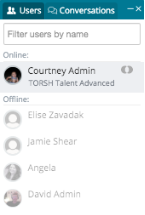
- On the ‘Users’ tab, select the user you’d like to start a Zoom video call with from the ‘Online’ section.
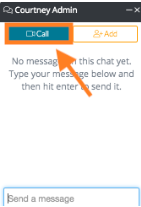
- In the pop-up chat window, select the blue ‘Call’ button. If you would like to invite more than one user to the Zoom call, click the orange ‘Add’ button and select the users you would like to add.
- Talent Users
If you are using the Non-HIPAA platform of TORSH Talent, you will then be prompted to decide whether or not you want to record this Zoom call to have it stored on your TORSH Talent Videos & Files page. This recording will be automatically shared with all attendees. Select ‘Yes’ or ‘No.’
Talent HS Users If you are using TORSH Talent HIPAA-Secure, click ‘Create Zoom Meeting.’ If you want to upload this video to your TORSH Talent HS account, you will need to record the Zoom meeting to your computer and then upload it using our Desktop Uploading feature.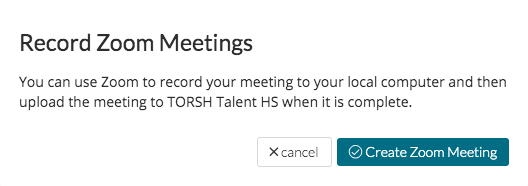
- Once the call has initiated, click ‘Join.’
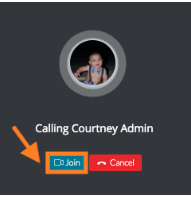
- Zoom will launch in a separate window. Click ‘Open zoom.us.’

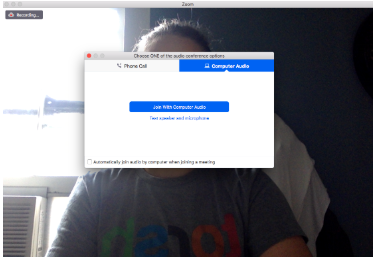
- Your Zoom video call will open, and you can choose whether or not you want to join with video and also choose your desired audio device option.