
As an Admin, you can enable system-wide Automatic Sharing Rules that enable specified artifact types to share from specific User Roles and/or User Groups to specific Individuals and/or User Groups in your system. This feature is a great way to ensure that all of your users' artifacts are sharing with the correct people as soon as they activate their accounts!
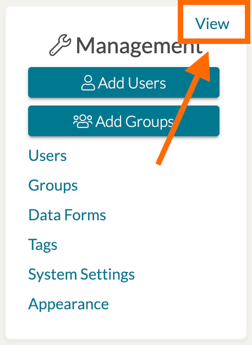
To find these settings, go to the Management Panel on your Home page and click the 'View' option.
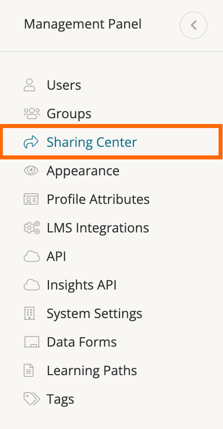
On the next page, click the 'Sharing Center' option in the left-side panel. This will take you to a page wherein you can manage system-wide share settings.
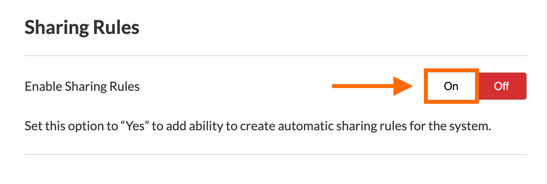
To enable Automatic Sharing Rules, scroll down to the 'Sharing Rules' section and toggle 'Enable Sharing Rules' to 'On.' This will enable the ability to create multiple Automatic Sharing Rules for your system.
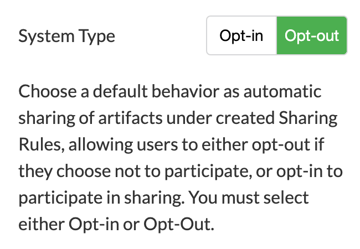
This will also reveal another setting - the 'System Type' setting for Sharing Rules. This will determine the default behavior of automatic sharing of artifacts under created Sharing Rules.
- Opt-In designates that new Sharing Rules will not go into effect for all of your specified users. Each user specified in your rules will need to opt-in to the setting change they are included in for it to affect their account.
- Opt-Out designates that the new Sharing Rules will immediately take effect for your specified users. Each user specified in your rules will then have the ability to opt-out of the Sharing Rule in their Account Settings.
If you chose 'Opt-In' you will be able to modify the emailed Notification message sent to users affected by your upcoming Sharing Rules. Feel free to adjust this message as needed. If you chose Opt-Out, you can move forward.
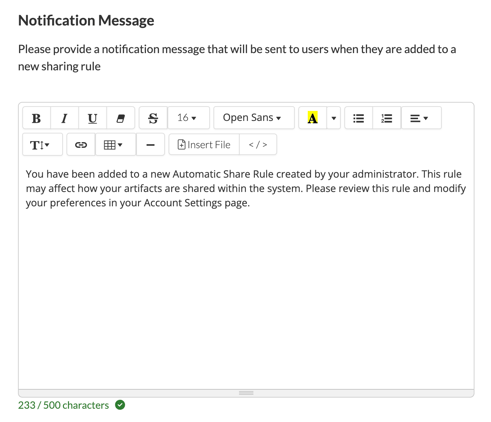
Once you have made your System Type selection, please check-off the necessary items as they appear on your Sharing webpage:
- I understand that the rule created will only be activated and apply to artifacts at the time they are created and/or published.
- I understand that once activated, individual shares initiated by a trigger will not be reversed if the trigger is later turned off, archived, or deleted.
- I understand that users have the option to opt-out of participating in sharing rules. If they choose to opt-out, it is my responsibility to ensure compliance with sharing regulations.
- I understand that users must first opt-in to sharing rules before they can be included in any such rule. It is required that their consent is obtained to activate these sharing rules based on HIPAA regulations.
Click 'Create Your First Sharing Rule' to begin!

Creating a Sharing Rule
To create a new Sharing Rule, click the 'New Sharing Rule' button.

This will take you to Step 1: Title & Description of your Sharing Rule wherein you can give your rule a title and a brief description. Click 'Continue' to progress.
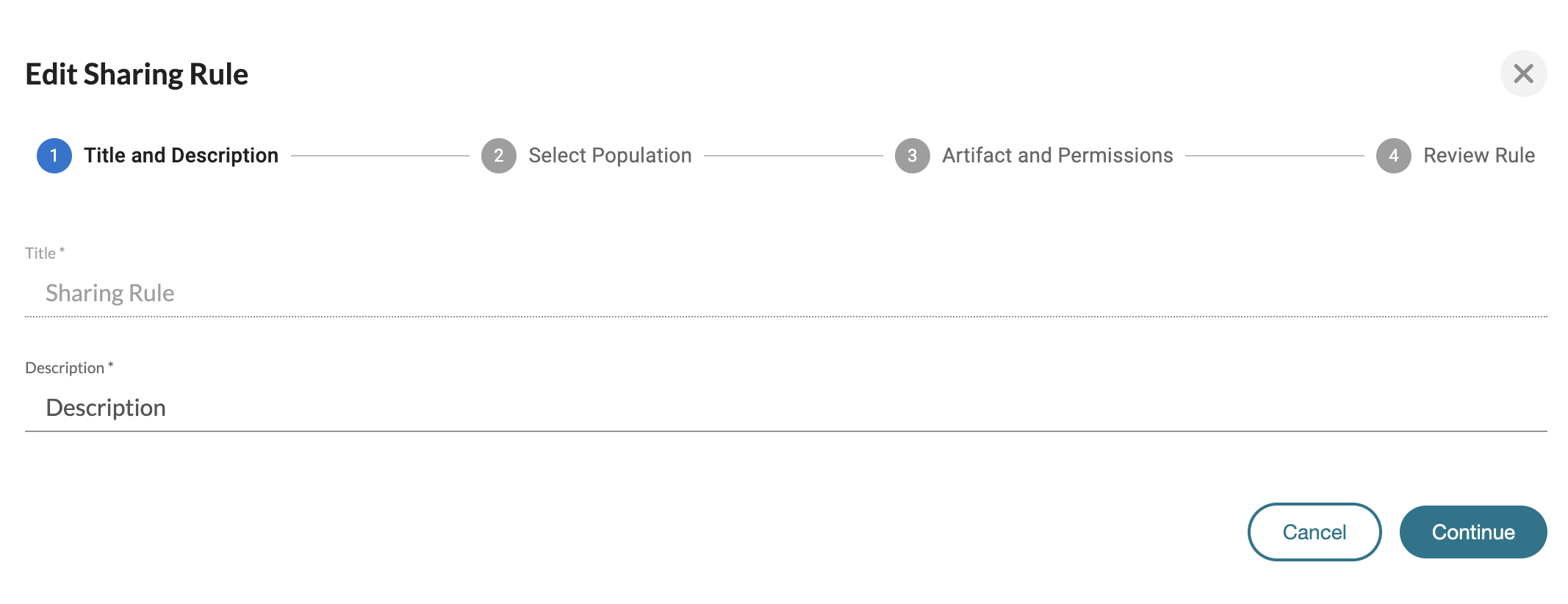
On Step 2: Select Population, you will be able to designate who will share artifacts with this specific rule. Choose one of the following options when designating who is performing the share with this rule.
- Option 1: Select a Specific Group and Roles
Choose a specific group and then specify roles within that group. This setting requires all members matching the selected roles in the group to share artifacts. - Option 2: Select Group Only
Select a specific group to enable all its members to share artifacts, irrespective of their individual roles. - Option 3: Roles Only
Choose one or more specific roles across the system, without specifying a group. This setting mandates all users holding the selected roles to share artifacts.
Once you have designated the roles and/or group who will share artifacts, click 'Continue' to progress.

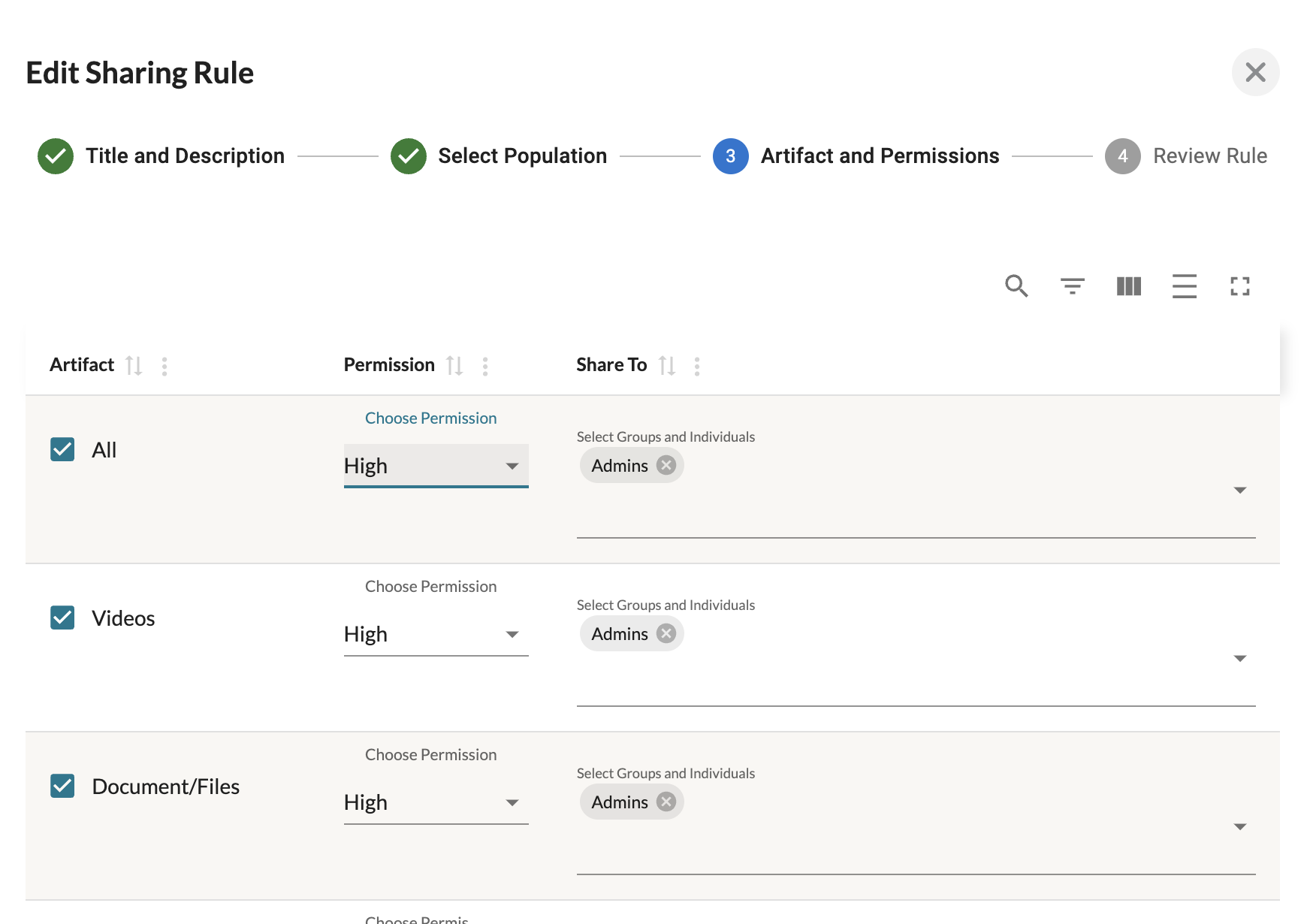
On Step 3: Artifact and Permissions, you will be able to designate the specific artifacts, their specific Sharing Permissions, as well as who each artifact will be shared to. Check off the specific designated artifacts you wish to have shared moving forward, or select 'All' to apply a specific setting for all artifact types listed on the page. Click 'Continue' at the bottom once you have made your adjustments.
Below is an example of settings for sharing all artifacts at 'High' Permissions with just the Admins group.
On Step 4: Review Rule, you will find a summary of all artifact types and their designated sharing permissions chosen as well as the list of designated recipients for the rule.
NOTE: Activating this rule will initiate a one-time automatic share of the selected artifact types. Once shared, these artifacts cannot be "unshared" even if the rule is later turned off, archived, or deleted. This action is irreversible and is intended to ensure compliance and consistency in data handling.
Please review all details thoroughly to ensure accuracy and appropriateness of the rule settings. By proceeding, you affirm that you understand the implications of this rule and certify that it meets the organization's standards for security and compliance.
Click 'Create Rule' to apply your new Automatic Sharing Rule for future artifacts uploaded/created moving forward!

Managing Sharing Rules
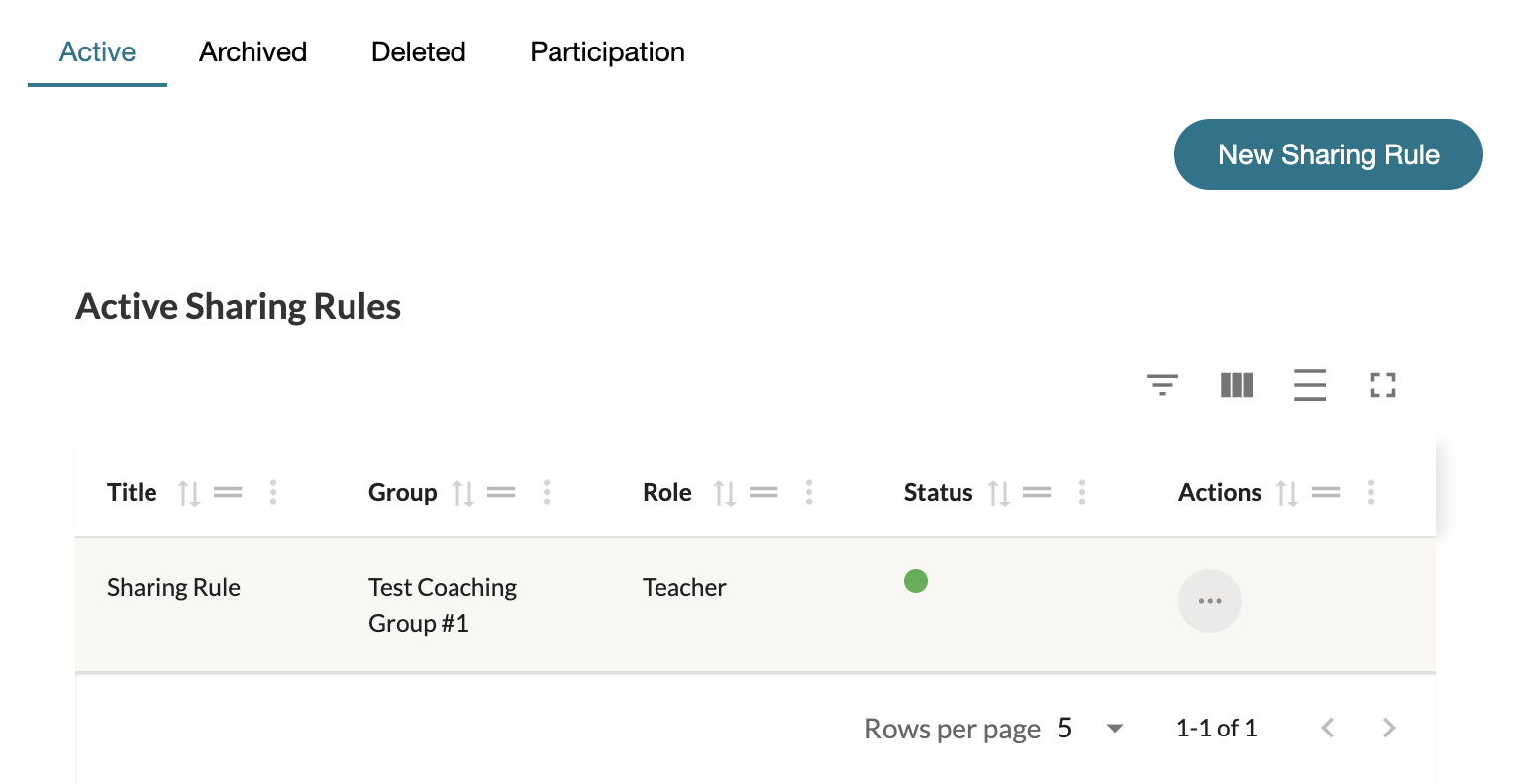
To manage existing Sharing Rules, visit your 'Sharing Center' in your Management Panel. If you have enabled Sharing Rules, you will find a list of the Active, Archived, and Deleted rules at the bottom of your Sharing Center page.
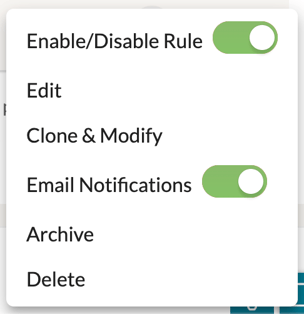
To disable a rule, click on its '...' icon, find the 'Enable/Disable Rule' option and click the toggle so that it displays as 'GREY/OFF.'
To modify a rule, click the '...' icon and select 'Edit' to make further adjustments to your rule. You will be brought through the same steps needed to create your rule. Adjust the necessary elements and click 'Continue' to progress. To save your changes, reach Step 4 and click 'Update Rule' at the bottom of the page.

You can also Clone & Modify your rule to make minor adjustments with a new rule.
You can even disable or enable Email Notifications to disable all sharing notifications system wide related to items shared from that respective sharing rule.
To archive your rule, click the '...' icon and select 'Archive.' This will disable the rule and move it to the 'Archived' tab of your Sharing Rules.
To delete your rule, click the '...' icon and select 'Delete.' This will disable and delete the rule and move it to the 'Deleted' tab of your Sharing Rules.