
As a System Admin, you can create Coaching Assignments to more efficiently manage coaching relationships within your system. Coaching Assignments establish a more streamlined coaching experience by assigning mentees to specific coaches or assigning coaches to specific user Groups , ensuring each mentee or group has a designated coach to interact with in your system.
Contents:
I. Benefits of Coaching Assignments
II. How to Create a Coaching Assignment
a. Individual Coaching Assignment
III. How to Edit/Modify an Existing Coaching Assignment Date Range
IV. How to Deactivate a Coaching Assignment
V. How to End a Coaching Assignment
VI. How To Transfer a Coaching Assignment to New Coach(es)
VII. How to Reactivate Expired Individual/Group Coaching Assignments
VIII. How to Delete a Coaching Assignment
Benefits of Coaching Assignments:
- Streamlined Management: Assign coaches to mentees or groups, ensuring all users have proper guidance and support.
- Automatic Group Assignments: When coaches are assigned to system groups, those coaches are automatically assigned as the coach for all current and future group members until the assignment is designated to end.
- Clear Overview of Assignments: With Coaching Assignments, you can manage active and expired coaching assignments via dedicated assignment tables.
- Flexibility and Reporting: Using our Report Builder feature, you can more readily display/export data specific to your coaching assignments.
How To Create a Coaching Assignment
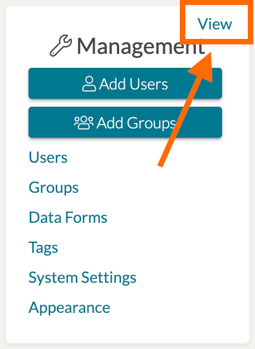
To create a Coaching Assignment, first start from your Talent home page. Next, find the Management Panel on the far left and click 'View.'
On the Management Panel page, click the 'Coaching Assignment' option on the far left side panel.
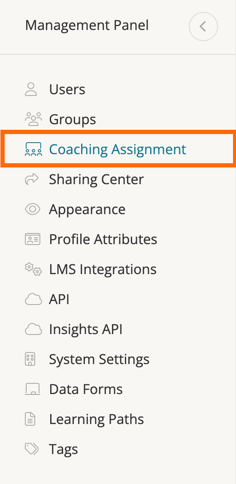
You will then be brought to the Coaching Assignments management page, wherein you can manage all of the settings related to Individual Coaching Assignments and Group Coaching Assignments:
- Individual Coaching Assignments - Click here to view and manage active/expired coaching relationships for individual mentees assigned to one or more coaches. Along with assignment status, you can also see which group the assigned mentee is a part of, as well as the last interaction between the coach and that mentee.
- Group Coaching Assignments - Click here to view and manage active/expired coaches assigned to user groups. Coaches assigned to a group are automatically assigned to all group members in the designated group.
Individual Coaching Assignment
To create an Individual Coach Assignment, navigate to the 'Individual Coaching Assignments' tab at the top of the Coaching Assignment management page.

Then click 'New Individual Assignment.'

A pop-up modal will open with the following fields:
-
- Start Date & End Date - Here you can designate the dates for the assignment. The start date defaults to today and can be backdated, while the end date is completely optional.
- Group & Role (Optional) - Select a group and role if applicable. This is mainly to help refine your individual user search.
- User & Coach - Here you can select the individual mentee assigned and their coach(es).
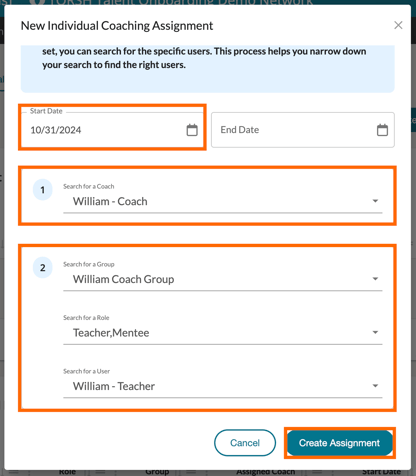
To assign users to a coach, start by selecting the coach(es) you want to assign them to. Next, choose the group and role the user belong to. Once these filters are set, you can search for the specific users. This process helps you narrow down your search to find the right users. Click 'Create Assignment' to save the assignment.
Group Coaching Assignment
To create an Group Coach Assignment, navigate to the 'Group Coaching Assignments' tab at the top of the Coaching Assignment management page.

Then click 'New Group Assignment.'

A pop-up modal will open with the following fields:
-
- Start Date & End Date - Here you can designate the dates for the assignment. The start date defaults to today and can be backdated, while the end date is completely optional.
- Group & Role(s) - Select the group and roles within it to be assigned to your coach.
- Coach - Here you can search and select the coach(es) to be assigned for the whole group.
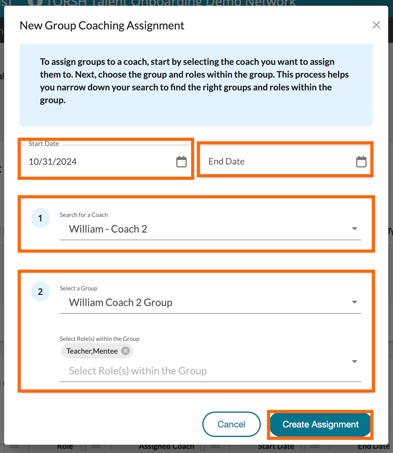
To assign groups to a coach, start by selecting the coach(es) you want to assign them to. Next, choose the group and roles within the group. This process helps you narrow down your search to find the right groups and roles within the group. Click 'Create Assignment' to save the assignment. The assigned coach(es) will automatically be applied to all current and future group members.
NOTE: Creating a Group Coach Assignment will also create an Individual Coach Assignment listing for all members of the group assigned to the coach(es).
Bulk Coaching Assignment
Lastly, you can also assign individual coaching assignments in bulk. To do so navigate to the 'Individual Coaching Assignments' tab.

Click 'Create New Bulk Coach Assignment.'

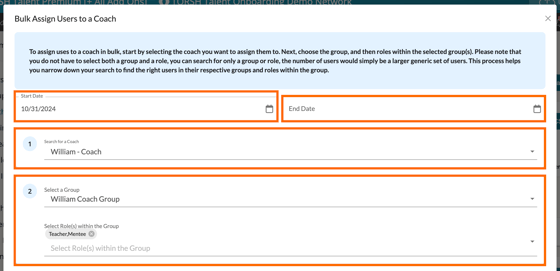
The bulk assignment modal will open, displaying:
-
- Start Date & End Date - Here you can designate the dates for the assignment. The start date defaults to today and can be backdated, while the end date is completely optional.
- Group & Role(s) - Select the relevant group and roles for the assignment.
- Coach - Search and select the coach(es).
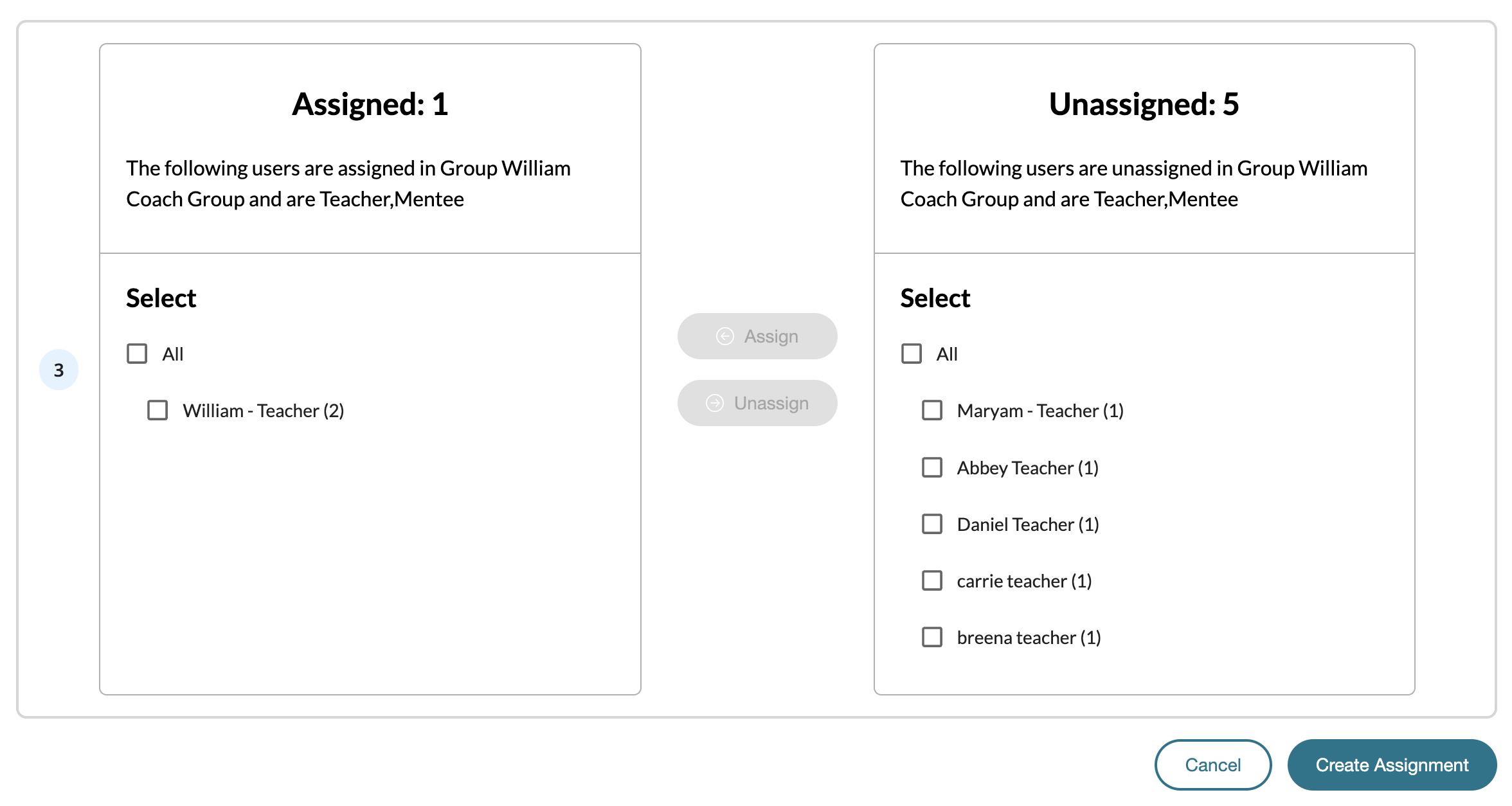
Within the pop-up modal, scroll down, and you will find (2) repositories - one for Assigned users and one for Unassigned users. These users are filtered based on the group and role(s) chosen above.
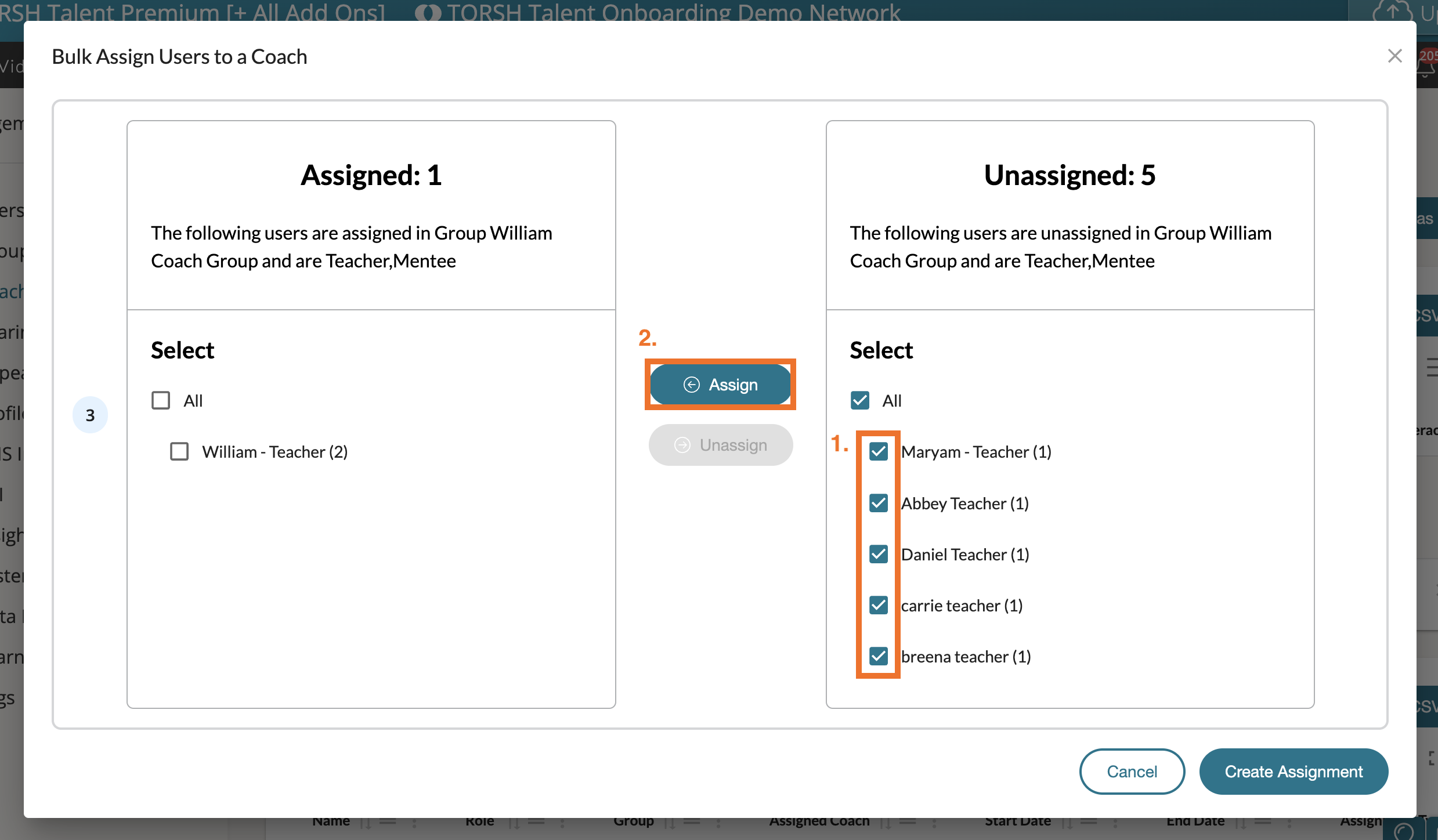
To assign users, go to the 'Unassigned' bin and click the checkbox for the users you would like to assign. Once you have made your selections, click the 'Assign' button to transfer them to the 'Assigned' bin.
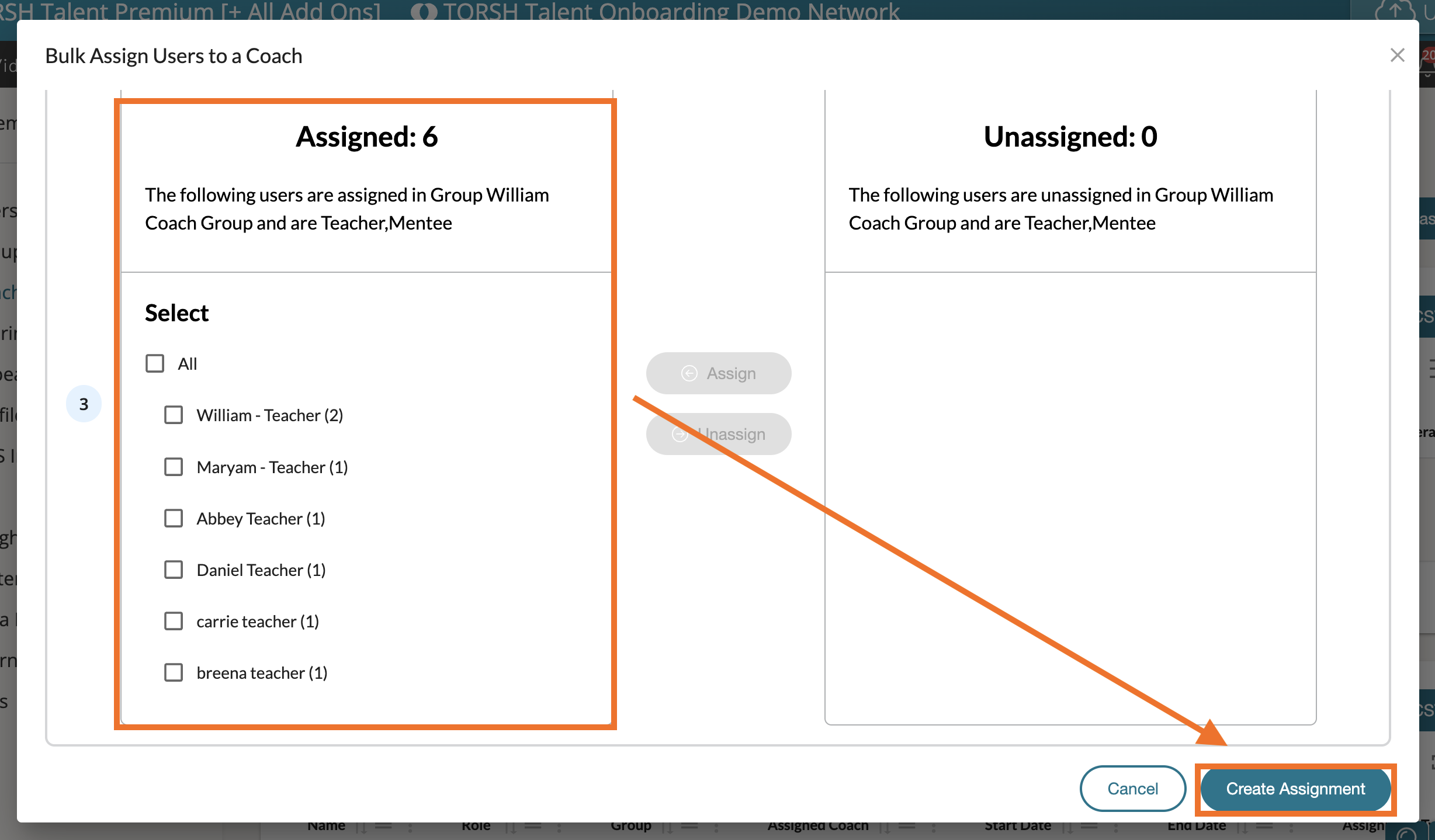
You will then see all of your assignments appear on the left-side Assigned bin. Once your mentee assignments have been made, click the 'Create Assignment' button in the bottom, right-hand corner.
Assign or unassign users using the Assign/Unassign buttons, moving them between the "Assigned" and "Unassigned" components.
Click 'Create Assignment' to save the bulk assignment.
How to Edit/Modify an Existing Coaching Assignment Date Range
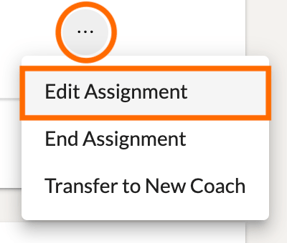
To modify an existing Coach Assignment's date range, first find the assignment listing in your Coaching Assignments management page. Then scroll to the far right of the listing and click on its '...' icon. This will open a list of options.
Click 'Edit Assignment' to modify this assignment's date range further.
Once you've made your changes, click 'Save Assignment.'

How to Deactivate a Coaching Assignment
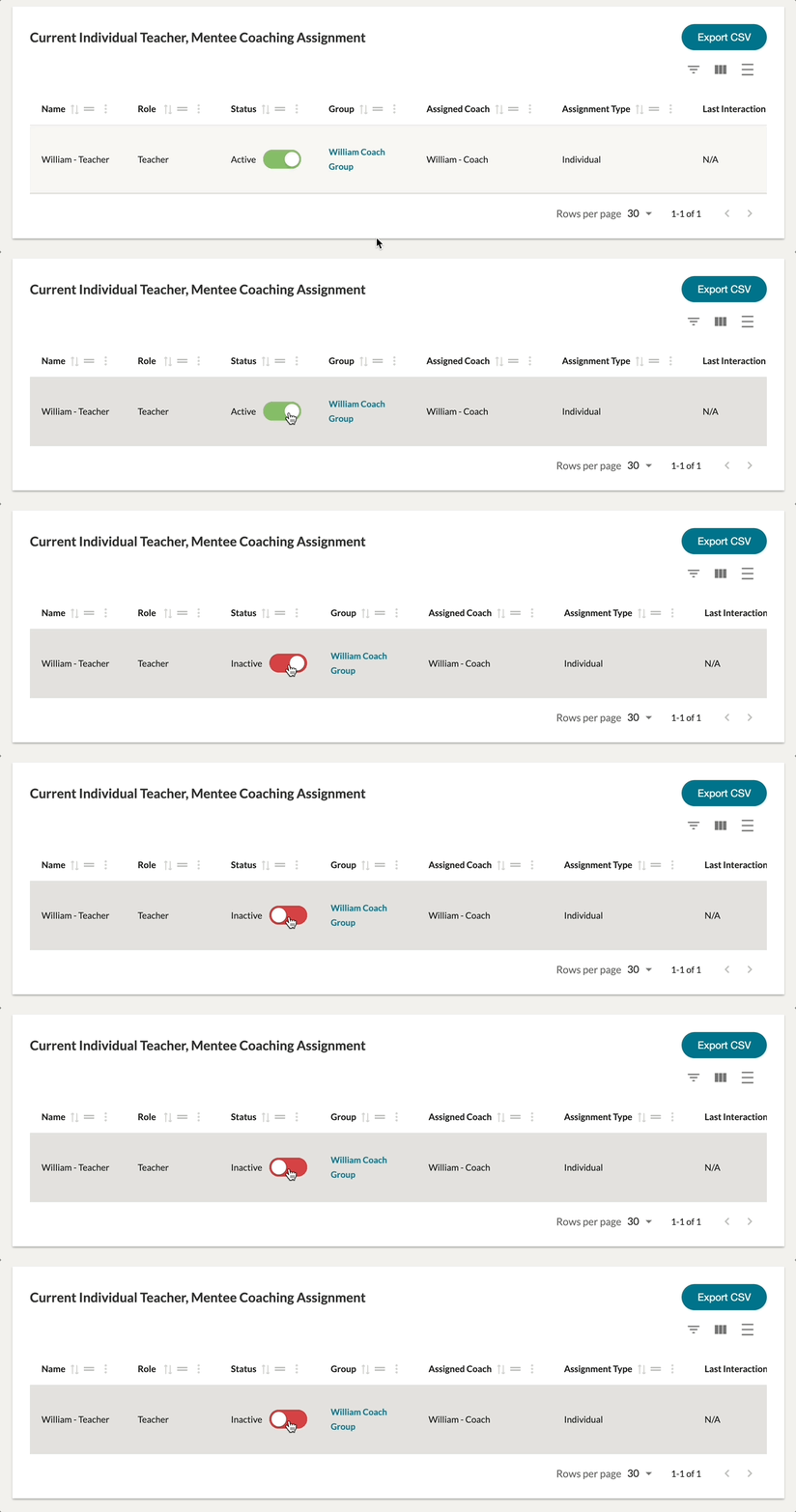
When a Coach Assignment has been created, it can be deactivated at any point - regardless of its Start Date and End Date - by a System Admin. Deactivating an assignment can be a quick way to disable the assignment temporarily without removing the setup of the assignment from your management page.
To deactivate the assignment, find the assignment on your Coaching Assignment management page and find the green 'Status' toggle in its listing. Simply click on the toggle button, and it will turn RED/INACTIVE.
How To End a Coaching Assignment
To end a Coach Assignment - regardless of its Start Date and End Date - first find the specific assignment on the Coaching Assignments management page. Scroll to the far right of the assignment and click on its '...' icon to open up some options related to the assignment. Click 'End Assignment.'
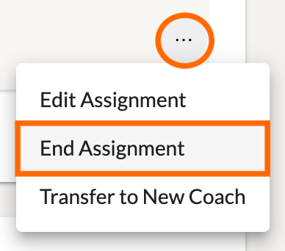
This will open a new pop-up. All interactions and progress linked to this assignment will be preserved, but the coaching relationship will end as of now. Click 'Confirm' to end the assignment. The user(s) involved in the assignment will be notified of any changes.

How To Transfer a Coaching Assignment to New Coach(es)
To transfer a Coach Assignment, first find the specific assignment on the Coaching Assignments management page. Scroll to the far right of the assignment and click on its '...' icon to open up some options related to the assignment. Click 'Transfer to New Coach.'
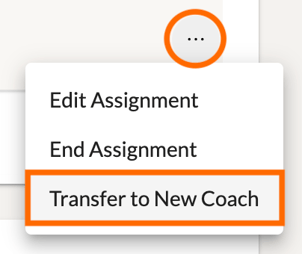
You will then be given several options for coaching assignment transfer:
- Transfer Coaching Assignment Only - No previous artifact shares will be shared with the new coach.
- Transfer Coaching Assignment and Reshare Artifacts - All artifacts shared by the assignees with the previous assigned coach during the assignment window of the original Start Date to End Date will be unshared with the original coach and reshared to the new coach with the same permissions. Any artifacts shared at High Permission by the original coach will retain that share.
Once you have made your choice, click 'Confirm' to transfer the assignment to a new designated coach. The user(s) involved in the assignment will be notified of any changes.

How to Reactivate Expired Individual/Group Coaching Assignments
When a Coach Assignment has reached its designated 'End Date' (if it was assigned one) it will be moved to the 'Expired Assignment' section within your designated Assignment Type (Group or Individual) of your Coaching Assignment management page.
You can reactivate your expired assignments at any time! To reactivate an expired assignment, find the expired assignment, scroll to the far right of the Expired section, and then click on its '...' icon. In the dropdown menu, select 'Reactivate Assignment.'
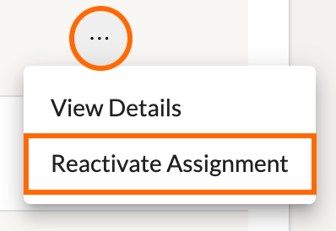
Doing so simply restarts the assignment and moves it back to the 'Current Assignments' section with a brand new start date (the default 'Start Date' being the day you restored it). You can then click the assignment's '...' icon and select 'Edit Assignment' to modify the dates further if needed.
How to Delete a Coaching Assignment
Sometimes a coaching assignment might be made in error, and you may want to delete it. Do note that this is not the same as ending an assignment. In most cases, we recommend ending an assignment instead of deleting it.
To delete a coaching assignment, first find the specific assignment you would like to delete the listing of. Then click on its '...' icon and select 'Delete Assignment' from the dropdown menu.
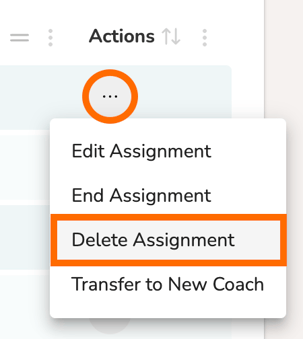
In the pop-up that appears, you can then choose to either 'End Assignment Instead' or 'Delete Assignment.'
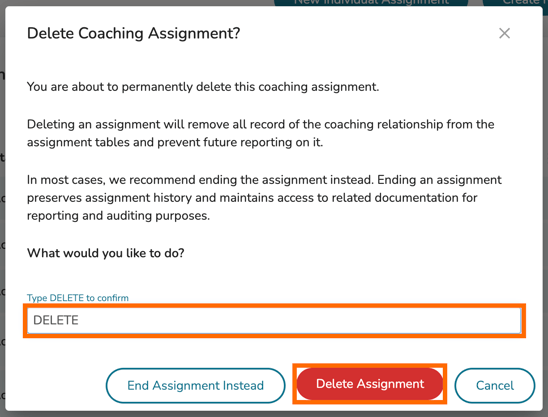
NOTE: Deleting an assignment will remove all records of the coaching relationship from the coaching assignment tables and prevent future reporting on it. This is a permanent deletion of this relationship for all time. This will not remove any shares made as a result of this assignment.
In most cases, we recommend ending the assignment instead. Ending an assignment preserves assignment history and maintains access to related documentation for reporting and auditing purposes.
To process the deletion of the assignment listing, first type in the word 'DELETE' in all caps. This will make the 'Delete Assignment' option available. From there, click 'Delete Assignment' to permanently delete the assignment and all history associated with it.