
As a Network Admin, you can easily modify the existing visibility of Learning Path Modules and Courses to appear in multiple systems within your Network! Adding visibility to individual Learning Paths can provide a way for learners to complete one module/course across multiple systems instead of just one. With visibility settings, you can also provide specific modules or courses as a general template for authors and moderators in specific systems to then clone & modify and make changes for their own modules/courses.
Contents:
I. Modifying Module Visibility
II. Modifying Course Visibility
III. Modifying/Adding Completion Pathways Across Different Systems
NOTE: Granting visibility access to a module/course across multiple systems means that multiple systems can have authoring access to that module/course. Any changes made in one system to that module/course will immediately appear for all other systems with visibility access, so make sure to designate your authors carefully.
If you wish for each system to have a base module or course to work from and make their own separate modifications to, it may be best to add visibility, designate an author without edit permissions, and then have that Learning Path author create a system-specific clone to work from moving forward instead.
Modifying Module Visibility
-
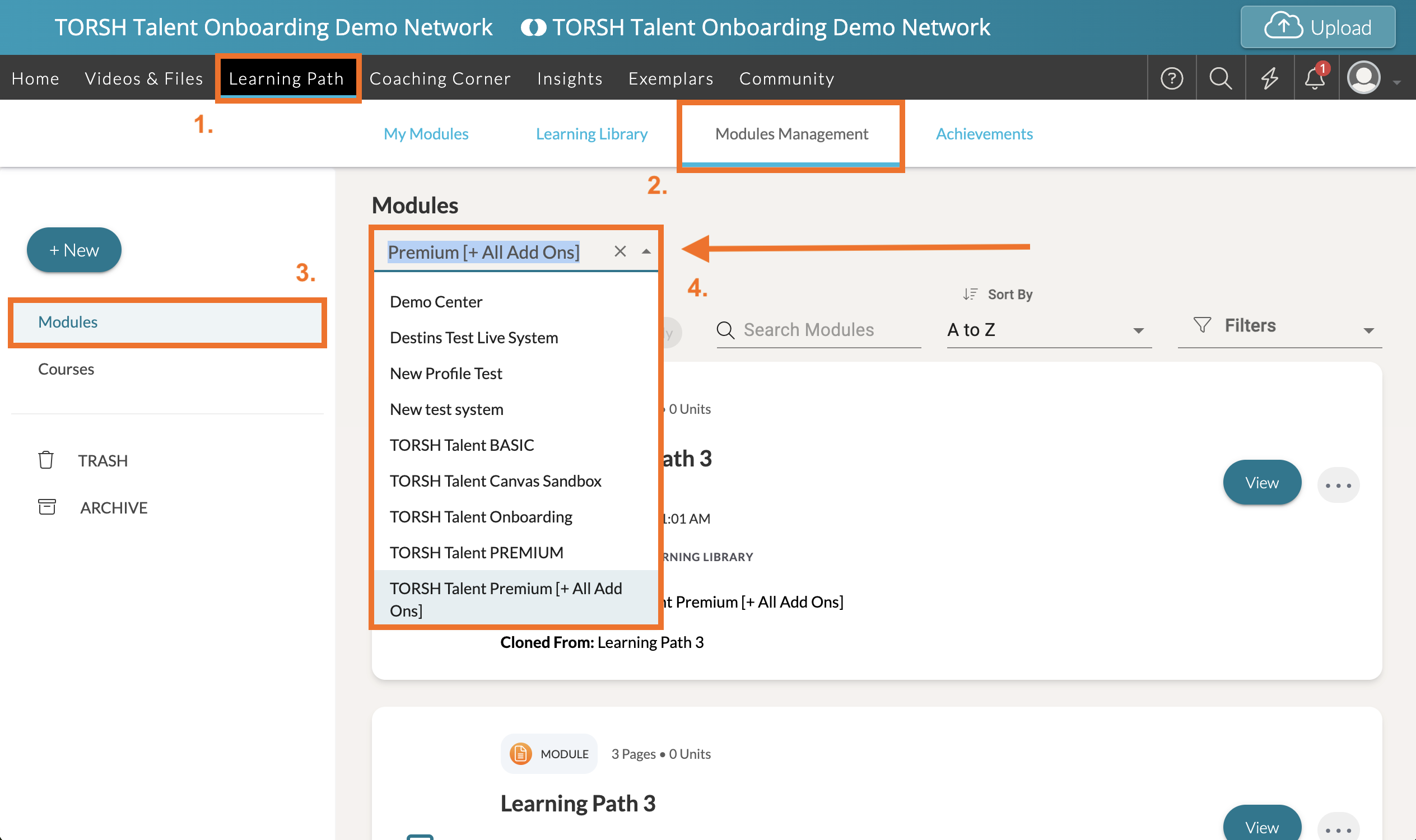
To modify the visibility of a Learning Path Module within your network, first navigate to Learning Paths in the top navigation bar.
-
Then click on the 'Modules Management' tab.
-
On your Modules Management page, you will be brought to the Modules listing by default.
-
Navigate to the System dropdown list at the top of your Modules listing. Select the system you would like to view the modules of, and that system's list of modules will automatically appear!
-
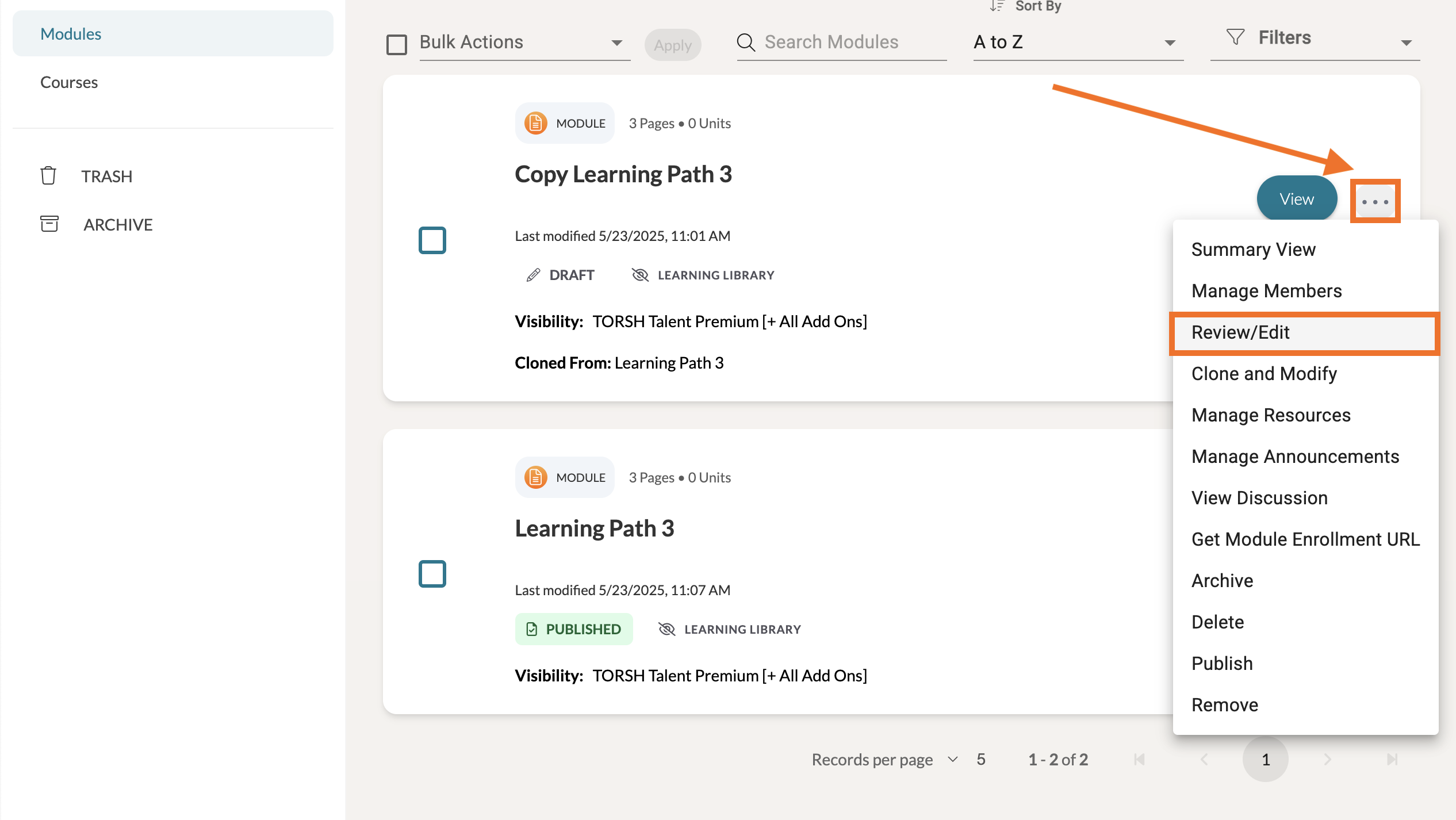
Find the module you would like to modify the visibility of and click on its '...' icon. In the dropdown list, click 'Review/Edit.'
-
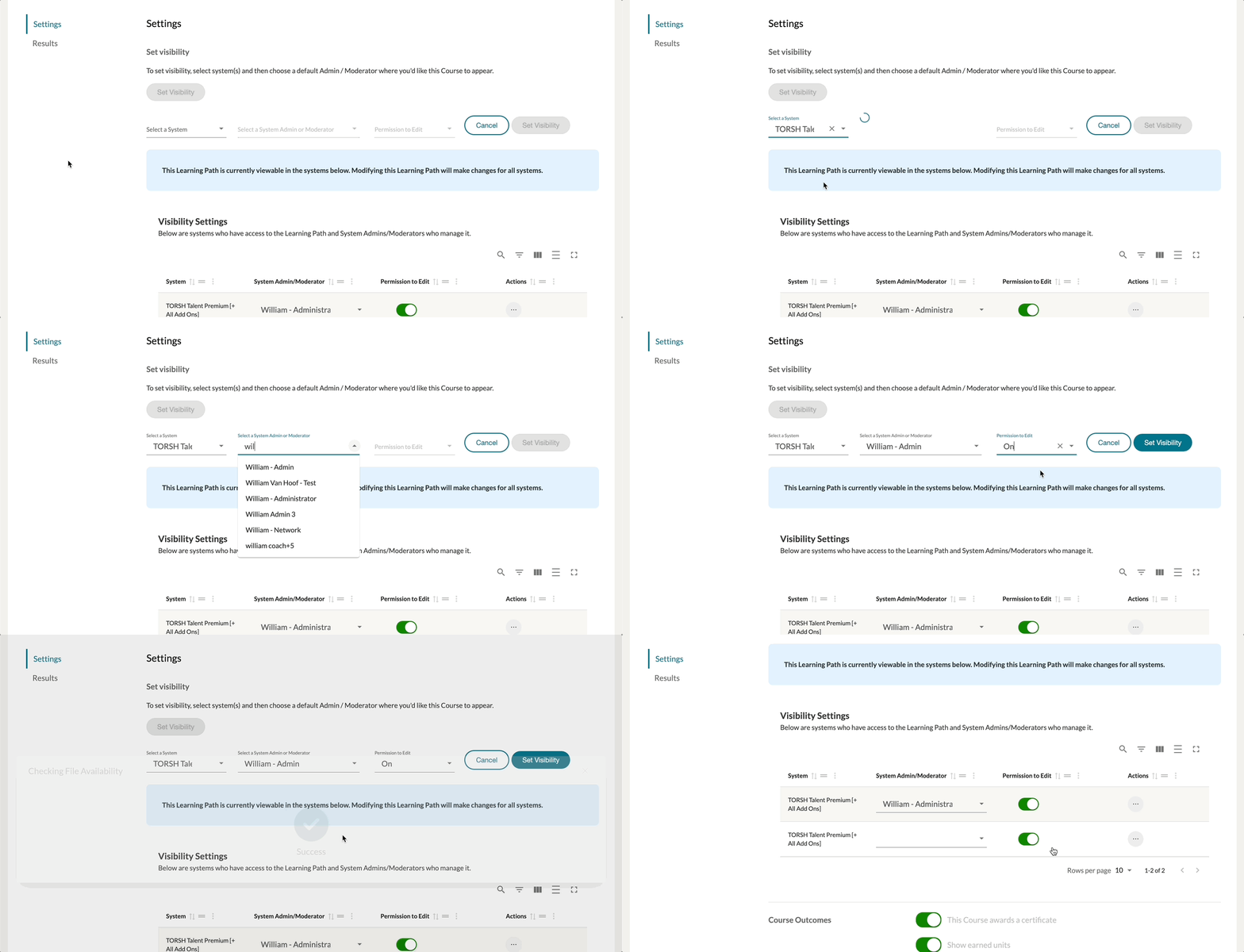
On the Module page, click on the 'Settings' tab at the top and scroll down to the Set Visibility section. Here you can add specific systems to have access to the module and designate an Admin or Moderator it will be associated with in that system. Select On or Off for whether or not you will allow the designated person authoring access.
-
Then click 'Set Visibility' to save your changes. The Learning Path authors of that system will now have access the module to enroll learners/moderators within their system.
If a moderator/author of another system would like to create their own version of the module, they can then select to 'Clone & Modify' the module so as to not save over the original module that other systems in your Network have access to.
Modifying Course Visibility
-
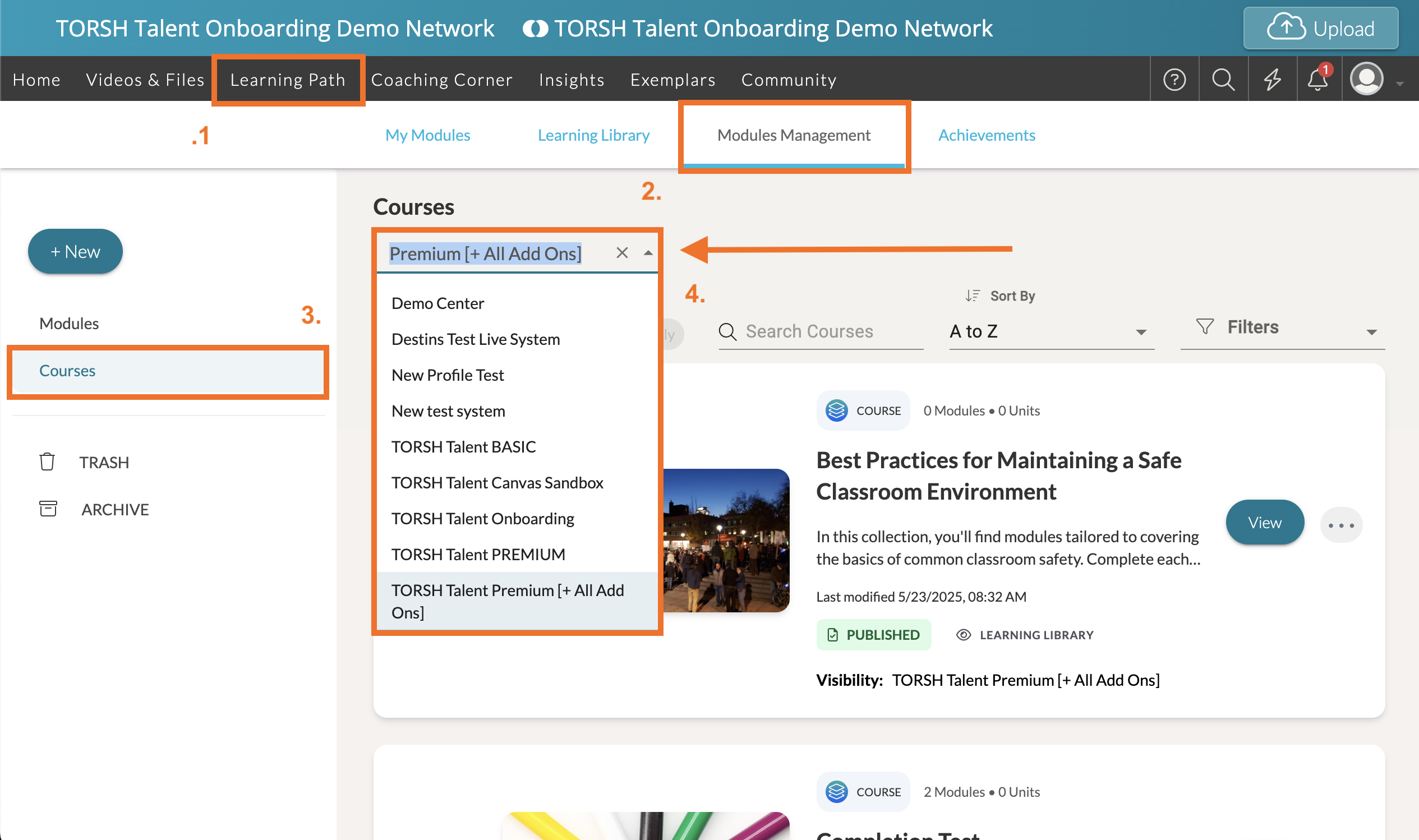
To modify the visibility of a Learning Path Course within your network, first navigate to Learning Paths in the top navigation bar.
-
Then click on the 'Modules Management' tab.
-
On your Modules Management page, click on the Courses listing on the right-side panel.
-
Navigate to the System dropdown list at the top of your Modules listing. Select the system you would like to view the courses of, and that system's list of courses will automatically appear!
-
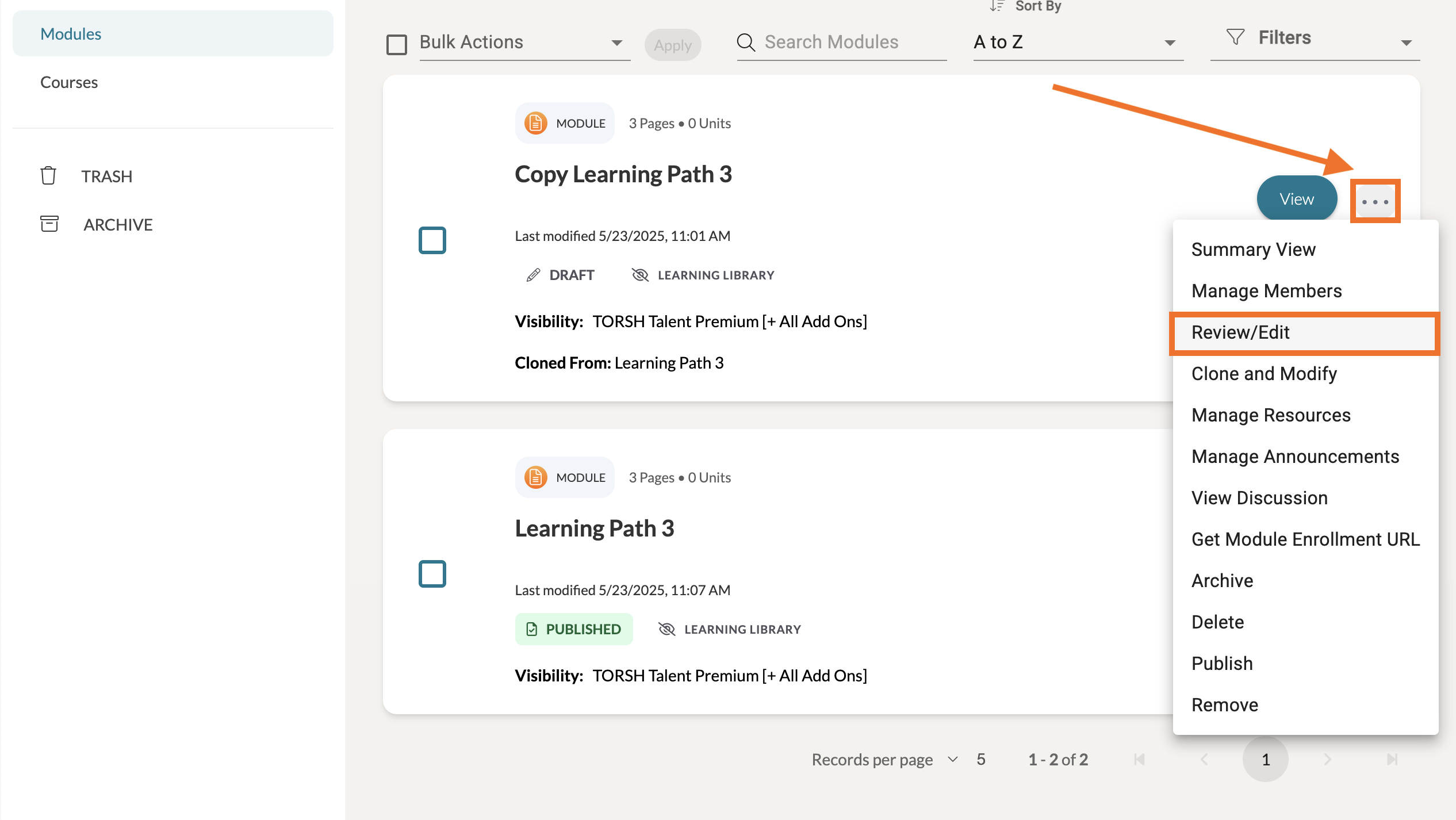
Find the module you would like to modify the visibility of and click on its '...' icon. In the dropdown list, click 'Edit.'
-
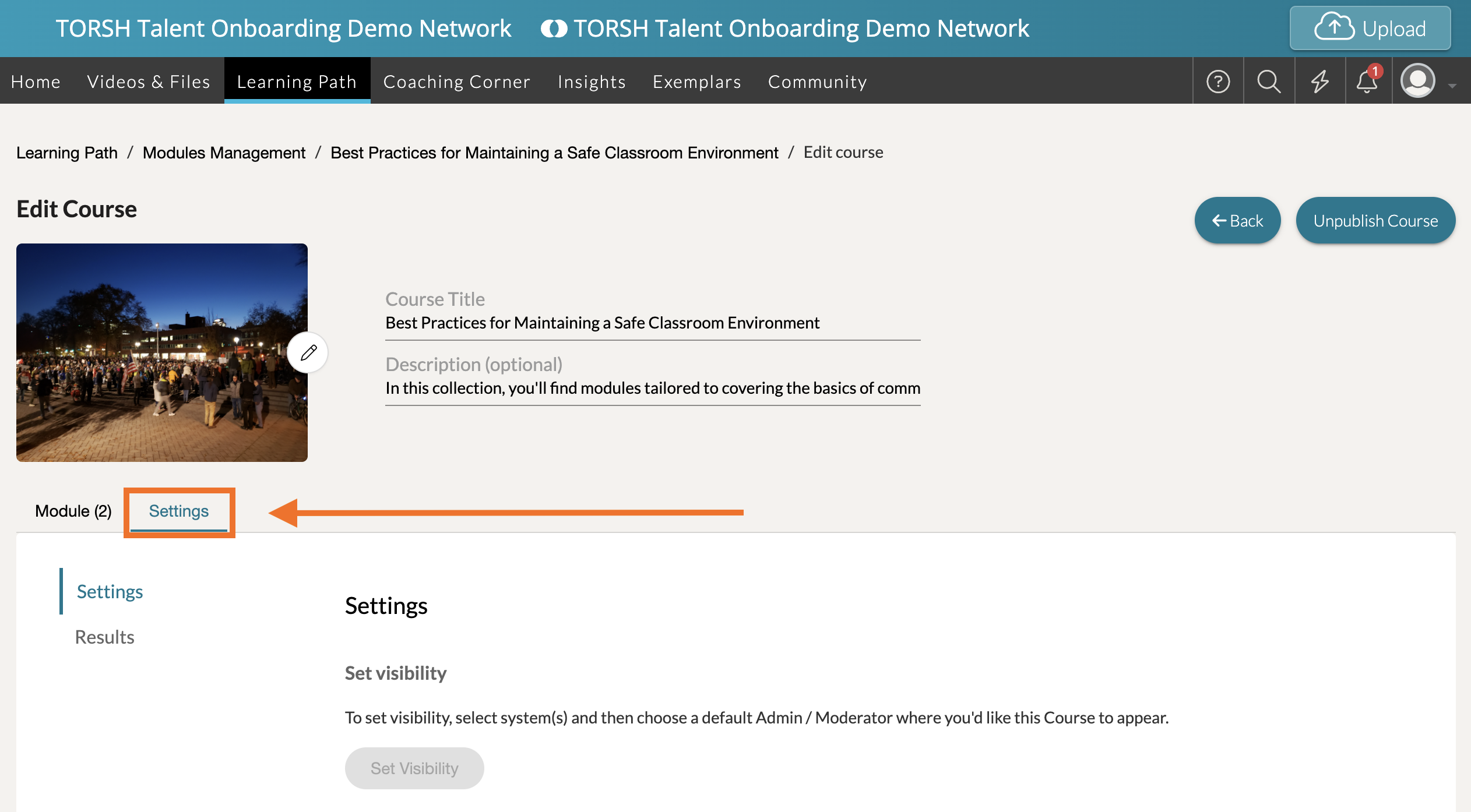
On the Course page, click on the 'Settings' tab.
-
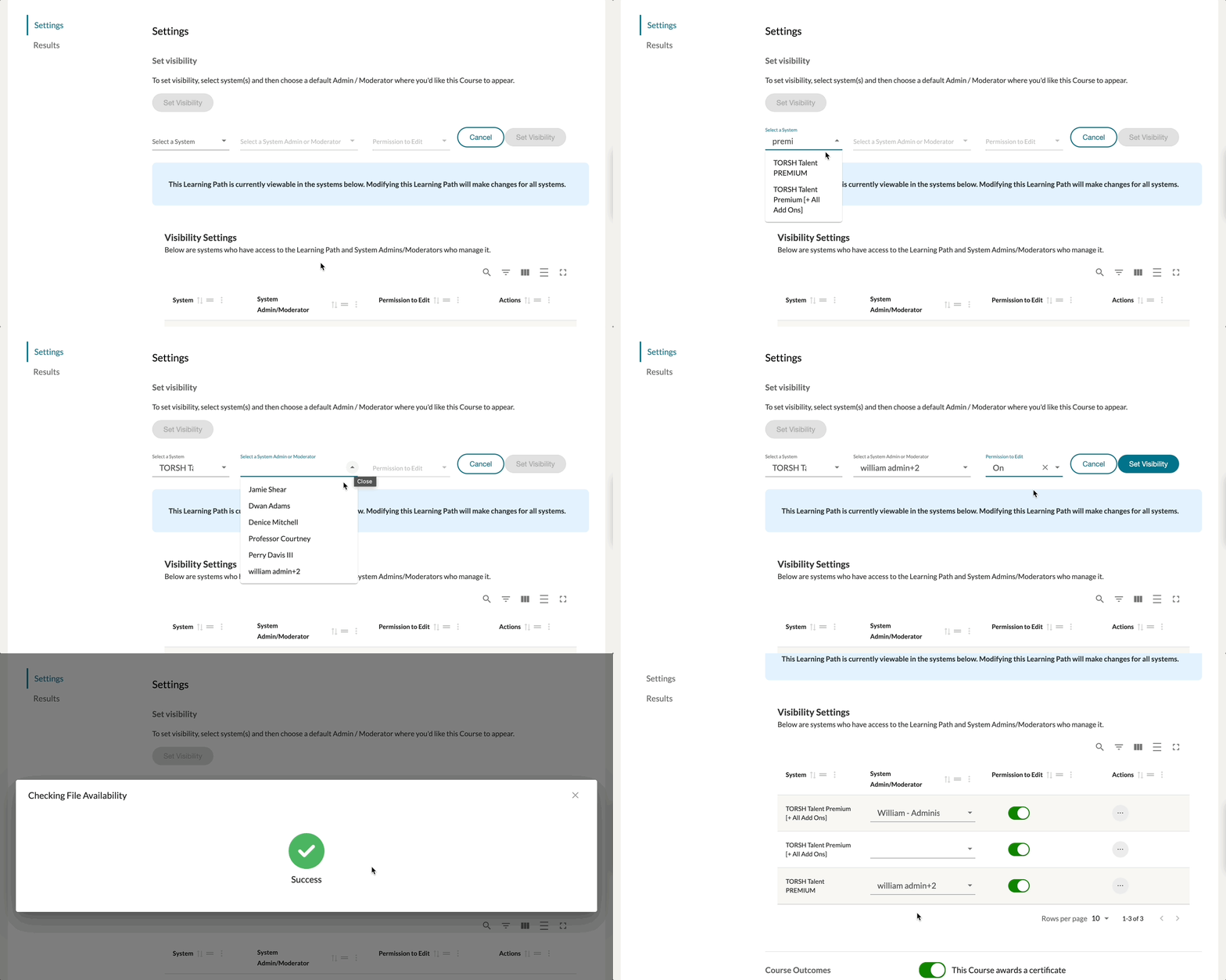
Scroll down to the Set Visibility section. Here you can add specific systems to have access to the course and designate an Admin or Moderator it will be associated with in that system. Select On or Off for whether or not you will allow the designated person authoring access.
-
Then click 'Set Visibility' to save your changes. The Learning Path authors of that system will now have access the course to enroll learners/moderators within their system.
If a moderator/author of another system would like to create their own version of the course, they can then select to 'Clone & Modify' the course so as to not save over the original course that other systems in your Network have access to.
Modifying/Adding Completion Pathways Across Different Systems
If you have a Learning Path Module with Completion Pathways implemented, visibility will be limited to the specific system of each pathway, meaning the original pathways will only be implemented for the system the module was originally built in.
If you would like to implement pathways for the other systems with visibility access to the specific module, you can do so as a Network Admin!
- First navigate to the module's Settings tab and scroll down to the Module Completion Pathways section. There you will find an option to select a specific system.
- Click on the System dropdown list. Select a system with existing visibility to the module.
- Then click the 'Add a Pathway' button. This will create a listing of pathways specific to the system you selected.

- From there you can create new pathways specific to modules or elements within that specific system. You can learn more about authoring completion pathways here .