
To manage your videos and files on the TORSH Talent mobile app, first click on the gear icon on the video or file you wish to modify from your 'Videos & Files' page.
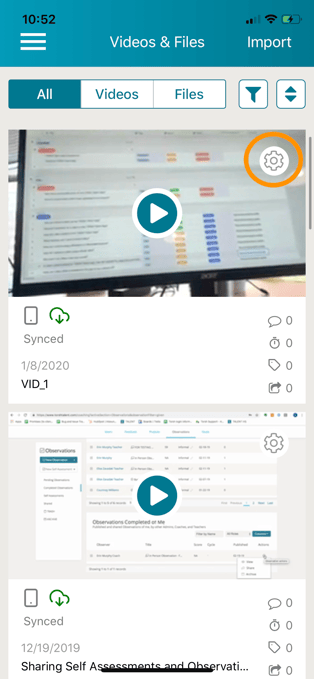
When you tap on the gear icon, you will view an actions menu that will vary depending on the status of the video or file and your connection status.
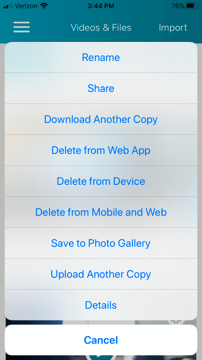
- Rename - Change the name of your artifact
- Share - Share the artifact with a user in your system
- Download Another Copy - Create a new version of the same artifact, choosing to either keep or omit existing comments or rubric tags on your device.
- Delete from Web App - Delete your artifact from torshtalent.com or hs.torshtalent.com, but maintain a copy on the mobile application
- Delete from Device - Delete your artifact from your mobile application, but maintain a copy on the web application
- Delete from Mobile and Web - Delete your artifact from both the mobile and web applications
- Save to Photo Gallery - Save the artifact to your device
- Upload Another Copy - Create a new version of the same artifact, choosing to either keep or omit existing comments or rubric tags on the web application.
- Details - Learn the file size of your video or file
If a video/file only exists on the Mobile app, it will show these options:
- Rename
- Share
- Save to Photo Gallery
- Delete from Device
- Upload
- Details
If a video/file only exists on the Web version, it will show these options:
- Rename
- Share
- Download to Device
- Delete from Web App