
Our Bulk Invite's CSV Upload option is primarily used for inviting new users and assigning them to groups in bulk; however, if you are interested in managing existing user's groups and/or roles using the CSV upload option, you may be allowed this ability with assistance from our Support Team!
Please reach out to support@torsh.co to activate this feature in your system.
Once this feature has been activated for your system, you will be able to include existing users' names, roles, and groups via a CSV file - along with non-existing users. Any users who do not yet exist in the system will be invited. Any user who already exists will have their role and/or group placement updated to match what is listed for them in your CSV file.
Note: If an existing user is already in a group(s) in Talent, but the CSV file doesn't include said group(s) in the user listing, then uploading the CSV file will effectively remove the existing user from the group(s) they were once in.
How To Modify Users in Bulk using the Bulk Invite Tool
To modify information for existing user accounts in your system, you will need to produce the following items:
- Users Export CSV file
- User Upload Template CSV file
1. Generating a Users Export CSV File
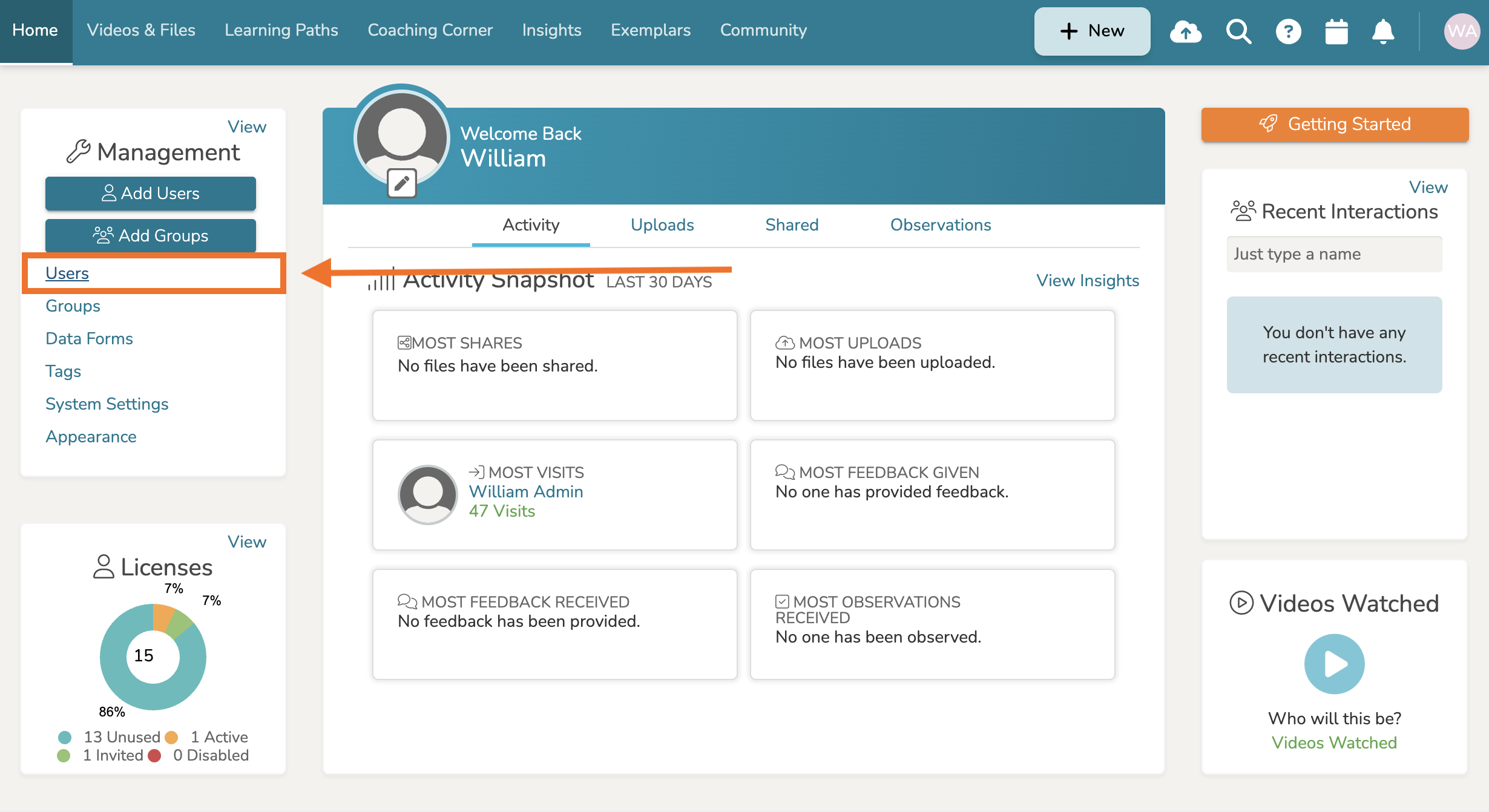
First, generate a report of all users in your system. To do so, start from your Homepage in TORSH Talent and locate the 'Management Panel.' From there, click 'Users.' This will take you to the Users Management page.
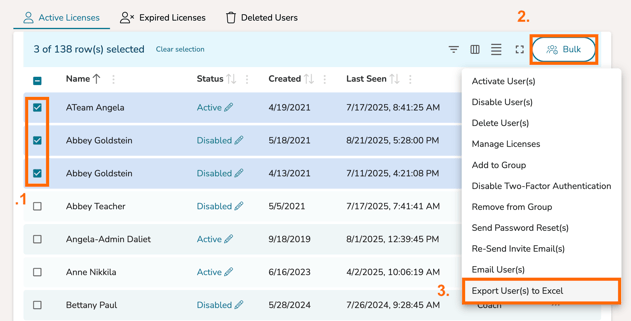
From here, select all of the users you would like to modify by clicking on each user's associated checkbox on the left. Once all of the necessary users are selected, click the 'Bulk' button in the top, right-hand corner of the page. In the dropdown list, click 'Export User(s) to Excel.' This will export a CSV file of all users your selected based on the columns you had displayed. The generated file will be called 'Users Export.'
2. Generating a User Upload Template CSV File
Next, you will need to pull the information from the Users Export and paste it into a separate CSV Invite template. From there, you can upload this information back into Talent with your necessary adjustments to existing user accounts.
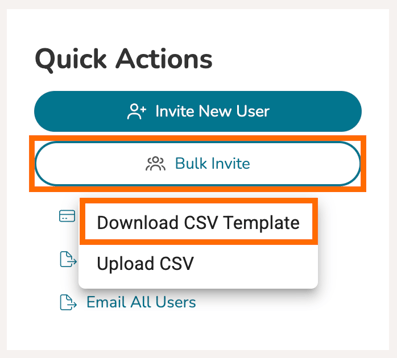
To do so, click the 'Bulk Invite' button at the top of your Users Management page. In the dropdown that appears, click 'Download CSV Template.' The generated file will be 'User Upload Template.'
3. Adjusting Your User Upload Template
Once you have a 'Users Export' file and a 'User Upload Template' file, open them both in your spreadsheet program of choice. Copy the First Name, Last Name, UNID, Email, Role, and Group(s) fields from the Users Export file and paste them in to the FirstName, LastName, UNID, Email, Role, and Group fields of the User Upload Template.
From here, manually adjust any of these fields (except for the Email field) for each user listed. Any changes you make will update the existing user's information when uploaded and processed back into TORSH Talent.
NOTE: Changing the email address of a listed user in your CSV file will lead to a new account being created for that email address. If you would like to keep the previous account and simply modify its email address, please learn more here.
Existing User Modification Notes
- If you would like to place your existing users in a different group than they were in before, separate each group with a comma.
- If you enter a group name for a user group that does not already exist in your system, a new group will be created to accommodate.
- If you enter a completely different arrangement of groups than what the user is currently placed in, the user will be removed from any groups not listed in the field and placed into the new groups listed for them.
- Lastly, leaving a field completely blank for an existing account will result in the existing user keeping their previously submitted information for that field (Ex: Leaving a user's 'Group' field blank will result in the user remaining in their current group(s)).
Save your changes to your User Upload Template CSV file. Make sure you export your saved changes as a CSV file.
4. Uploading Your Bulk Account Modification to TORSH Talent
On your Users Management page in Talent, open the 'Bulk Invite' option again and select 'Upload CSV.'
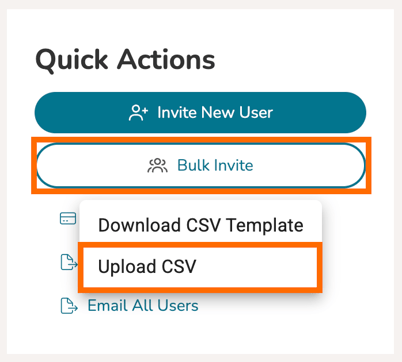
Select your modified User Upload Template file and click 'Upload.' Your modifications will process, and your existing users will have their information updated!