
When adding an artifact to the Exemplar Library, you will have the opportunity to determine which groups in your system you want the artifact to be visible to.
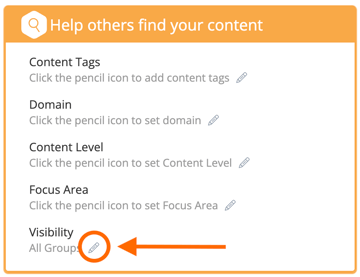
To choose which groups can view the exemplar artifact, click the 'pencil icon' next to Visibility. Then, click in the box and select the appropriate group or groups you would like to have access to this artifact in the Exemplar Library. If you want everyone to have access to the artifact, select ‘All Groups.’
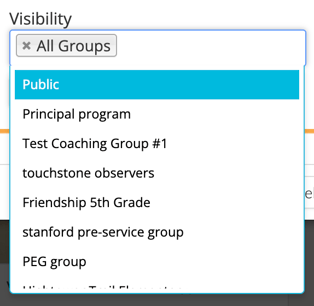
Managing and Modifying Visibility for Existing Exemplars
You can always modify the visibility of any existing exemplar artifact later by hovering over its 'gear icon' and selecting ‘Manage Visibility' in the dropdown list. This will display the Manage Visibility pop-up wherein you can either 'Add Visibility' to the currently selected exemplar or 'Replace Visibility.'
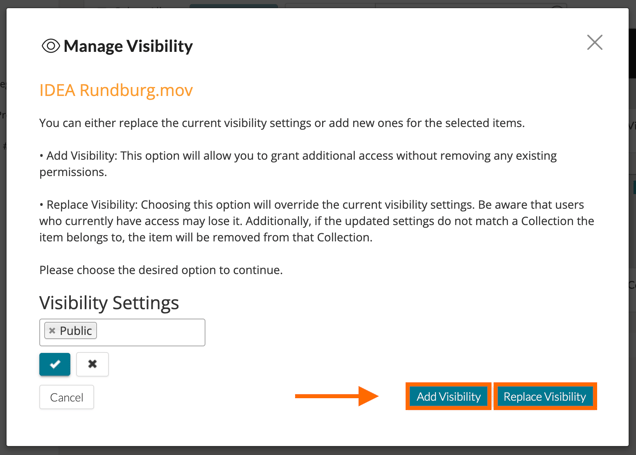
- Add Visibility - This option will allow you to grant additional access without removing any existing permissions.
- Replace Visibility - This option will override the current visibility settings for the exemplar(s) selected. Be aware that users who currently have access may lose it. Additionally, if the updated settings do not match a Collection the item belongs to, the item will be removed from that
NOTE: In order for an artifact to appear in a specific Exemplar Collection, the visibility of the artifact must match the visibility of the Exemplar Collection.