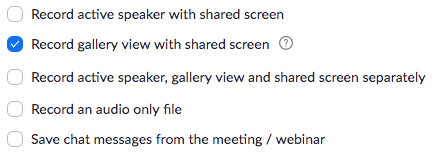
We recommend making a few changes to your Zoom account's settings in order to more optimally record your Zoom meeting through TORSH Talent.
-
First, log in to your Zoom account at https://zoom.us/
-
Then, navigate to ‘My Account.'

-
Click ‘Settings’ under ‘PERSONAL’
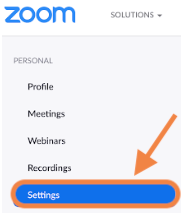
-
Then, click the ‘Recording’ tab.

-
Non-HIPAA TORSH Talent Users - Next to ‘Cloud Recording,' enable ‘Allow hosts to record and save the meeting / webinar in the cloud.'

NOTE: TORSH Talent HIPAA-Secure users will not record to the cloud. -
Lastly, select ‘Record gallery view with shared screen.’