
Coaches and Mentees have the ability to record a short video to introduce themselves to new users. This video will be displayed on your profile and can be re-recorded and removed as needed.
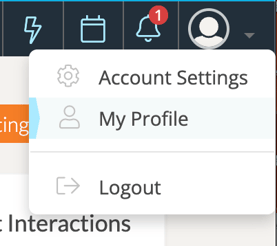
To record an introductory video, login to TORSH Talent. Then, click on your 'profile icon' in the top, right-hand corner of your TORSH Talent webpage. In the dropdown menu, select 'My Profile.'
On your profile page, you will find a Your Introductory Video section at the top with the option to 'Record/Upload' a video.
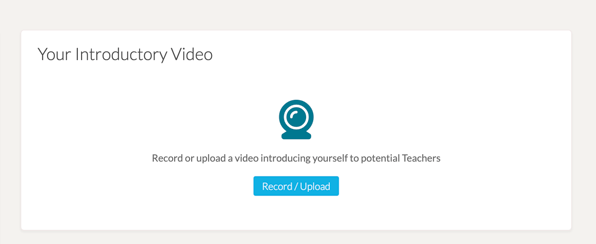
Click the 'Record/Upload' button, and then click 'Upload a New File.'
From here you can choose to upload a previously recorded video file. If so, please make sure that your video file is compatible with our platform. You can learn more here.
You can also record your own video file through the platform by clicking 'Record Video.' Make sure that you are connected to a strong and stable WiFi connection before recording. Then click the blue record button under the center video screen to begin recording.

Click the grey stop icon to complete your recording.

Once you are satisfied, click the 'Upload' button to upload your recording. Please let the progress bar complete until the video disappears from upload, and the Upload pop-up will close out automatically. When the video has uploaded, please allow for the video to finish processing in our system. After the video has finished processing, you, and other users in your group, will see the video displayed on your profile page.