
In TORSH Talent, Admins and Coaches are the only users who can perform observations on any artifact they are shared with.
As a Mentee, you can only perform self assessments on videos and files that you have uploaded. You cannot perform an observation on a video/file shared with you unless an Admin/Coach user requests for you to perform an observation on a video they uploaded and shared with you. Please share the linked Help Center article with your Admin/Coach. They can learn more about requesting an observation from you here .
You can also request for an Admin/Coach to perform an observation on a video/file that you own! The following Help article will cover how to do so. To request an observation on one of your uploaded artifacts, please follow one of the methods provided below.
Requesting an Observation from the Quick Actions Menu
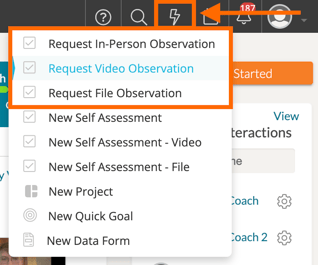
The first method is by navigating to the 'Quick Actions Menu' via the 'lightning bolt icon' in the top, right-hand corner of Talent. In the dropdown menu that displays, select the type of observation you wish to request.
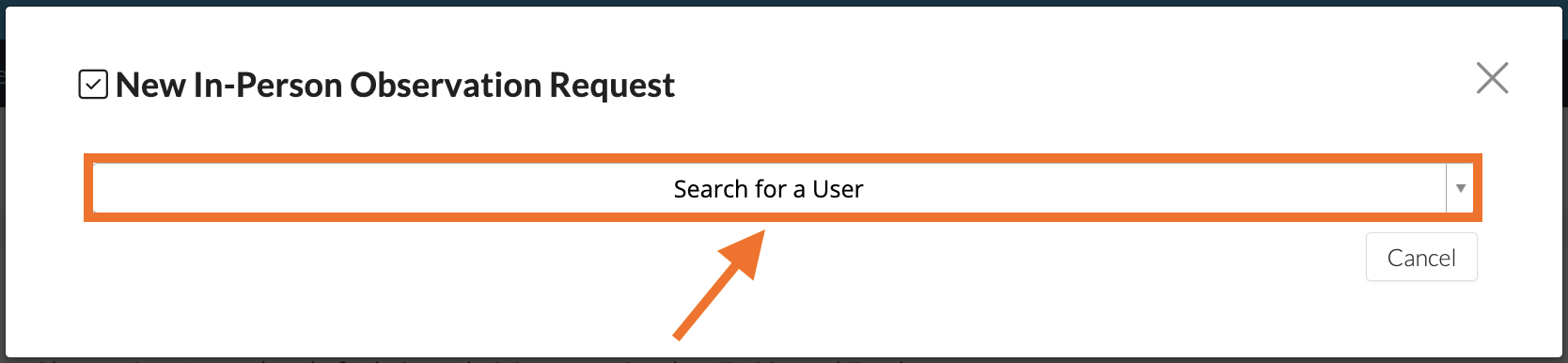
In the next window, select the user from whom you wish to receive an observation.
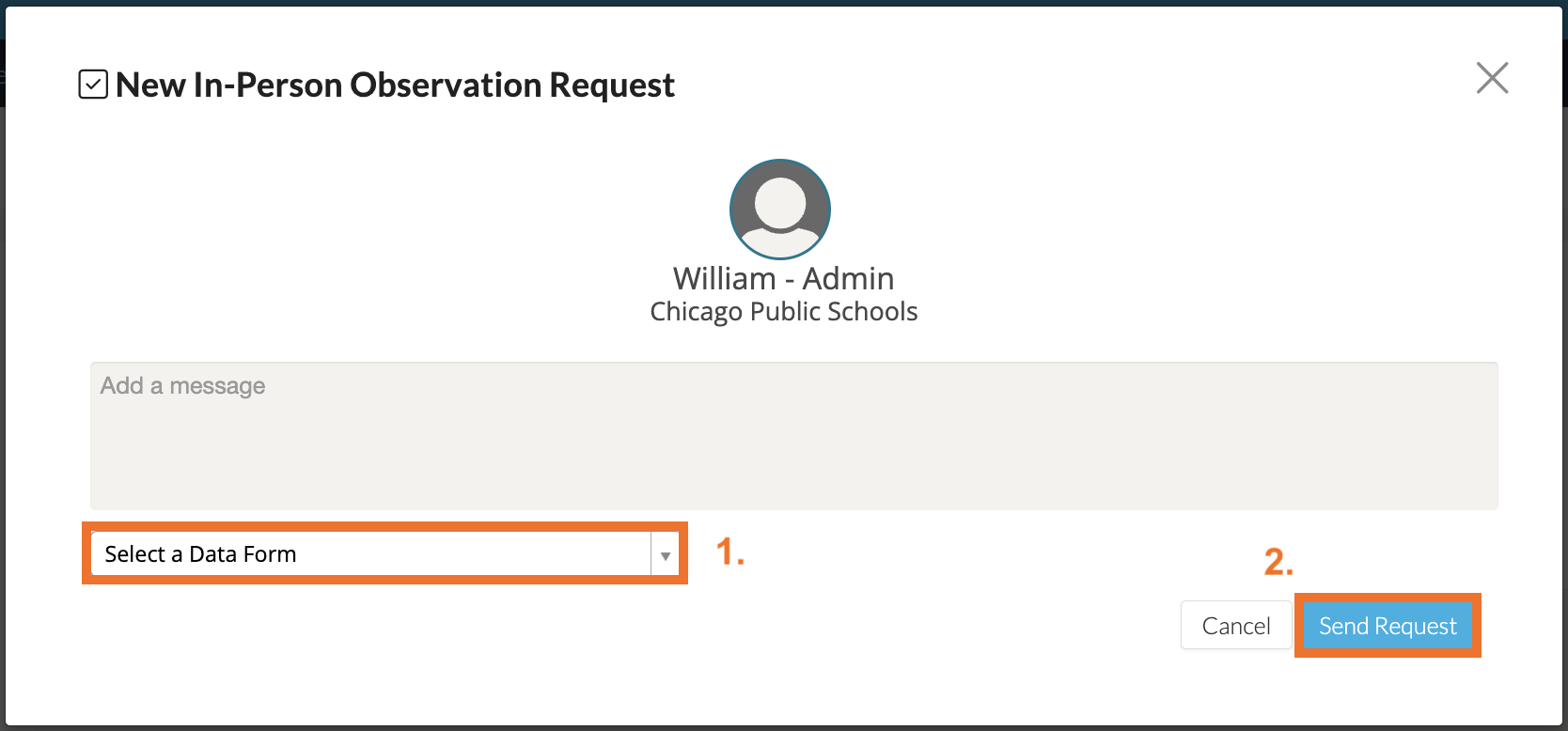
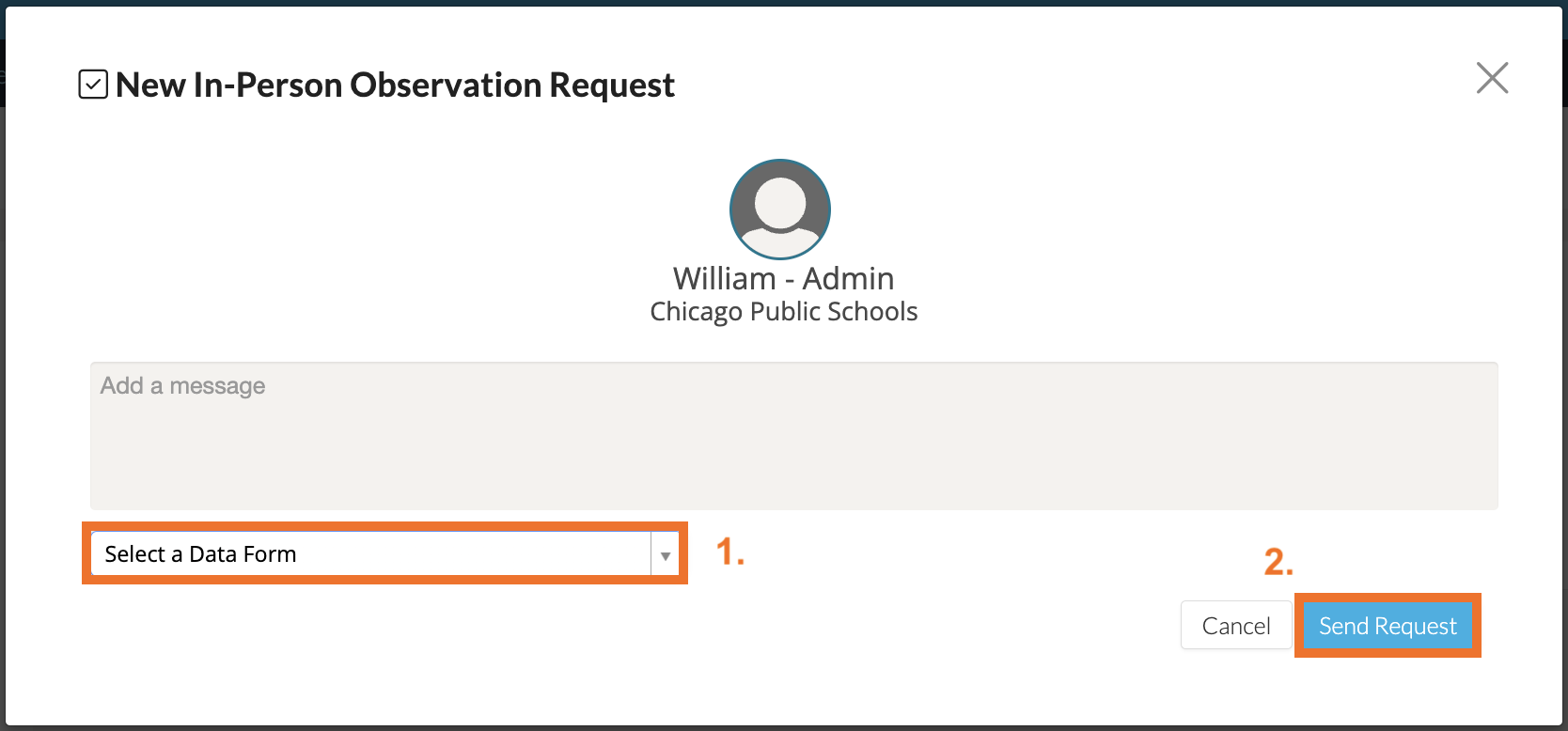
Then on the next page, select a rubric or framework. If you so choose, add a message, and click 'Send Request.' The user you selected will receive an observation invitation in their email inbox and on their Talent notifications.
Requesting an Observation from Coaching Corner>Users
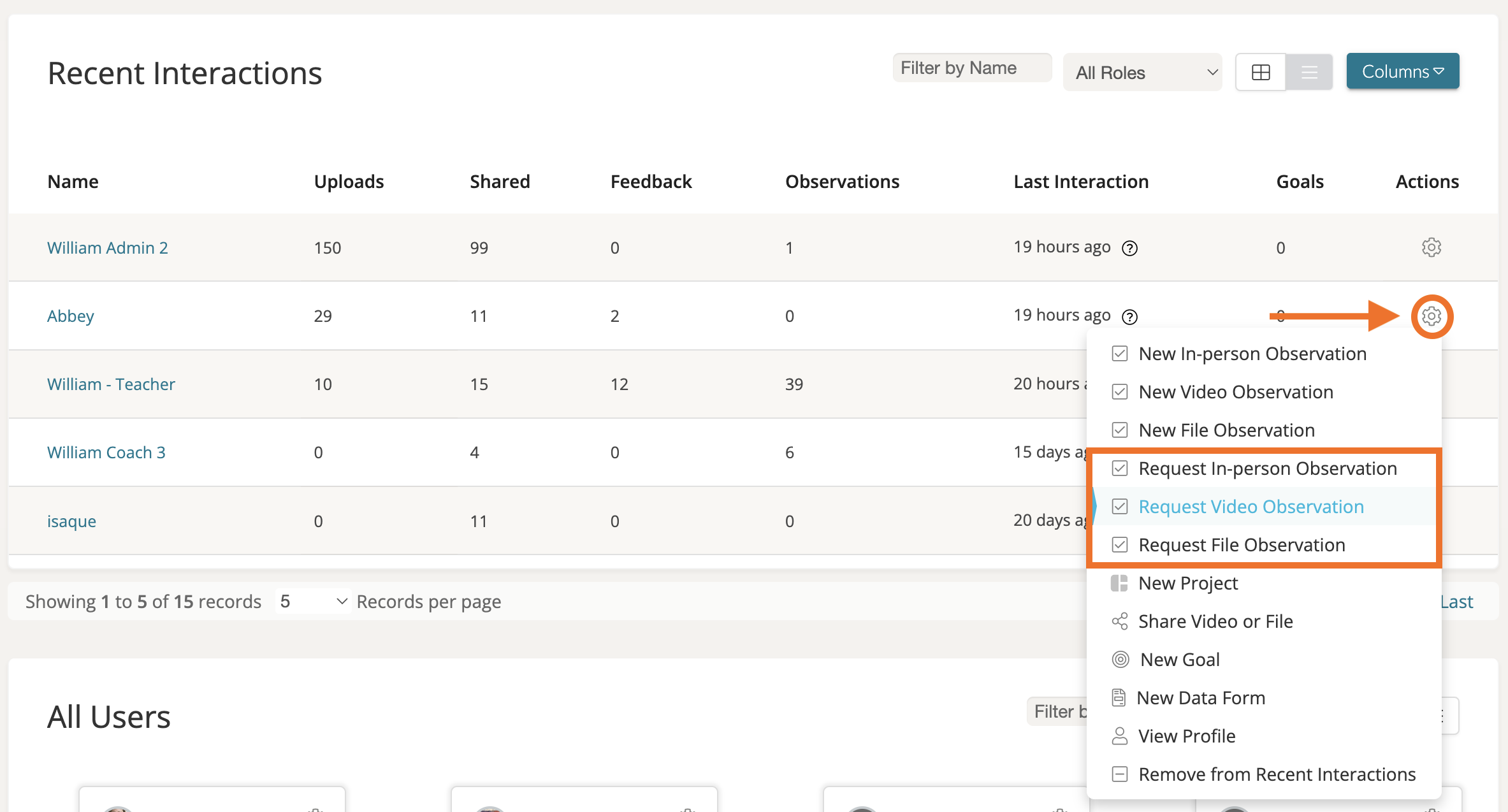
Another way to request an observation is to click on 'Coaching Corner' from your top navigation bar. From there navigate to the 'Users' tab and find the user from whom you wish to receive an observation. Hover over their Actions column and click on the 'gear icon' across from their listing. In the dropdown menu, select the type of observation you wish to request.
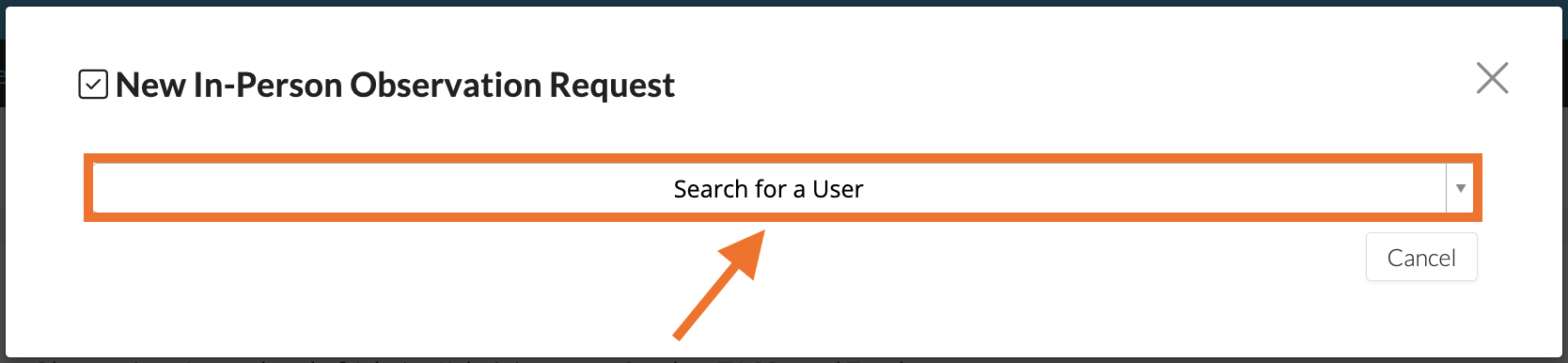
In the next window, select the user from whom you wish to receive an observation.
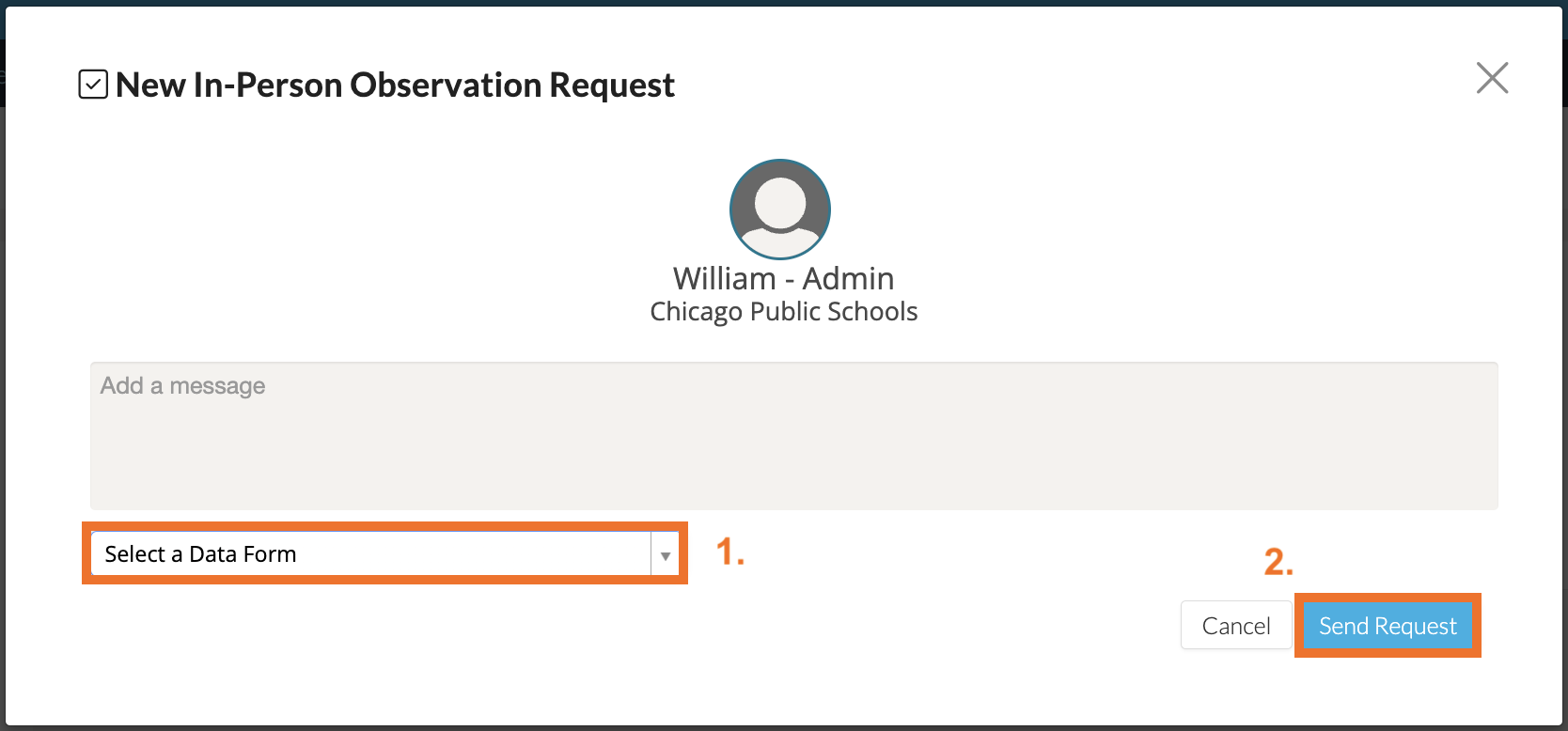
Then on the next page, select a rubric or framework. If you so choose, add a message, and click 'Send Request.' The user you selected will receive an observation invitation in their email inbox and on their Talent notifications.
Requesting an Observation from Coaching Corner>Observations
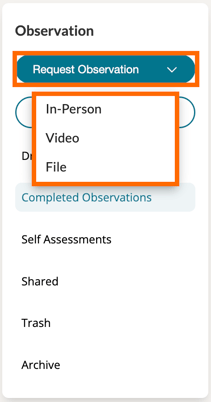
You can also request an observation by navigating to 'Coaching Corner' from your top navigation bar and clicking the 'Observations' tab. Look to the left-side panel and click 'Request Observation.'
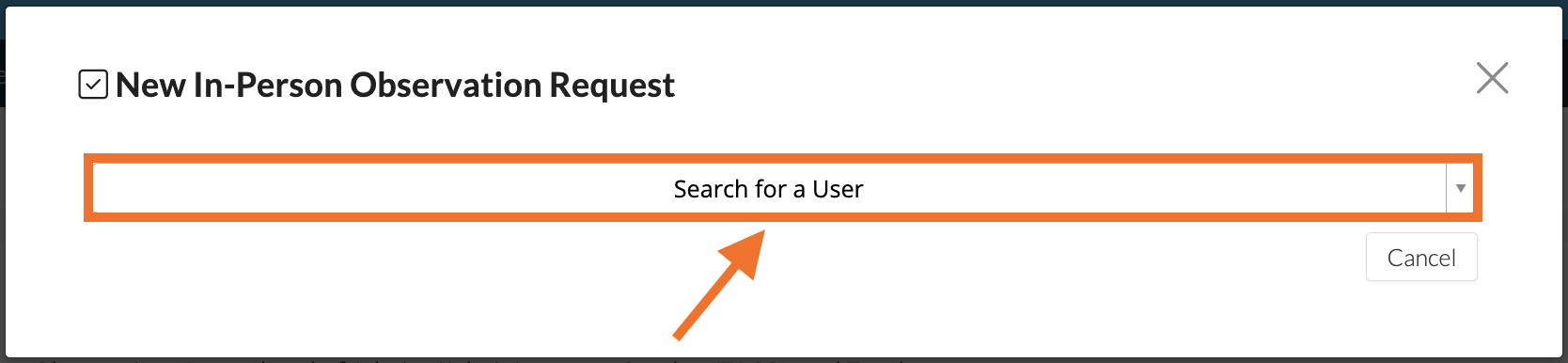
In the next window, select the user from whom you wish to receive an observation.
Then on the next page, select a rubric or framework. If you so choose, add a message, and click 'Send Request.' The user you selected will receive an observation invitation in their email inbox and on their Talent notifications.
Requesting an Observation from Your Video/File
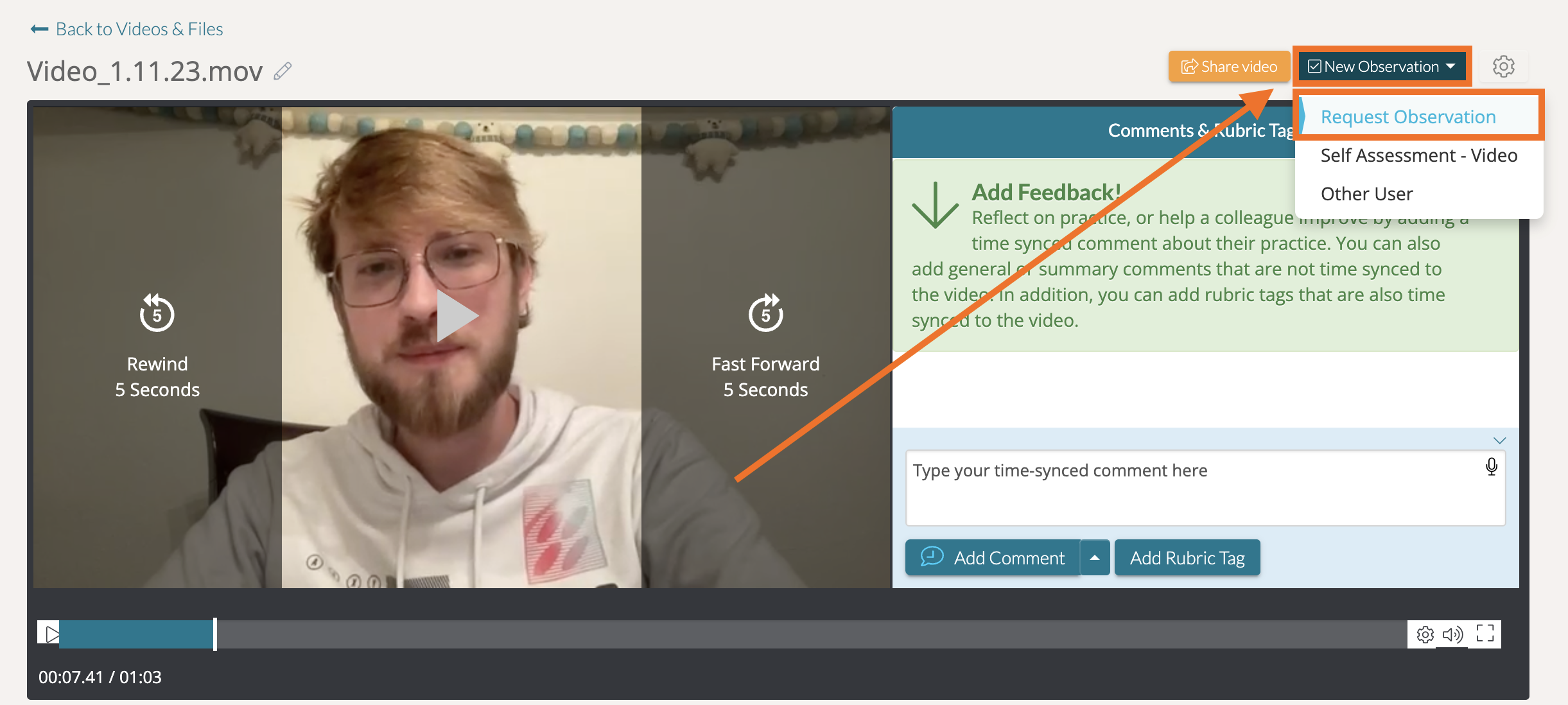
You can also request an observation from the video or file you wish to have observed. Navigate to that video or file. On the artifact's webpage, select 'New Observation' in top, right-hand corner and click 'Request an Observation.'
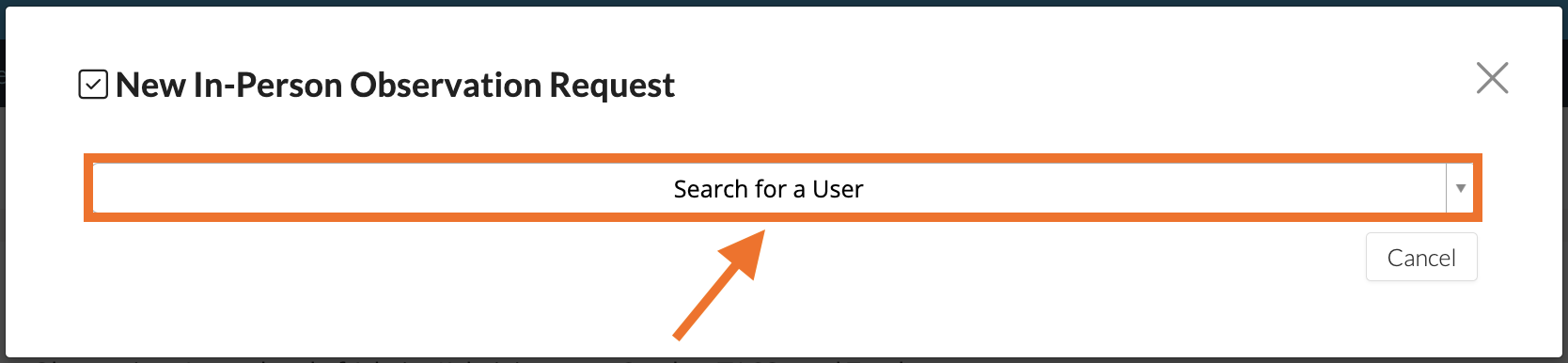
In the next window, select the user from whom you wish to receive an observation.
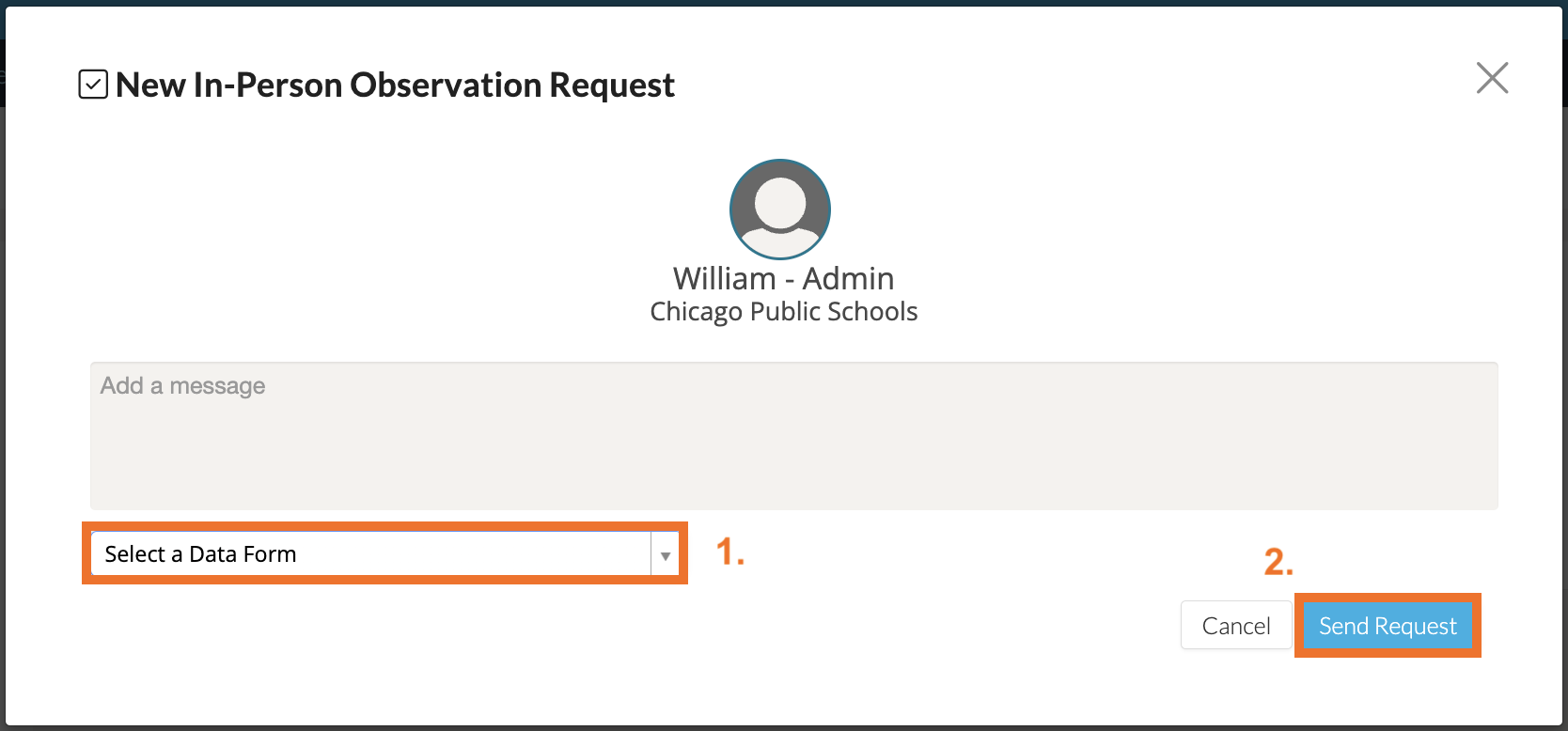
Then on the next page, select a rubric or framework. If you so choose, add a message, and click 'Send Request.' The user you selected will receive an observation invitation in their email inbox and on their Talent notifications.
Rather watch a video? To learn more about requesting an Observation, watch this video here . HIPAA-Secure users, please click here .