
Note: This feature is only available to Premium systems.
In TORSH Talent, click on the 'calendar icon' to display your calendar of upcoming events and show all of your meeting requests.
To schedule an event, click 'Schedule Event' in the top, right-hand corner.

To configure your schedule and sync your Talent calendar with your Google Calendar, select the 'Configure' option.

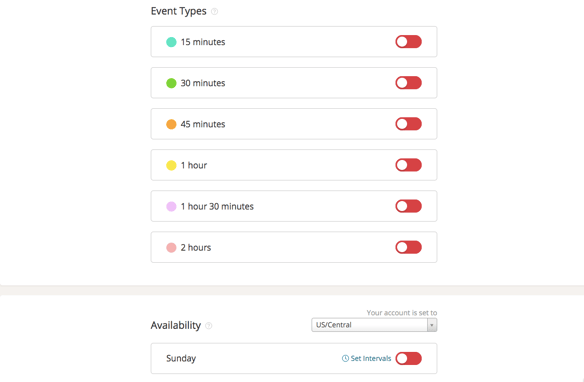
You can then set your preferences for event types, availability, and other settings regarding scheduling.
To sync your TORSH Talent calendar with your Google Calendar, scroll to the bottom of the page and click the button next to 'Sync with your Google Calendar' so that it displays as 'green.' You will then be directed to authorize your Google calendar configuration.

Now other users will only be able to select times that work for you when scheduling events. By syncing your Google calendar, any event scheduled in Talent will be added to your primary Google calendar.
You can go back to edit these settings in the Configure menu at any time.