
One of the more versatile features of Report Builder is the ability to share your custom built reports with other users within your system! There are several ways you can share reports.
Sharing When Creating a Report
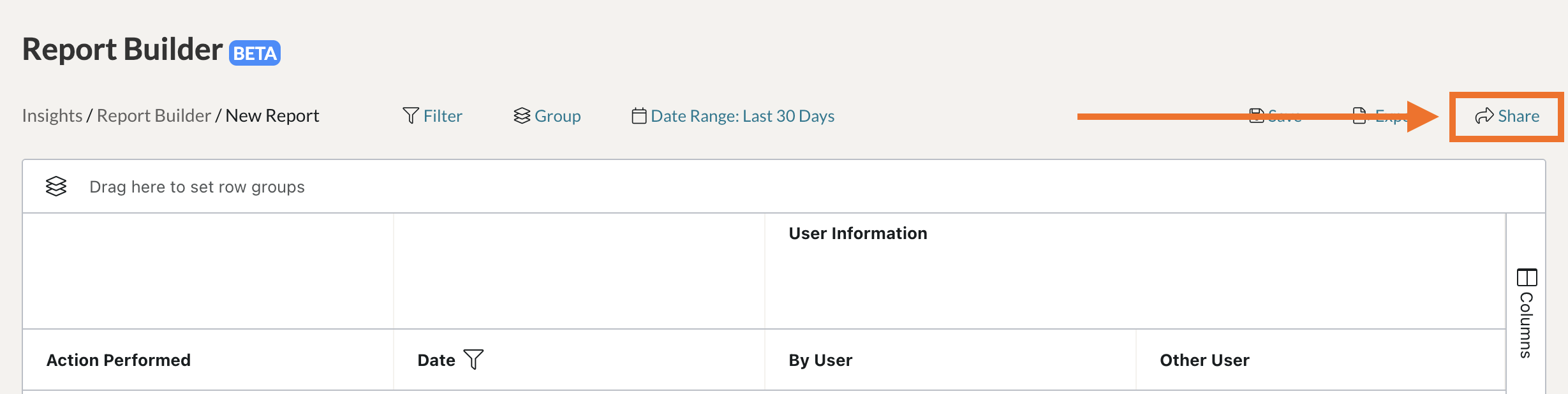
If you would like to share your report, click the ‘Share’ button found in the top, right-hand corner.
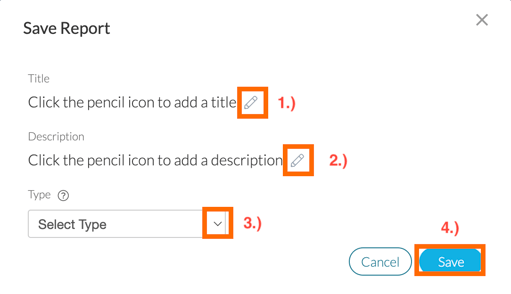
If you have not already saved the report, a new window will appear, wherein you can name your report, give it a brief description, and then designate the overall data type you are using. Upon clicking ‘Save,’ a new pop-up window will appear.
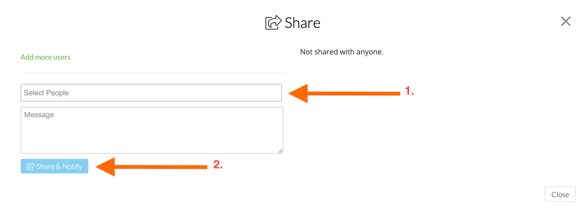
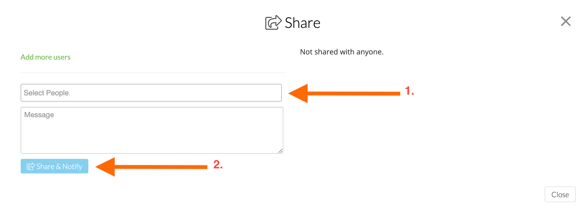
In the Share pop-up modal, enter the name of the user you would like to share the report with and then click ‘Share & Notify’ to share the report. The user with whom you shared it with will now be able to find it on their Report Builder page under ‘Shared Reports.’
Sharing After Creating a Report
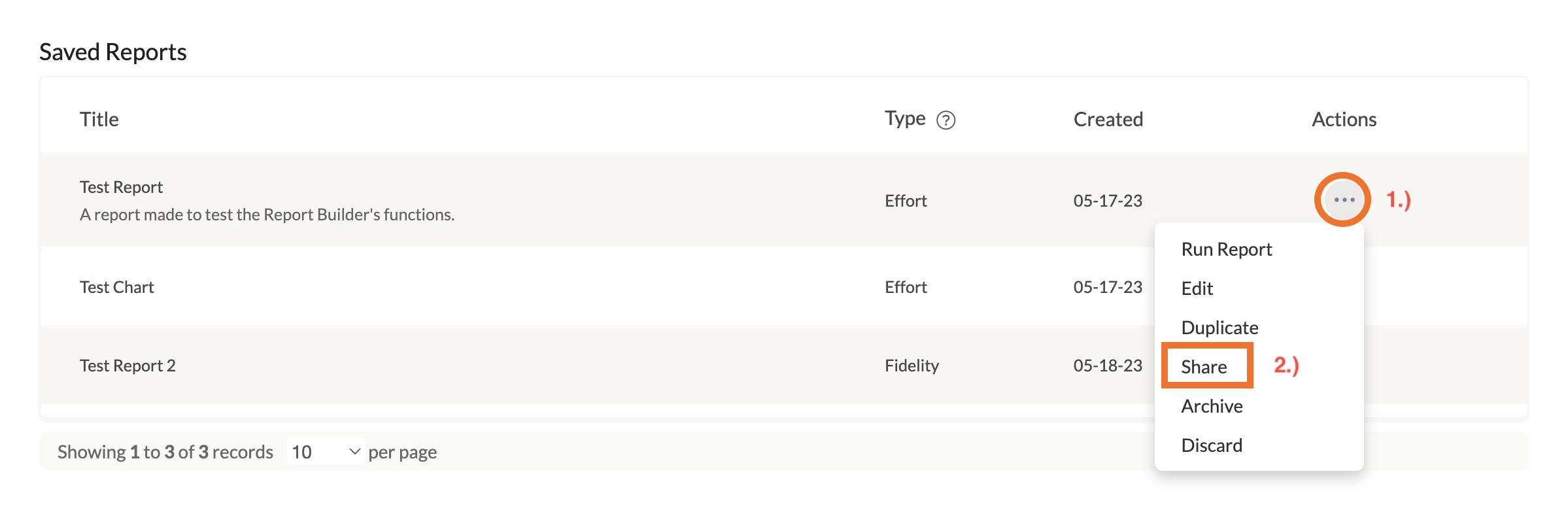
If you have already created a report, you can find it on the Report Builder Hub page under 'Saved Reports.' To share your report, find your report and click the 'Actions icon' on the far right end of the list. A dropdown will appear. Click ‘Share.'
In the Share pop-up modal, enter the name of the user you would like to share the report with and then click ‘Share & Notify’ to share the report. The user with whom you shared it with will now be able to find it on their Report Builder page under ‘Shared Reports.’
Sharing a Shared Report
If you have been shared a report, you can find it on the Report Builder Hub page under 'Shared Reports.' If you would like to share the report with others, find the 'Actions icon' beside the report you would like to share. A dropdown menu will appear. In the dropdown menu, click ‘Share.’
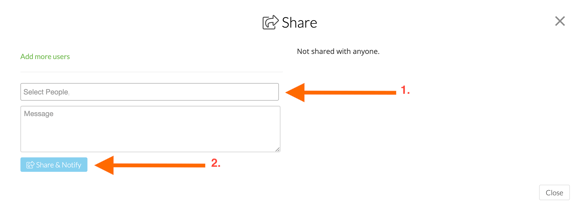
In the Share pop-up modal, enter the name of the user you would like to share the report with and then click ‘Share & Notify’ to share the report. The user with whom you shared it with will now be able to find it on their Report Builder page under ‘Shared Reports.’
NOTE: While Admins and Coaches/Mentees have access to the Report Builder tool, they will not have access to the same set of data. Ex: A Coach who opens a shared Report Builder report created by an Admin, will only see the data associated with the group(s) they are a part of. A Mentee who opens a shared report will only see data associated with just their account.