
If you need to submit a video to an Talent-integrated assignment in Canvas, you can do so directly in your Canvas assignment's TORSH Talent view!
NOTE: You will first need to record and upload a video file to your TORSH Talent account. Please refer to the following Help Center article for more details:
Submitting Your Video to a Canvas Assignment
Once your video file is successfully uploaded to your TORSH Talent account, click on ‘Courses’ in your Canvas side panel, and then click ‘Assignments.' When you open a Talent-integrated video assignment, you will be taken to TORSH Talent automatically.
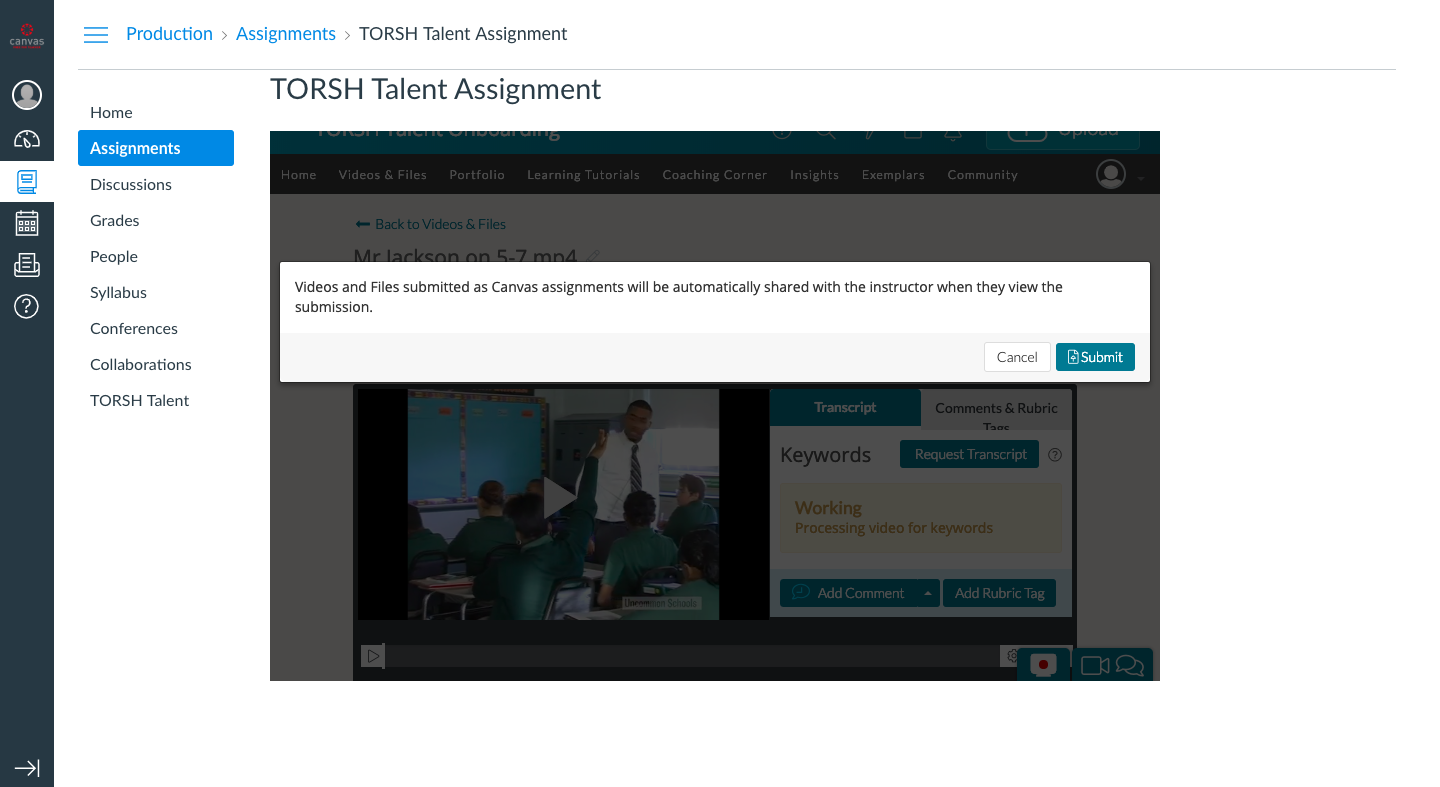
From there, you can click the ‘Videos and Files’ option in the top navigation bar to get a list of all of the videos and files you have uploaded. Each video in your list will have a blue 'Submit’ button on the videos listing page. Once you find the video you want to use as the submission, click the ‘Submit’ button for that video. You will be prompted with a modal that says that your video will automatically be shared with the instructor. Click ‘Submit Video’ and your video submission is complete.
Changing Your Video Submission to a Canvas Assignment
If you realized that you accidentally submitted the wrong video, no need to worry! Simply repeat the process above for the correct video, and the original video will be replaced with the new one!