If you have a Talent account within a Zoom-integrated system, you will be able to access your Zoom cloud recordings via our website's Upload tool, so long as your Talent account's email address matches the email address of your Zoom account. Learn more about how to do this below!
Contents:
II. Upload Via Saved Recording
Upload Via Cloud Recording
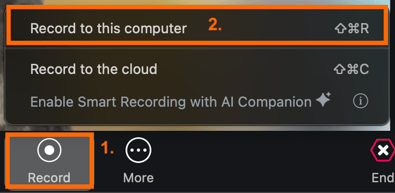
In order to upload a cloud recorded Zoom meeting, make sure that when you record a Zoom meeting, you click the 'Record' button and then select 'Record to the Cloud.' If your organization has the Cloud Recording option enabled in their Zoom settings, you will be able to save your Zoom meeting recordings to the cloud and have them readily accessible through our Upload tool.
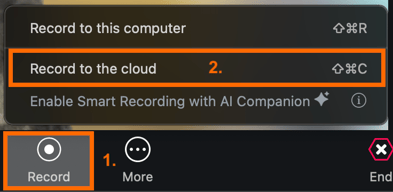
Once the cloud recording has finished processing, you will be able to view online. To access this recording, login to your TORSH Talent account on a desktop/laptop computer and click on the 'Upload' option in the top, right-hand corner of your webpage.

This will open the Upload pop-up modal. On the left-side panel, you will see a variety of options for upload sources. You will also see a Zoom icon. This will only display for Zoom-integrated systems. Click on the 'Zoom' icon to display the Zoom recording upload option.
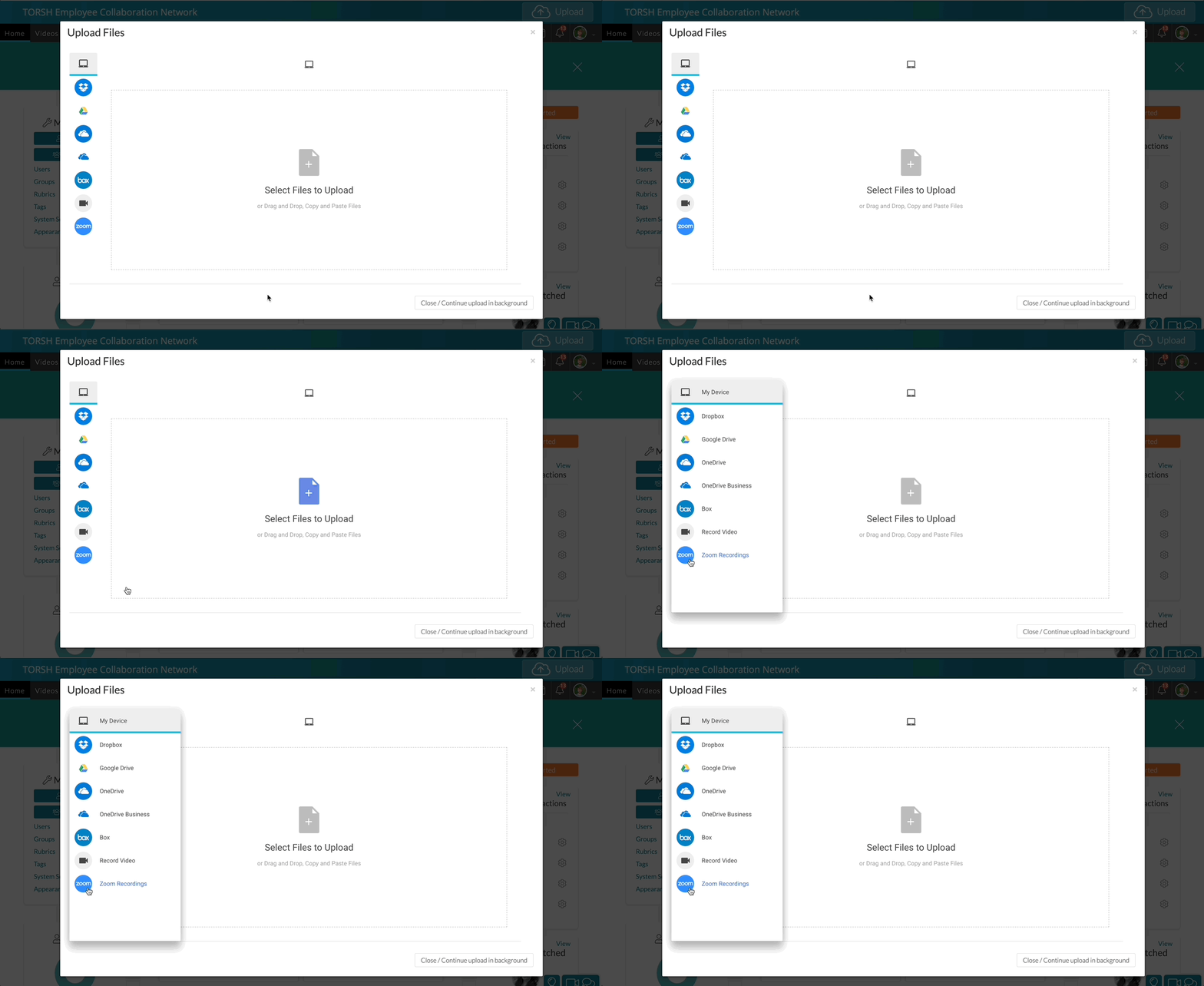
This will then load a page with your Zoom cloud recordings only. Any recordings saved to your PC will not appear in this window.
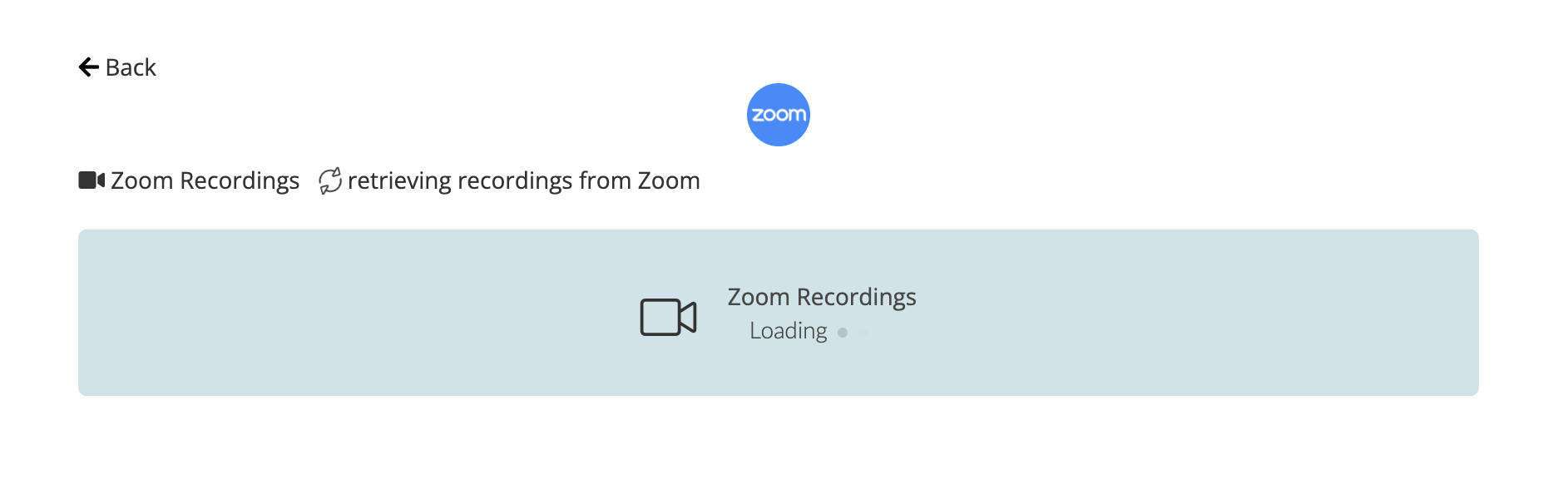
The page will then connect with the Zoom account linked to the same email address as your Talent account. Once it authorizes, you will see all of your cloud recordings here. Click on the recording you would like to upload and then click 'Upload.'
Upload Via Saved Recording
If you would like to upload Zoom recordings that are saved to your PC, you will need to choose the 'Record to this Computer' option in the Upload pop-up instead and locate the folder on your computer with your Zoom recordings. After closing your Zoom session, your recording will take a moment to process before opening in a folder on your desktop.
You can then log in to www.torshtalent.com using the web browser on your computer and upload the recording via the 'Upload' button found in the upper right-hand corner of your Talent webpage.

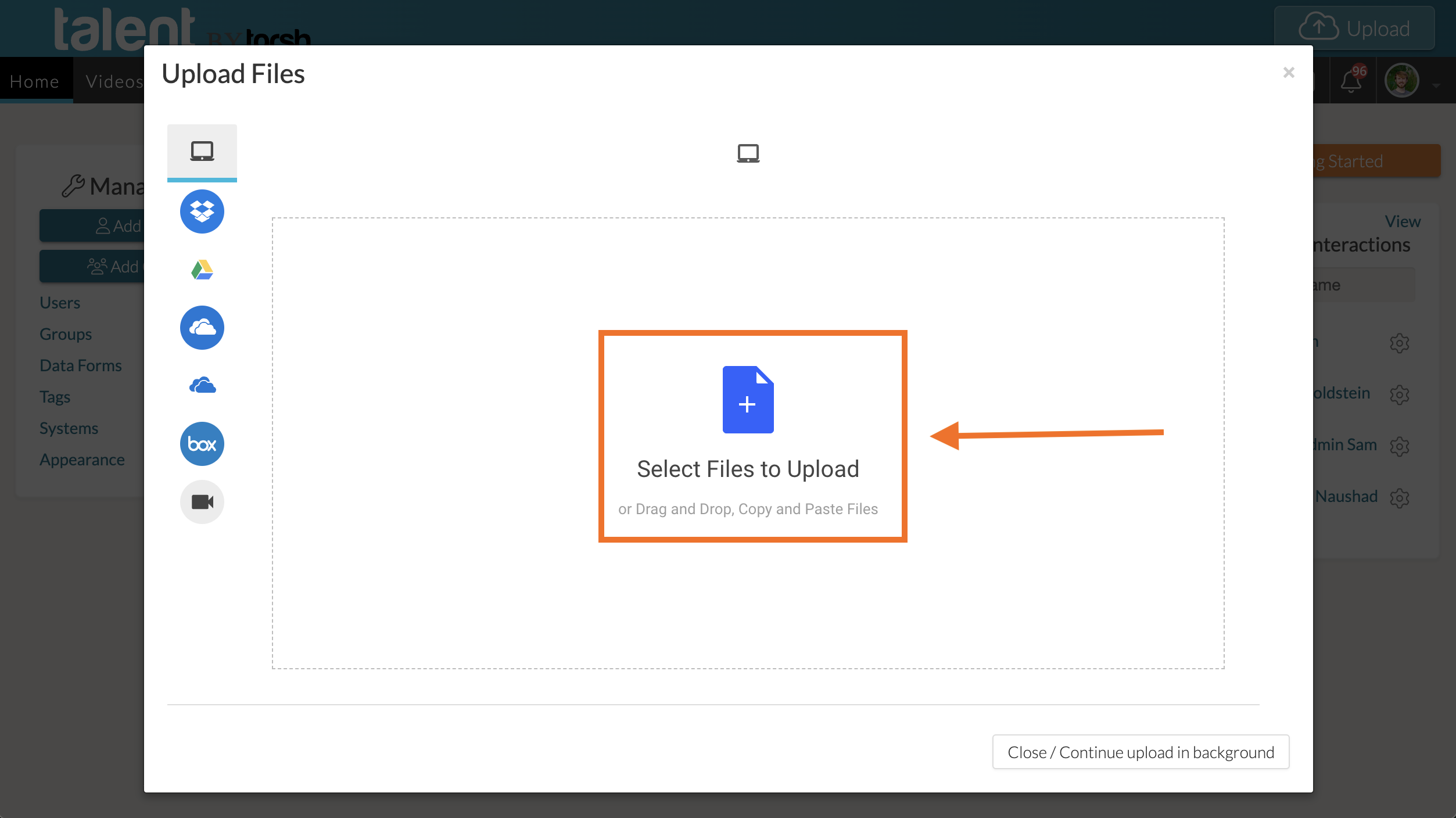
The Upload window will pop up, and you can then click 'Select Files to Upload' and choose the Zoom video that you downloaded to your computer.