
When performing a video observation, you can switch to a Side-by-Side View by clicking the 'Observation View' button beneath the playback bar.
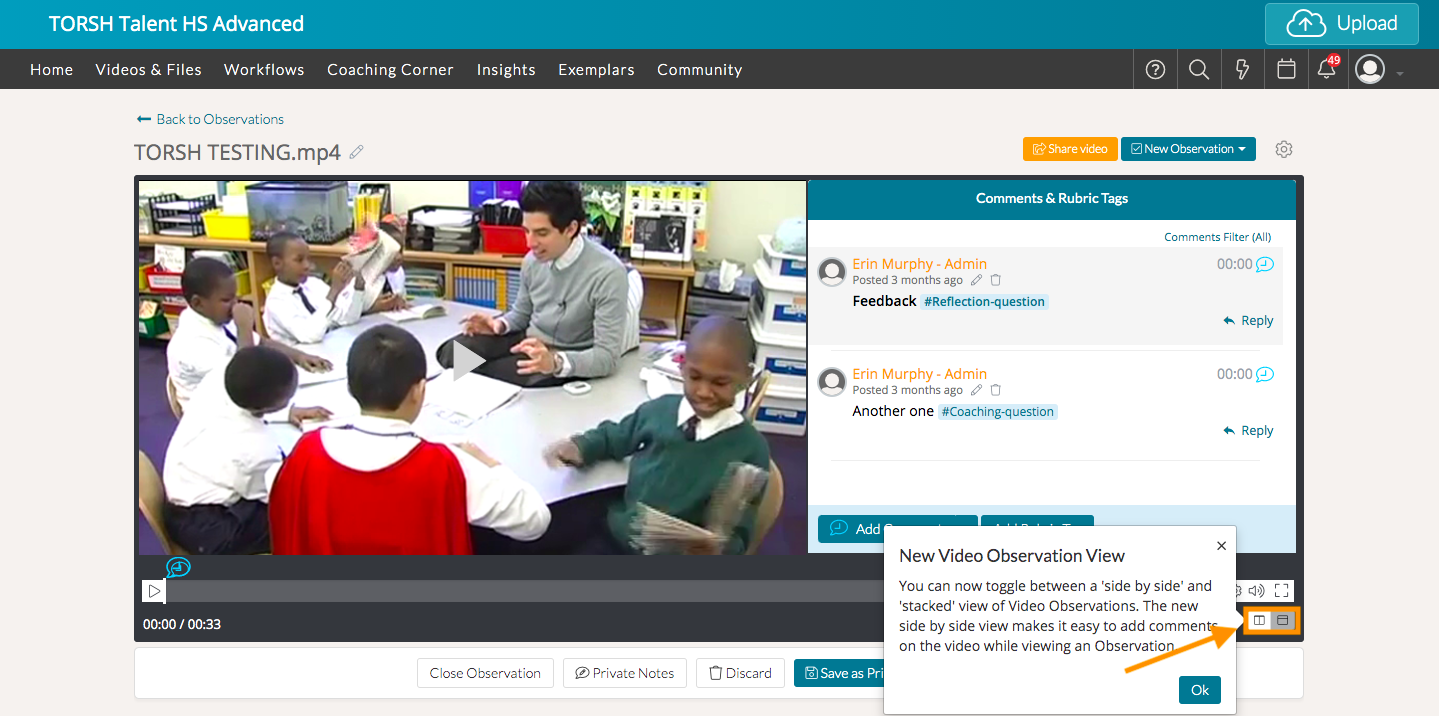
This will allow you to fill out the rubric and publish comments on the video simultaneously from one screen.
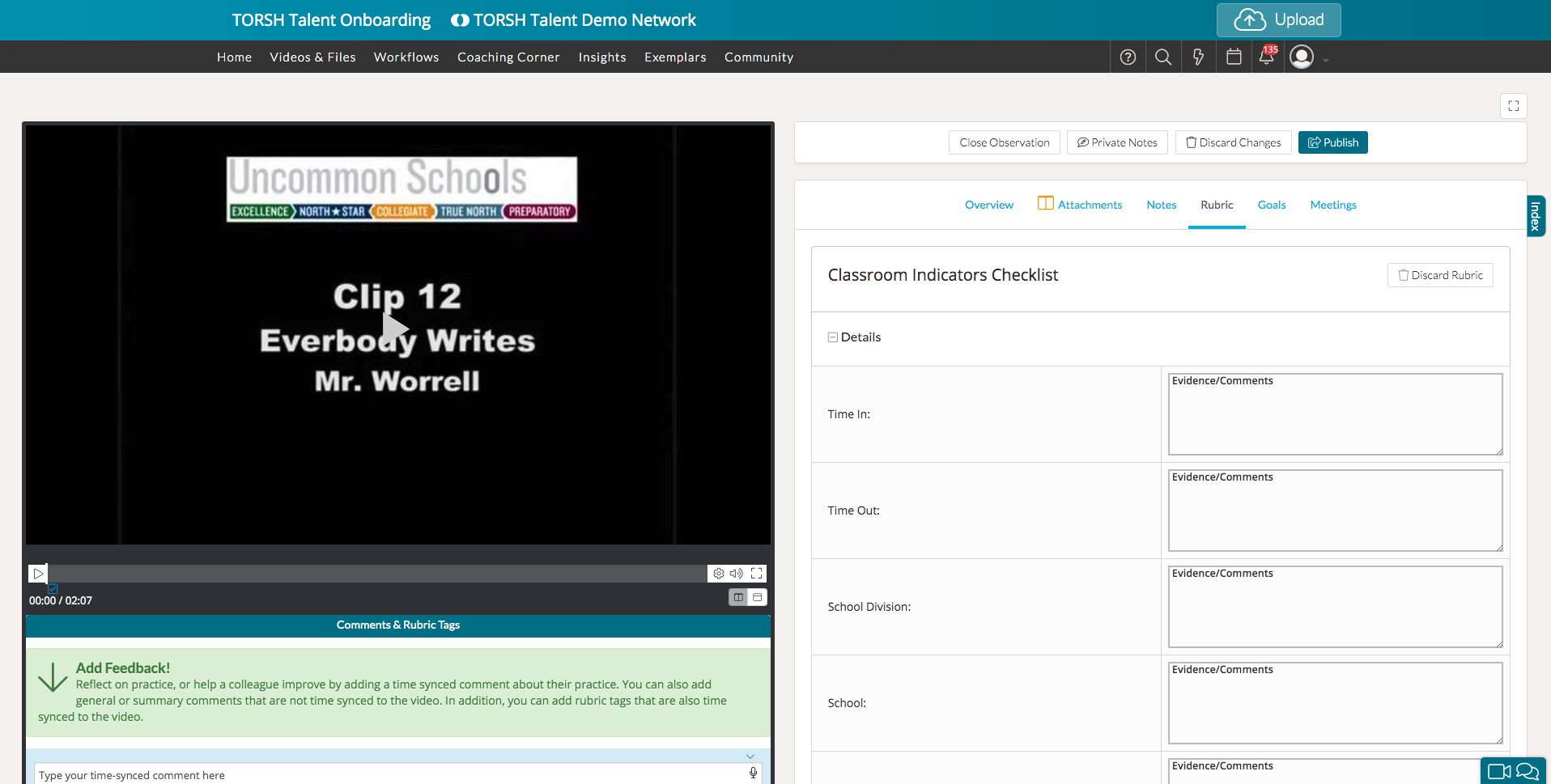
To use this feature, you'll want to ensure that you have your browser window fully-expanded or presented fullscreen. If you cannot see the Observation View button, you'll want to adjust your browser's resolution and possibly your device's as well. If you are too zoomed in, it may behave like a smaller screen. So, try to 'zoom out' in your browser window.
Your device's resolution can also be a factor. To see the Side-by-Side option, a user must have a monitor screen resolution of 1024px x 730px or larger. The button will only be available when the screen resolution is high enough to view everything side by side.
- Click here to learn more about adjusting your screen resolution on a Windows PC.
- Click here to learn more about adjusting your screen resolution on a Mac.