
To view a Video Observation or Self Assessment in TORSH Talent, open the video and click on the 'Observations' tab beneath the video. You will then see the 'Observations of this Video' in a list below.
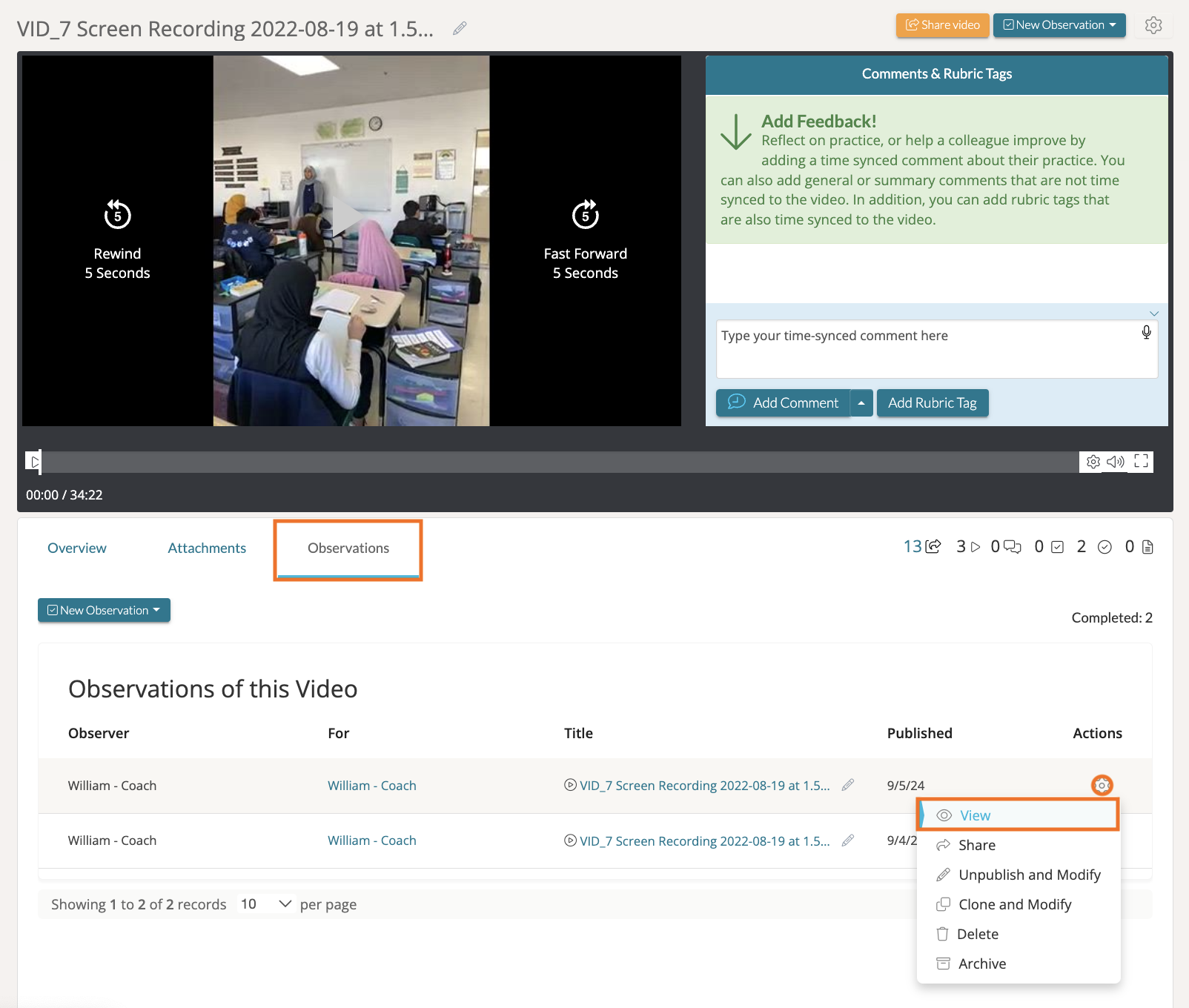
Find the observation/self assessment you would like to view and hover over its 'gear icon.' Then select 'View' to view the observation. If you are currently working on the observation/self assessment, click 'Continue' to further modify it.
If you are attempting to view someone else's self assessment for a video, the user who completed the self assessment will first need to manually share the self assessment with you.
NOTE: If the observation/self assessment was 'Saved as Complete,' it will not be viewable by others until it is shared.