If you are an Admin, or a Coach with Learning Path authoring privileges, or a Moderator of a specific Learning Path module, you can view users' responses and answer choices to a module by following the steps below.
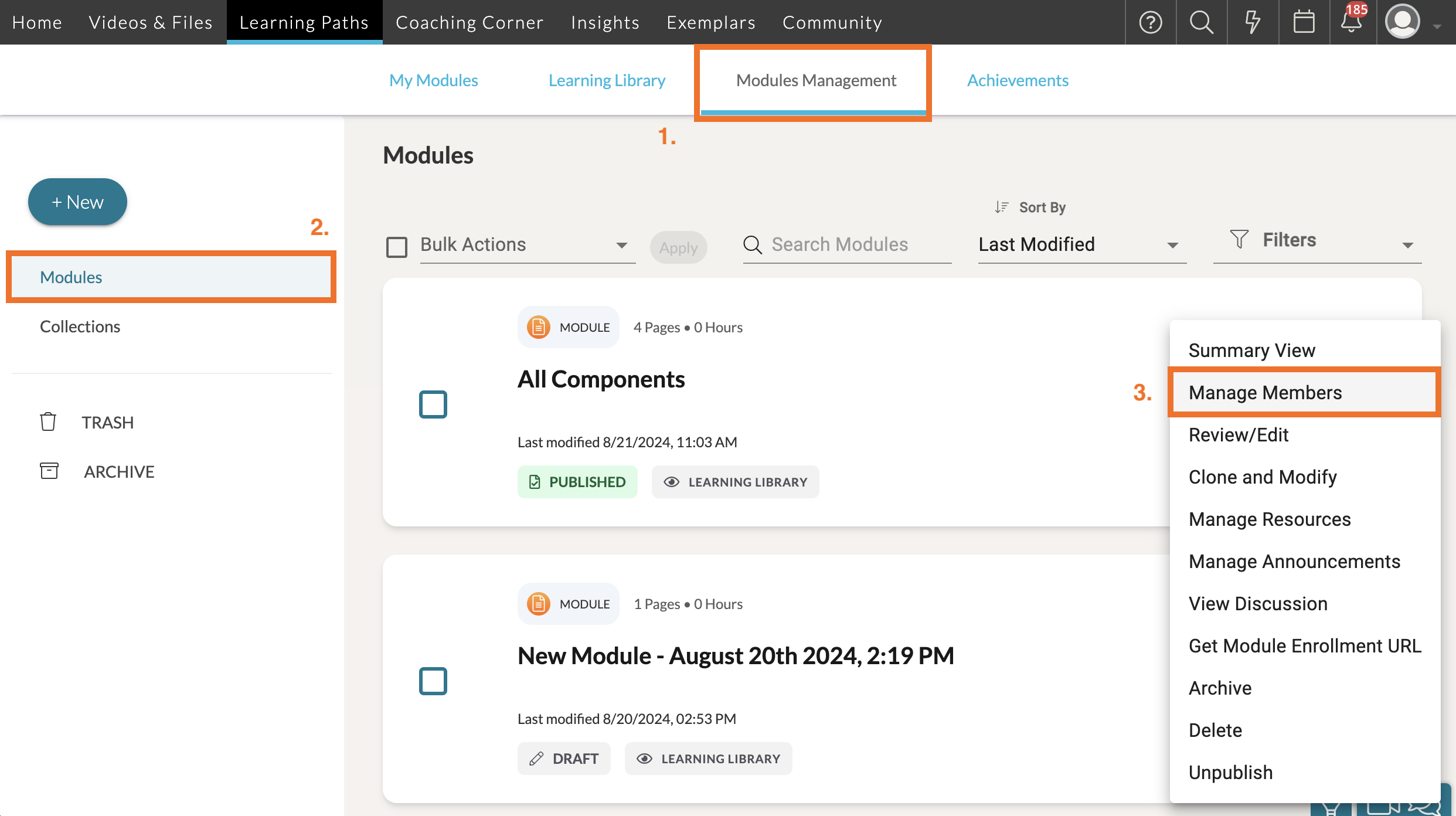
First, navigate to 'Learning Paths' in your top navigation bar. Then click on the 'Modules Management' tab.
On the 'Modules Management' page, click 'Modules' on the far, left-side panel. This will populate a list of all Learning Path modules in your system. Find your module and click the '...' icon beside it. A dropdown list will appear. From the list, click 'Manage Members'.
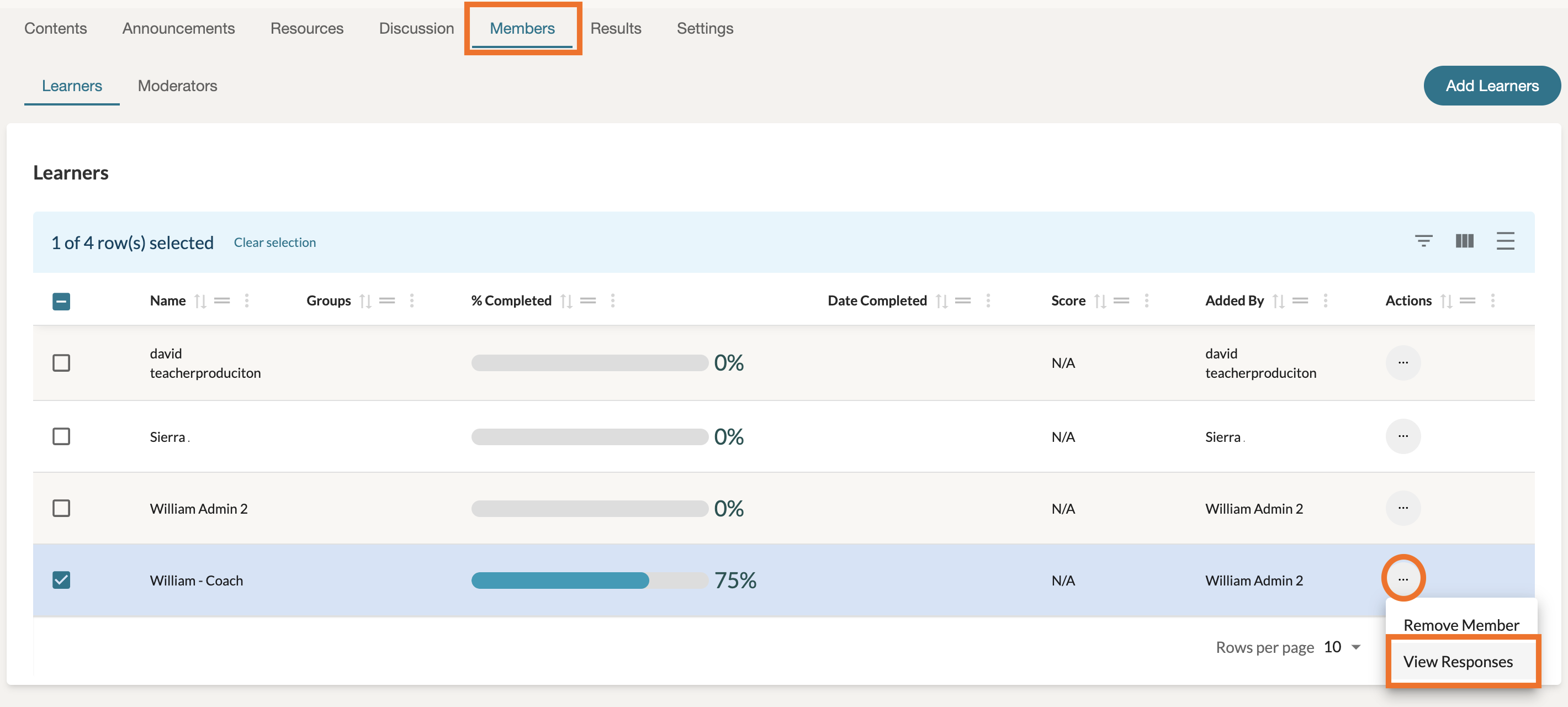
Here you can view the individual members and their completion percentage. To view their responses, first click on the '...' icon across from each user's name and then click 'View Responses' in the dropdown list that appears.
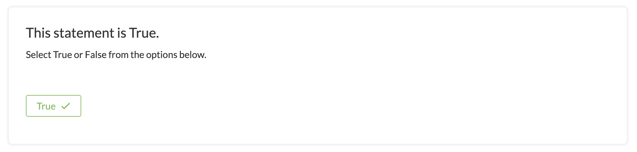
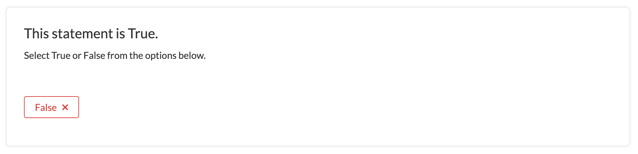
When viewing a user's responses, you will either see their answer choices displayed in green, if the graded response choice was correct, or red, if the graded response choice was incorrect.
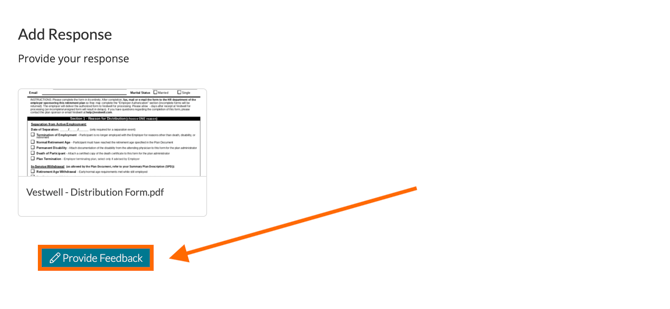
When viewing a user’s text responses to a module, you can provide feedback by clicking on the ‘Provide Feedback’ button. The user will be notified of the feedback and will see it when viewing their response to the module moving forward.
Returning to Edit View
If you would like to make further edits to module itself, you can return to your authoring view of the module by either clicking the 'Edit' button in the top, right-hand corner of the module page.