
Observation Tags are a great way for you to pull data based on the environment in which observations are conducted. For instance, let's say you have a mentee who teaches multiple subjects, but you only want to see da ta related to observations conducted in one particular subject area. You can tag the observation with that specific subject to pull only the associated data later.
NOTE: While they are generally called 'Observation Tags,' they are used for both Observation and Self Assessment Tags.
Creating Observation Tags (Admin)
Observation Tags can be created by System Admins. To create Observation Tags for your system, follow the steps below:
-
First, navigate to your Admin Management Panel. From there, select 'Tags.' Then click 'Observations Tags' tab. Next, click on the orange 'Add New Observation Tag' button.
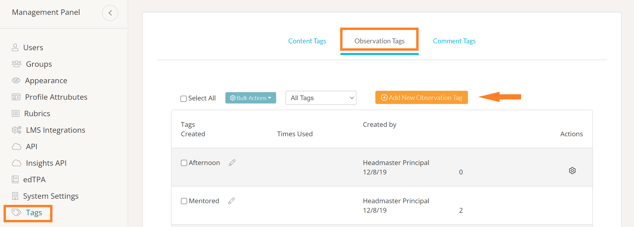
- Enter your tags separated by a space. If your tag has two words in it, use a hyphen (ex: social-studies).

- Click the blue 'checkmark icon' when you are done.
Tagging Observations & Self Assessments
Once Observation Tags have been added to your system, you can begin using them! To do so, first start an observation or self assessment. From your observation's webpage, navigate to the Overview tab.
Underneath 'Observation Tags' or 'Self Assessment Tags' (depending on the type of rubric you are completing), click the 'pencil icon' to add your tags.
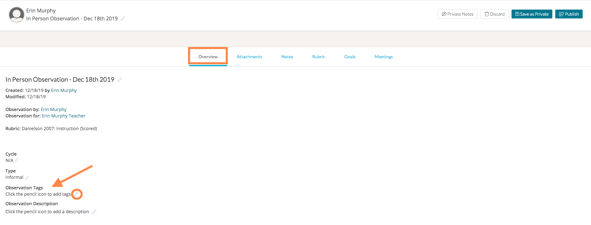
Then click the blue 'checkmark icon' when you are done adding your tag.

If you are interested to learn more about pulling data using Observation Tags, click here.