A Legacy Rubric is any rubric template created outside of the Data Forms authoring tool before the Data Forms feature update of February 15th, 2024 . From this date forward, all older rubric templates were given the 'Legacy Rubric' template type because these rubrics were created using an older, completely separate authoring tool without the integration, design, and overall flexibility of our Data Forms feature.
Modifying & Updating Legacy Rubrics
The content and structure of Legacy Rubrics cannot be modified by System Admins; however, System Admins can modify the visibility settings of their Legacy Rubrics. By default, Legacy Rubrics can have their Groups visibility modified, but their Role visibility cannot be modified.
If you would like to have any content or structural modifications made to your existing Legacy Rubrics, please reach out to your Customer Success Manager for further assistance.
Using Legacy Rubrics in Your System
Although you cannot modify the content and structure of Legacy Rubrics yourself, you can continue to use the older Legacy Rubrics within your system. Legacy Rubric templates will still display in the 'Data Form' dropdown for all In-Person/Video Observations and Self Assessments. Any data form Rubric Template that you create and enable for use in Observations will also display in this dropdown.
Legacy Rubrics will not display in the 'Data Form Templates' dropdown for regular data forms/coaching logs.
However, any new data form Rubric Template you create will be available from the 'Data Form Templates' dropdown for regular data forms. This is because the use case for Data Forms has expanded to include rubrics, and this is the only Template Type that allows the use of the Rubric Grid component.
NOTE: If you would like to ensure that your rubric templates are used strictly for the purpose of Observations/Self Assessments, we ask that you inform your staff to only access the rubric templates via Observations/Self Assessments and not as a regular Data Form.
Updating Legacy Rubrics to Data Form Rubrics
You do not need to convert your older rubric templates into Data Forms, but you can if you want to! To do so, you will need to create a new data form template that is designated as a 'Rubric' template type. You can then use your older rubric as a basis for creating your newer version and the authoring tools available to you.
We encourage you to create new Rubric Templates moving forward using the Data Forms authoring tool. You can read more about the process here ! If you have any questions, feel free to reach out to your Customer Success Manager for support with Rubric Template creation.
Legacy Rubrics and Insights
Can I still pull the data associated with my older Legacy Rubrics in regular Insights still?
Yes. All of the data associated with your older Legacy Rubrics will still remain in our database and will be viewable in both regular Insights and Report Builder as it did before.
If I use the new Rubric Templates in Data Forms, will I be able to pull the data associated with my new data form rubric templates through regular Insights still?
No, data for Rubric Templates made with the Data Forms authoring tool will not appear in regular Insights reports. In order to view this data, you must use Report Builder to pull the data for newer rubric templates created with the Data Forms authoring tool.
Legacy Rubrics will still show up in regular Insights and Report Builder, but newer Data Form rubrics will only show up in Report Builder.
How do I view my newer Rubric Template data in Report Builder?
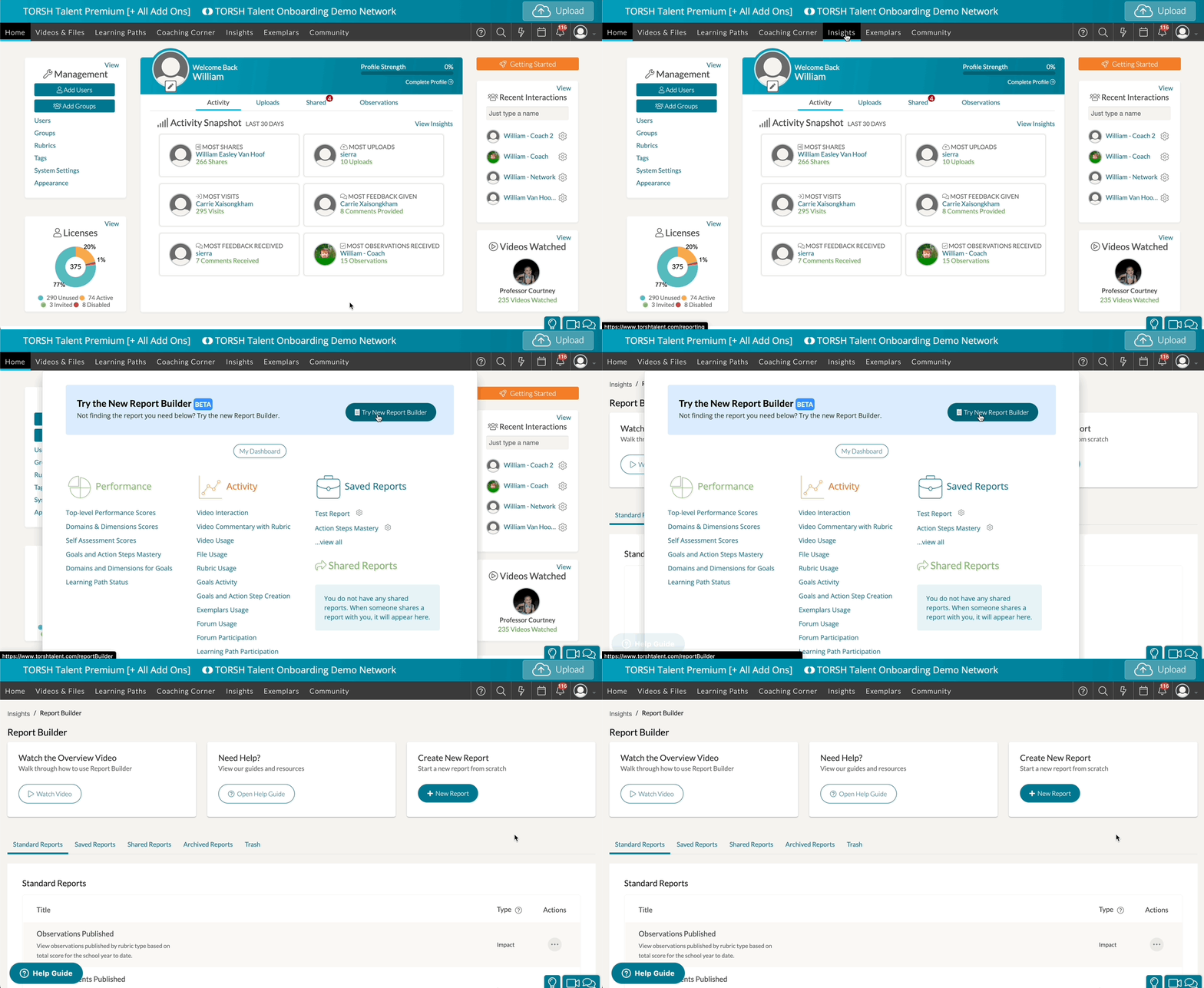
In your top navigation bar, hover over 'Insights,' and a preview window will appear. In the window, click 'Try Report Builder.'
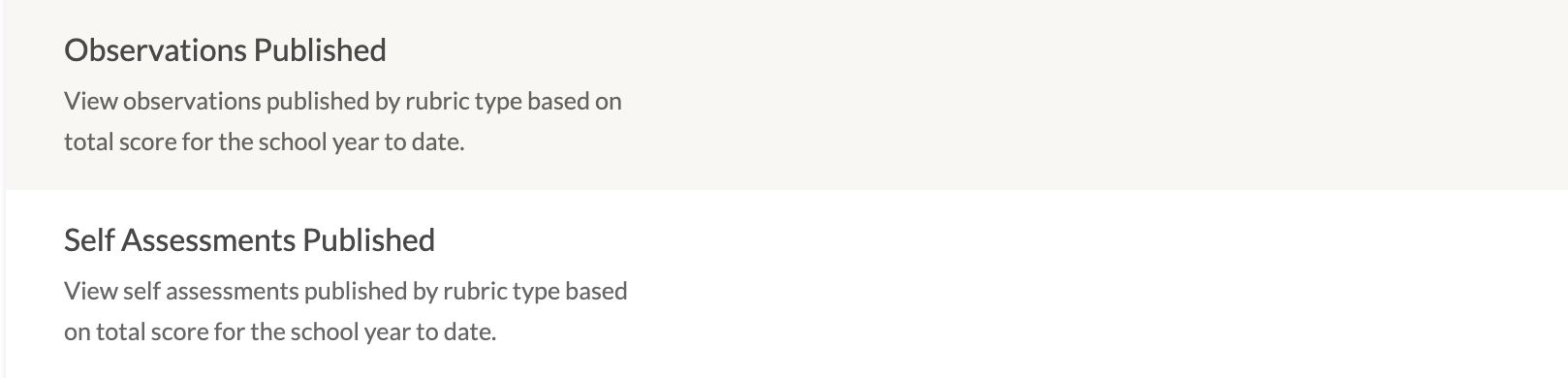
On the 'Standard Reports' list, choose either 'Observations Published' or 'Self Assessments Published.' This will load a report of all observations published - depending on whether or not it was completed as a self assessment or a regular observation. Each report will include completed rubric data made with your new data form rubric templates.
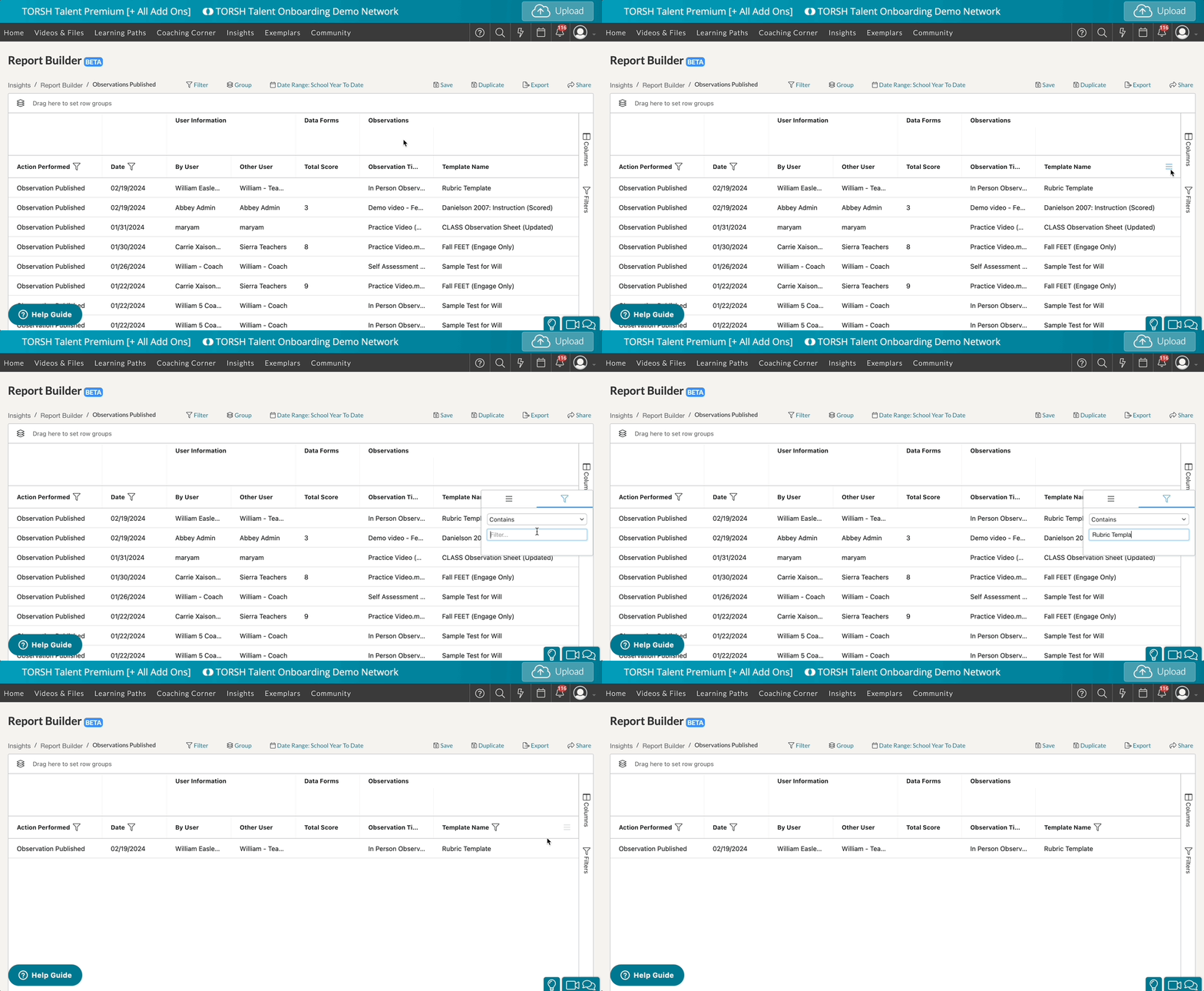
On your report, go to the column header for 'Template Name' and click on the 'three-line menu icon.' Next, click the 'filter icon.' Under 'Contains' type in the name of the rubric template you made. Now all data forms completed will display for just the one rubric.
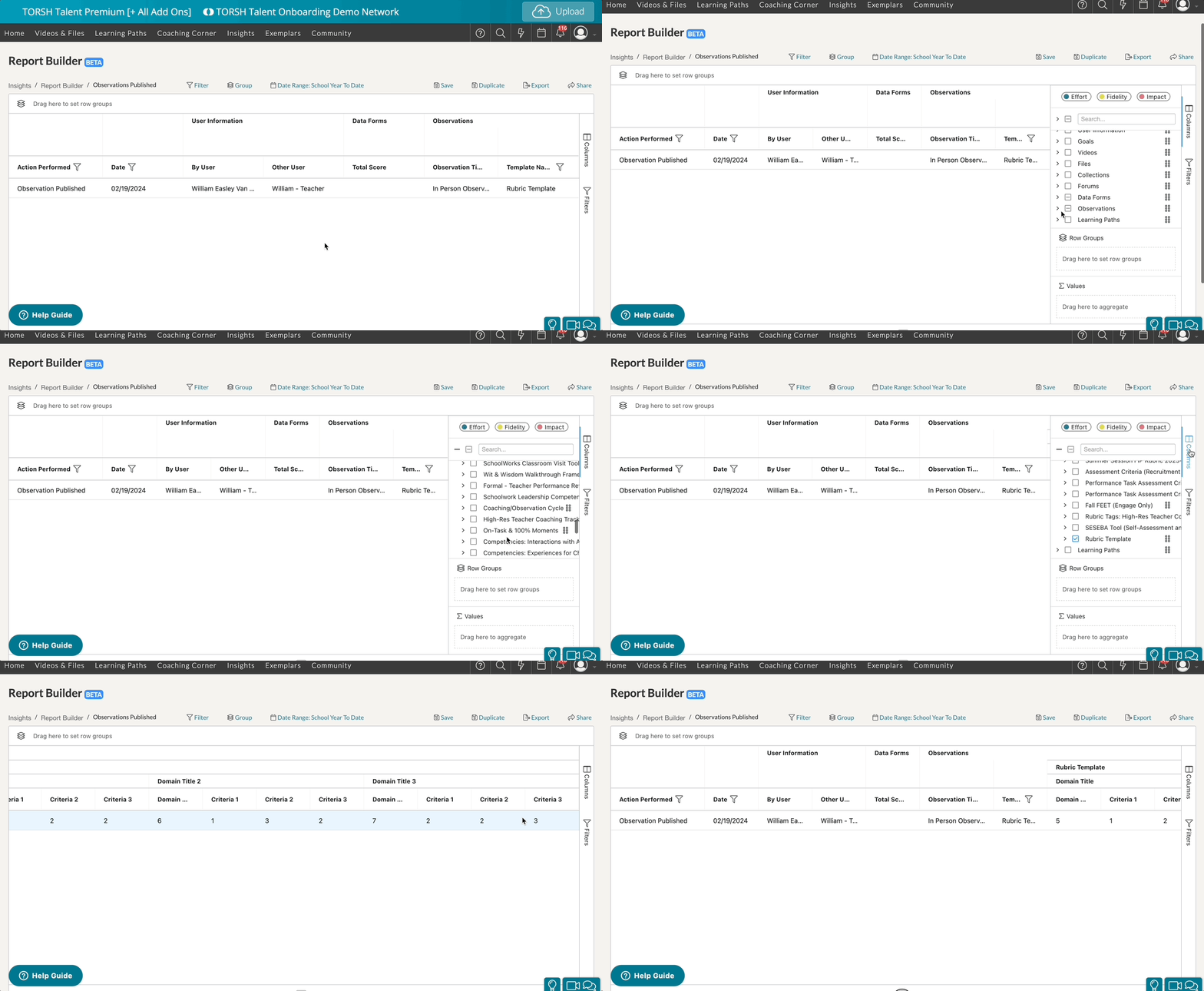
To display the answer choices selected for the specific rubric, open the 'Columns' menu on the far right side of your report. Go to the 'Observations' section. You will find your new data form rubric template listed under the Observations column section! Click the 'check box' beside it to display all of the answer choices for this rubric template in your report.