In TORSH Talent, Community is a place where users can find and interact with other members in their system using the forum and messaging tools presented within.
Forums
In the Forums section of Community, Talent users can interact with any other user in their system by posting in public and private forums. On the Forums page, you will see your system’s showcased forums at the top.
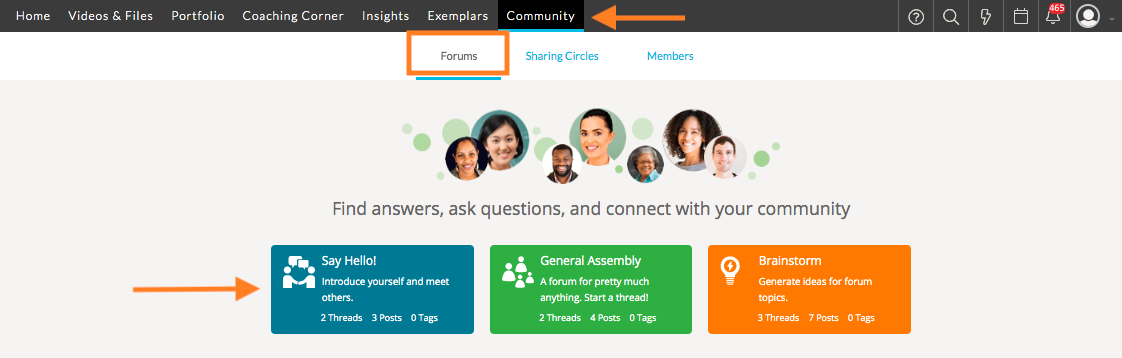
Beneath that, you will find lists of ‘My Forums,’ ‘New Public Forums,’ and ‘All Forums,’ which includes all of the public and private forums in your system.
At the top of your lists of forums, you can click ‘New Forum’ to create a new forum. You also have the ability to filter the Forums page by Tags or Title. To switch up your view of your forums, click on the desired icon to the right.

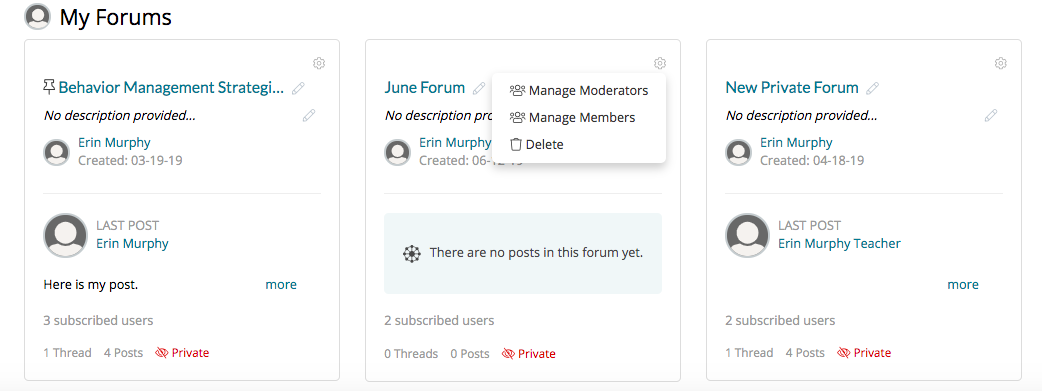
By clicking on the 'gear icon' of a selected forum, you can take actions like ‘Add/Remove from My Forums,’ ‘Manage Members’ of a private forum, ‘Manage Moderators,’ ‘Delete,’ and Admins can ‘Pin Forums’ to make them appear at the top of the ‘All Forums’ list. You will see different actions for different forums depending on if you are the owner, a moderator, or a member.
Sharing Circles
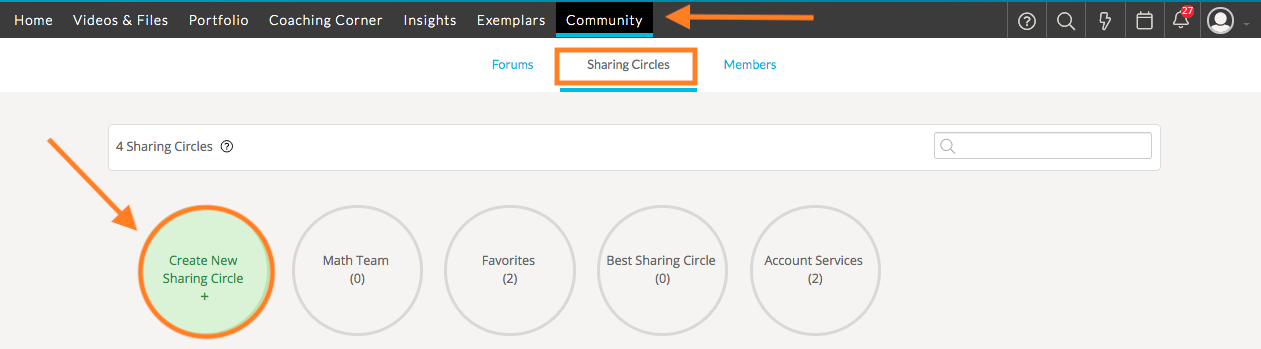
Sharing Circles make it easier for users to frequently share artifacts with a designated group of colleagues in your system. You can create Sharing Circles with other members in your group(s). To do so, navigate to the Sharing Circles tab in Community. Then click ‘Create a New Sharing Circle.’
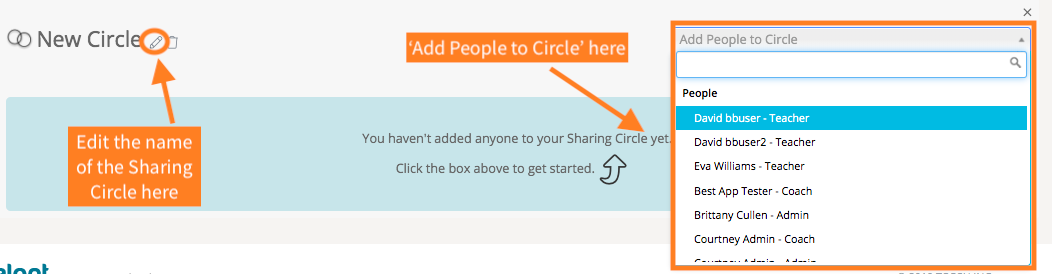
If you select the 'pencil icon,' you can rename your circle. From the dropdown menu, you can select people to add to the Sharing Circle either by selecting their name or by typing their name in the search bar. You can add more people to the sharing circle at any time.
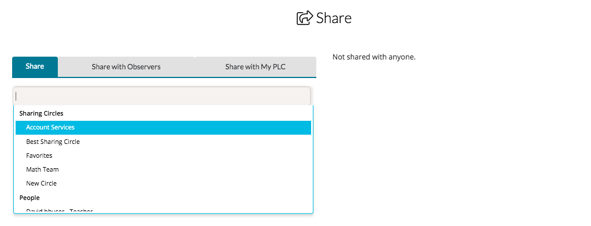
Now when you share an artifact, you'll be able to select the Sharing Circle that you have created from the dropdown menu.
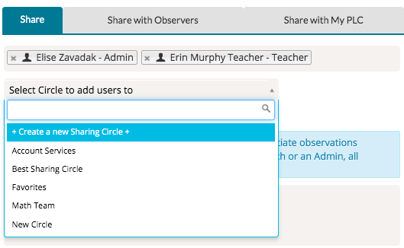
You can also create a Sharing Circle directly from an artifact's Share pop-up window. Type the names of the people you would like to add into the Sharing Circle, then click ‘Add Selected Users to a Sharing Circle.’ You can then add them to an existing Sharing Circle or ‘Create a New Sharing Circle.’
Members
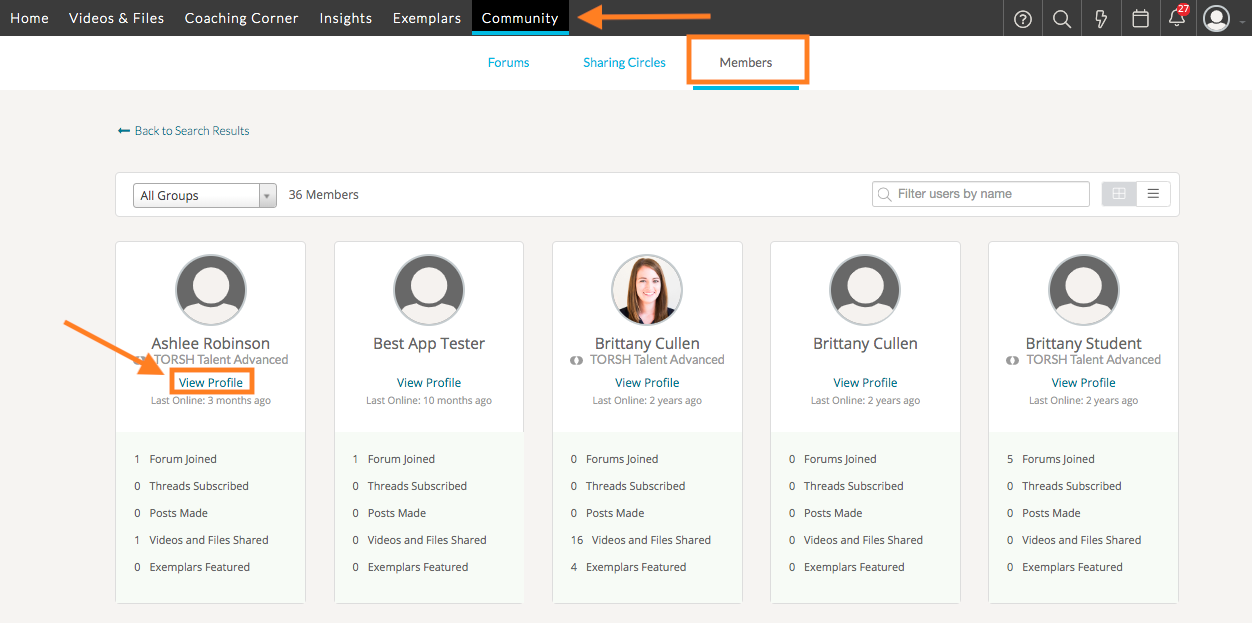
To view the members that exist in your system, select the Community tab from your navigation bar and then select ‘Members.’ On this page, you will see all of the members in your system, along with certain statistics surrounding that member including the number of forums they joined, the number of threads they subscribed to, the number of posts they made, the number of videos and files shared, and the number of exemplars that have been featured. If you wish to view this individual's profile, simply select the ‘View Profile’ link to be taken to their profile page.