
If your TORSH Talent mobile app uploads are all stuck and will not upload, one of your earlier video uploads may have experienced a minor interruption in internet connection, causing the video upload to stall/fail, which then caused your subsequent video uploads to stall in the process.
If only one of your video uploads are stuck, please see the following Help Center article instead:
Troubleshooting - Interrupted Uploads/Cancel All Uploads and Restart One at a Time
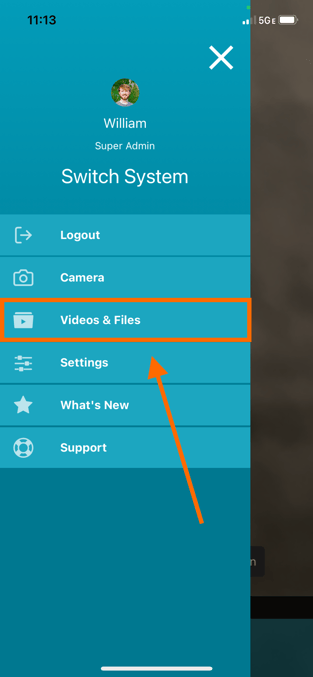
First, open your TORSH Talent mobile app and login. Tap on the 'menu icon' in the top, left-hand corner. Then tap 'Videos & Files.'
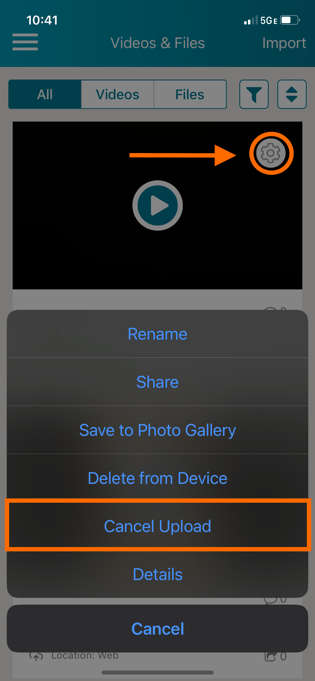
On your Videos & Files page, find all of your videos with a status of 'Failed to Upload' or 'Upload Queued' and tap on each of their 'gear icons.' This will display a menu for each. In the menu for each of these pending uploads, tap 'Cancel Upload.'
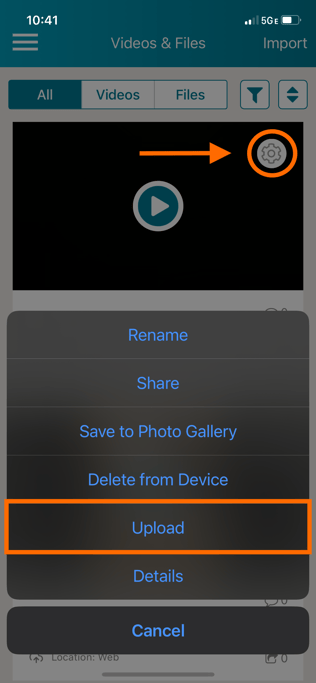
Once all of your uploads are cancelled, go to the first pending upload and tap on its gear icon again. Then tap 'Upload' in the menu that appears.
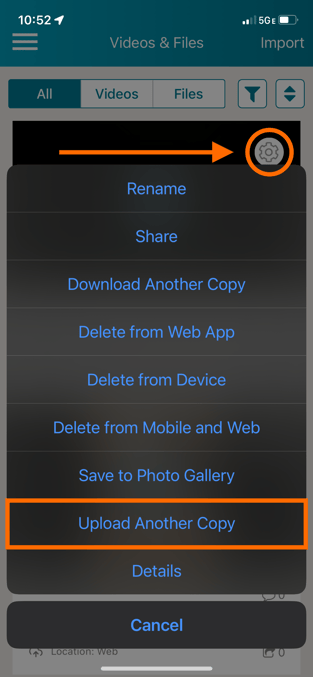
If one of the videos you are attempting to upload instead shows a status of 'Location: Mobile & Web' or 'Location: Web' in the mobile app, but has also been stuck as 'Pending' on the website for a prolonged period of time, then choose 'Upload Another Copy' instead.
Keep the mobile app open until the upload completes. Until your video has completed the upload process, the TORSH Talent mobile app must sustain a strong WiFi connection. Make sure that the progress percentage reaches 100% and that the video's status changes to 'Location: Mobile & Web' or 'Location: Web.'
Once the first upload has completely processed, move on to the next. Repeat these steps for each upload, making sure you are only uploading only one video at a time.