
The Talent-ed AI tool for Learning Paths helps to generate entire Learning Path modules using generative AI. With this tool, you can create multiple pages and sections filled with content based on a simple prompt you provide. This guide will walk you through how to quickly access and use the Talent-ed AI tool effectively when building your modules.
Accessing Talent-Ed AI in Learning Paths
To access the Talent-Ed AI tool for building a new learning path module, you will first need to create and open a brand new module. To do so, go to 'Learning Paths' in the top navigation bar. Then go to 'Modules Management.'
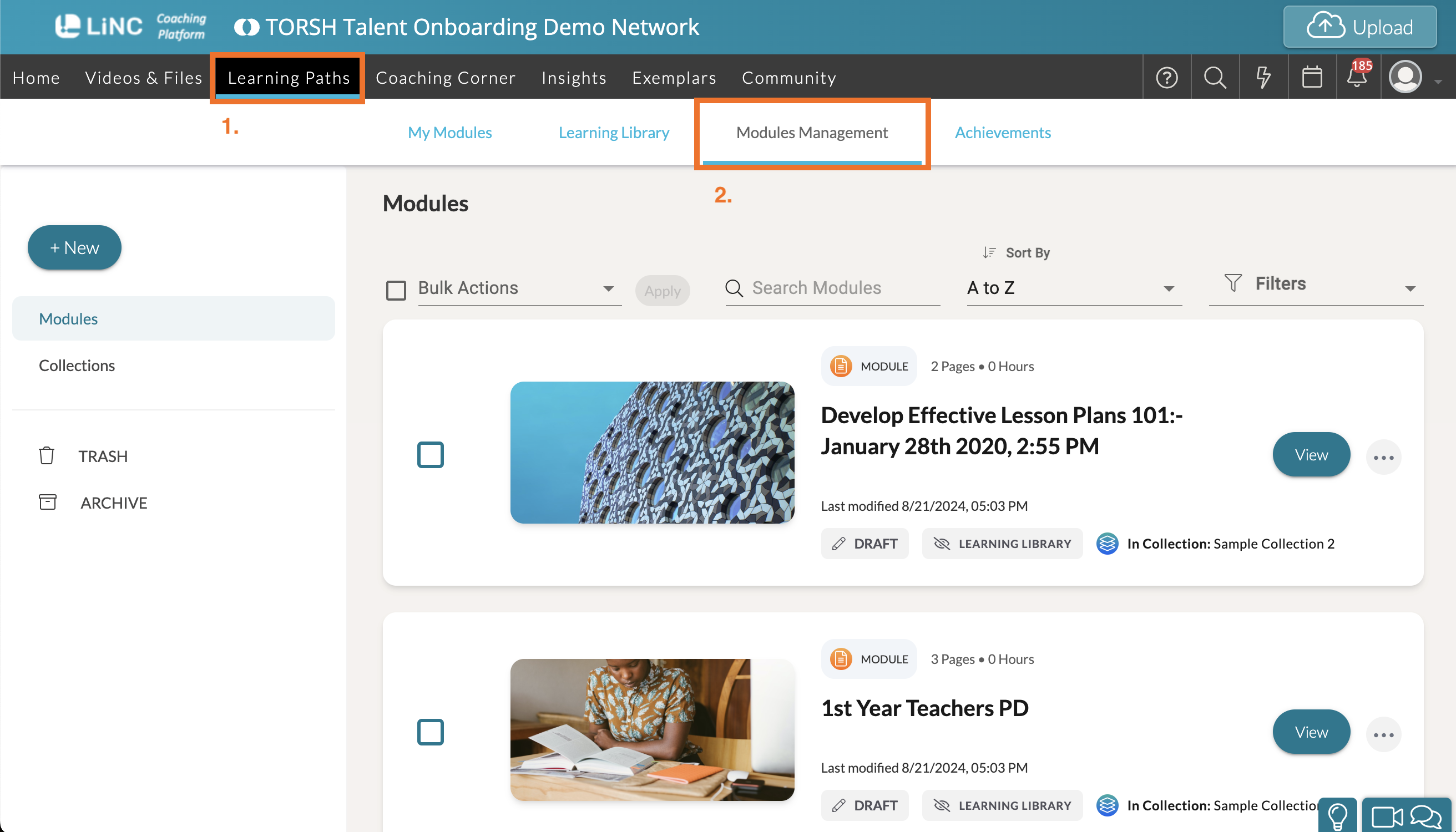
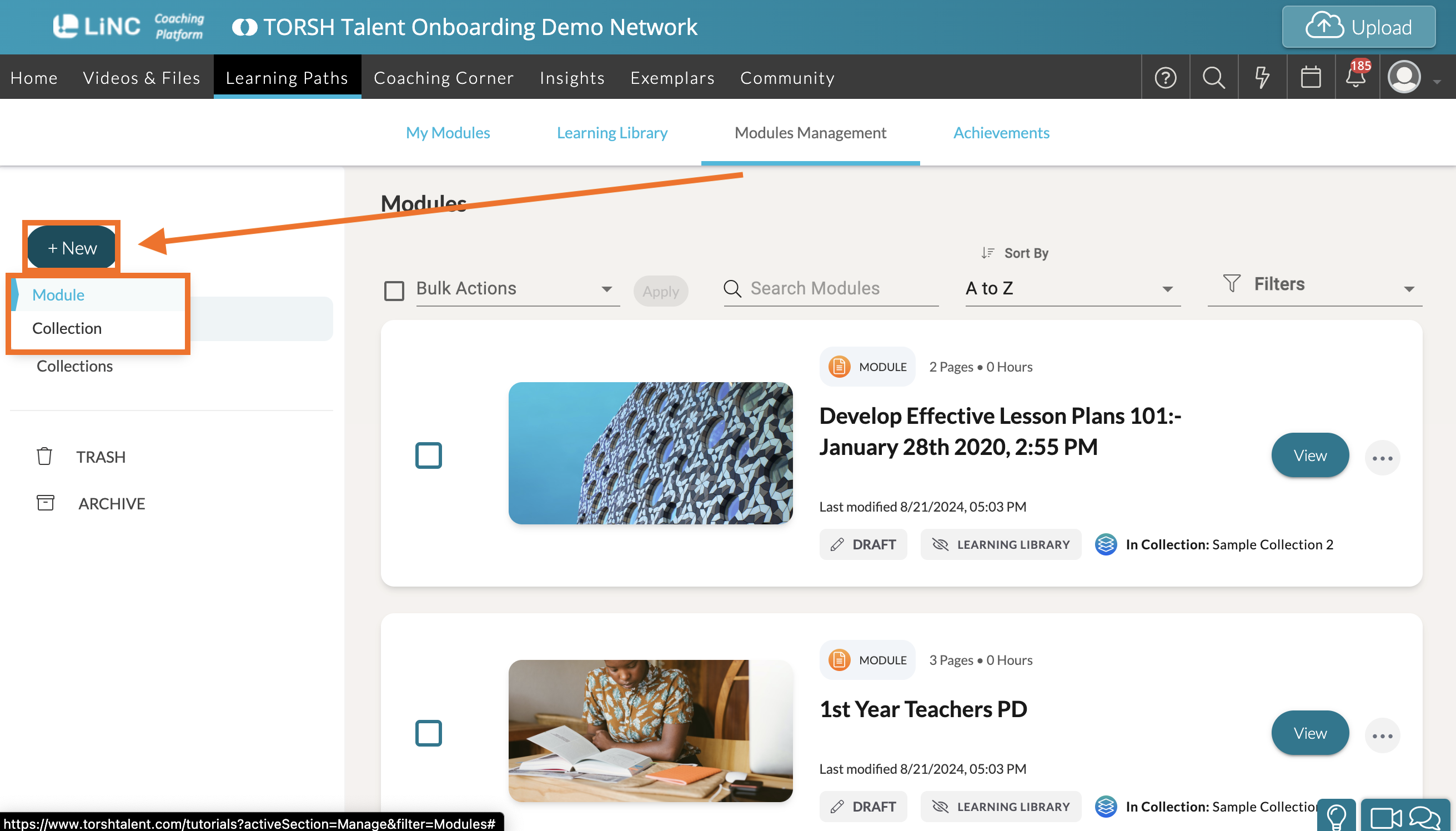
On the Modules Management page, click 'New' on the far, left-side. Then choose 'Module.'
This will take you to your new module's Content page. If you have Generative AI enabled for your system, you will see an option for 'BETA: Talent-Ed AI' at the top of your module. Click on it to reach the generative AI features and begin building your module.

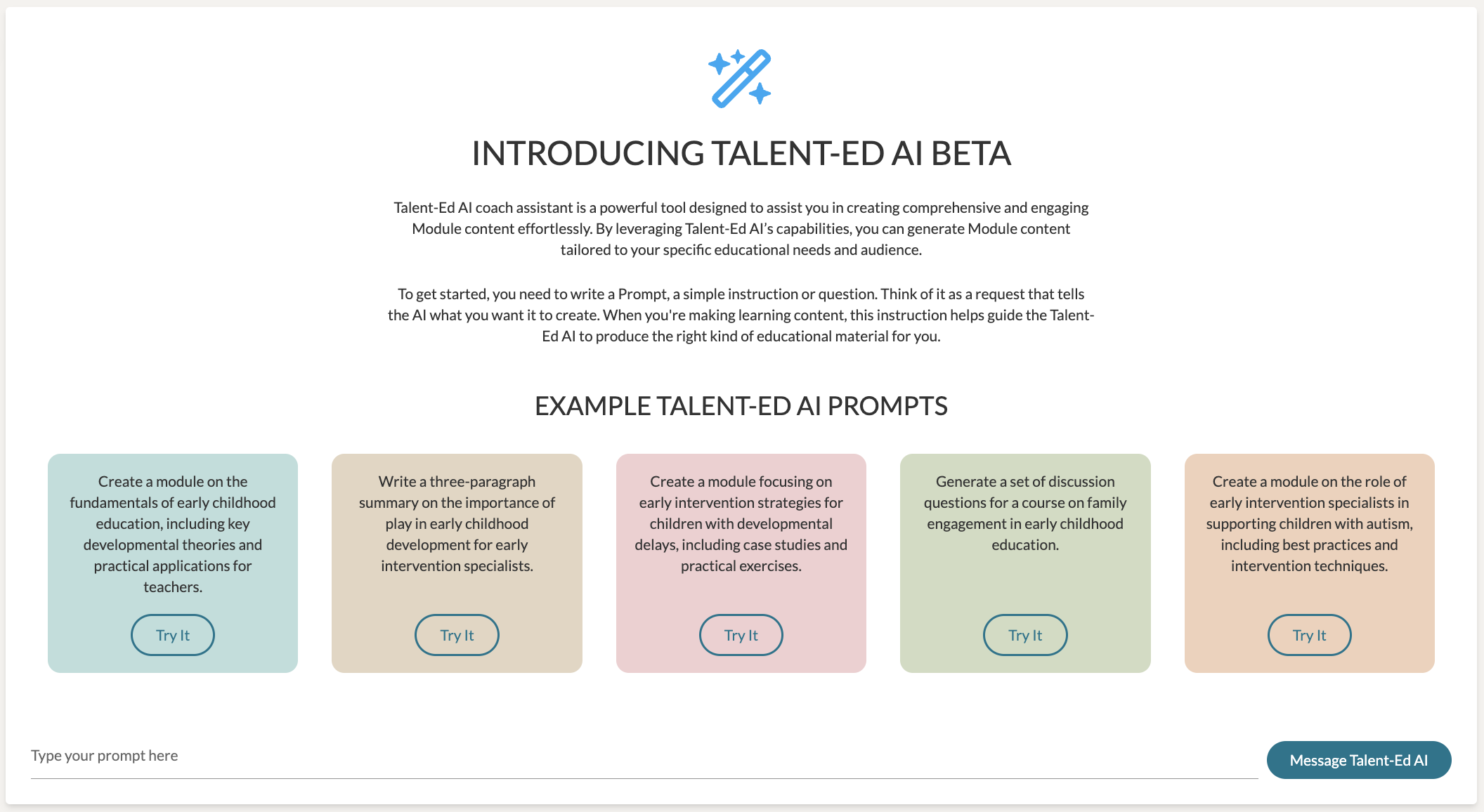
The first time you access this tab, you will see an introduction to Talent-ed AI. This introduction explains how Talent-ed AI can assist you in creating comprehensive and engaging module content effortlessly.
Understanding and Using AI Prompts
In order to generate your module's content with Talent-Ed AI, you will need to provide it with prompts via a typed message. A prompt is a simple instruction or question you give to the AI to guide it in creating content.
For example, you could message Talent-Ed AI: "Create a module on the fundamentals of early childhood education." The AI will then communicate with you to build a module complete with the exact number of pages and sections you would like to cover, along with how many pages you would like to have and the types of components you would like to house on each page.
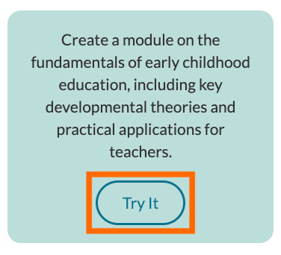
The introduction screen includes a variety of sample prompts to help you get started with your module! You can click on any sample prompt to begin generating content based around that topic. Click 'Try It' on the sample prompt to get started.
Or simply type a prompt of your own in the space provided at the bottom of the page and click 'Message Talent-Ed AI' to begin establishing the rules of your learning path module!

Enter a brief description of your module and its objectives or any specific content you want to create.
Example: "I need a module on early childhood education that includes interactive activities and assessments for teachers."
Click the 'Message Talent-Ed AI' button to submit your prompt to the AI. The AI will process your request and gather further information from you to start generating content.
Once the Talent-Ed AI has gathered enough information from your conversation about the module, you will receive the following message:
“I think I have enough information now to create the Learning Path. Please type '' when you are ready to generate the first page.
When you’re ready, click the 'Generate AI Results' button to have the AI create a preview of your module content.

Review and Manage Generated Content
After clicking 'Generate AI Results' the AI will begin generating your proposed learning path module. You’ll see a loading indicator during this time. Please stay on this webpage until the content has finished generating.

Once the module preview is generated, the AI will display a message with the number of pages created:
"Here are the results for your Learning Path Module. Your module contains (insert #) pages. Please take a look at them and let me know if I can refine or improve them for you."
Using the tool set provided below your AI prompts, take your time to navigate through the generated pages and the components presented. Make sure that the module generated is what you would like to work with. The AI will suggest titles for each generated page, but you can edit these titles before adding them to your module.

Click 'Preview Page' to see the module from a Participant Preview display.
If you’re not satisfied with a page, click 'Regenerate Page' to get a new version of the page you are on.
Click 'Add As New Page' to insert the generated page you have displayed as a new page in your module or click 'Add Entire Module' to insert all generated pages into your current module. Once those pages have been added to your module, you can manually adjust any of its content as you need!
- To learn more about authoring a module, please read here.
- To learn more about managing specific components in a module, please read here .
Using Prompt History
In the top, left-hand corner of your BETA: Talent-Ed AI tab, you will find a 'Prompt History' list where you can select to view any previously generated content sorted into specific date ranges for this module.
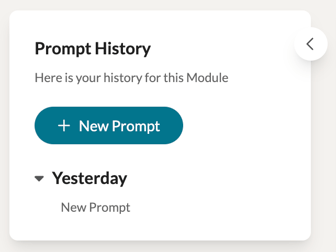
Click the '+ New Prompt' button to begin a new generation session with Talent-Ed AI. This will add a new entry to your prompt history wherein you can choose to add further generated pages to the module.