
As a Canvas Admin, you can create Assignments using TORSH Talent's integrated features in Canvas's authoring tool!
In order to gain access to these features, you must first have a TORSH Talent-integrated Course in Canvas. Read more about how to make a Talent-integrated Course in Canvas here .
You must also have a Developer Key enabled for your Talent-integrated Course. Read more about creating a Developer Key here .
Creating an Assignment
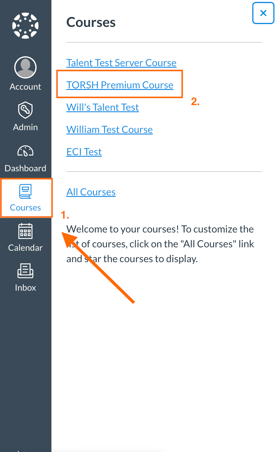
If you already have a Talent-integrated Course in Canvas, you can create an Assignment by logging into your Canvas Admin account on Canvas and clicking 'Courses' on the far-left panel. Then find your Talent-integrated course and click on it.
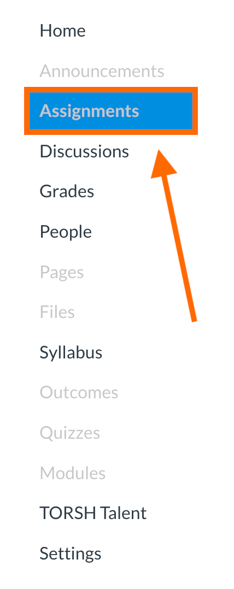
Next, click on the 'Assignments' tab on the left-side panel.
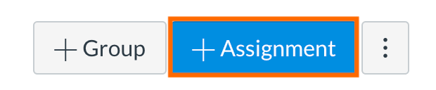
On the Assignments page, click on the '+ Assignment' button to create an assignment.
If you would like to embed a video or file from TORSH Talent into your description text box, you can do so by clicking the TORSH Talent icon or  icon.
icon.
This will automatically log you into your Talent account via your Canvas assignment page. You can then select a file that you have uploaded to the TORSH Talent platform and upload it to your assignment!
On the next page, give your assignment a title and add a brief description as needed. Scrolling down the page, you can adjust further settings, such as the Points awarded for completing the assignment, the Submission Type, whether or not you would like for the assignment to be Peer Reviewed, Who the assignment is assigned to, and when the assignment is assigned and due.
When you are done, click the 'Save & Publish' button at the bottom of the page!
Creating Video/File Upload Assignments
If you would like to create an assignment that asks for a user to respond by uploading a video from TORSH Talent into their Canvas assignment, please follow the steps below:
From the Assignments page, create a new assignment in Canvas by clicking the '+ Assignment' button. Next, give your assignment a title and brief description asking your user(s) to upload a video/file to their TORSH Talent account. It may even be helpful to embed a video from your TORSH Talent page explaining how to do so!
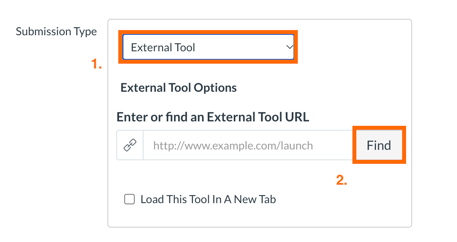
Next, scroll down to the assignment settings and find the 'Submission Type.' Click on the dropdown and select 'External Tool.' Under the 'External Tool Options,' click 'Find.'
This will open a new window. Click on your course title (In the example below, it's TORSH Talent Premium Course). A URL will automatically generate in the box. Lastly, click 'Select.'
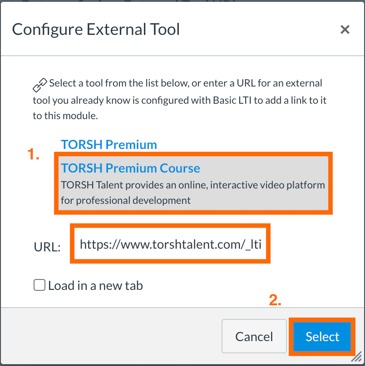
Preparing this setting will allow your students viewing this assignment to immediately login to their TORSH Talent via this assignment page and select a video/file for submission to the assignment! (see below)
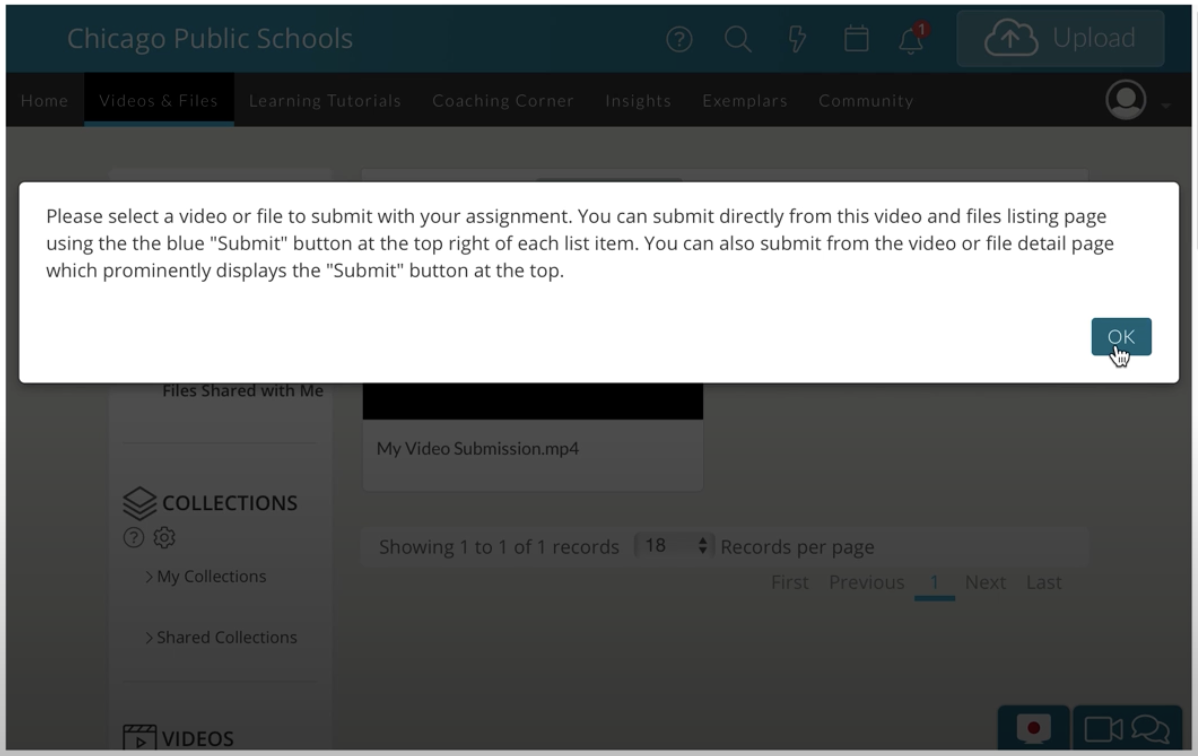
A student can then click on the video they would like to submit. They will see a prompt at the top of their video's webpage. They will need to click 'Submit Video' to submit their video to the assignment.

When you are ready to publish the assignment, scroll down to the bottom of your assignment's settings page and click 'Save & Publish.'
Reviewing Talent Video Submissions for Assignments
As an instructor, you can then view your students' video submissions by returning to the specific assignment's page in Canvas. Click the 'Speed Graderᵀᴹ' option on the right side of your assignment.
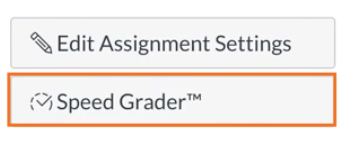
This will bring you to a new page. Click on the 'Click to view TORSH Talent Assignment Submission' option.

This will load your student's video submission via a TORSH Talent window within Canvas. You can watch the video submission and comment through Talent. You will also see a panel on the right side wherein you can grade the submission, leave a submission comment, and include any necessary attachments.
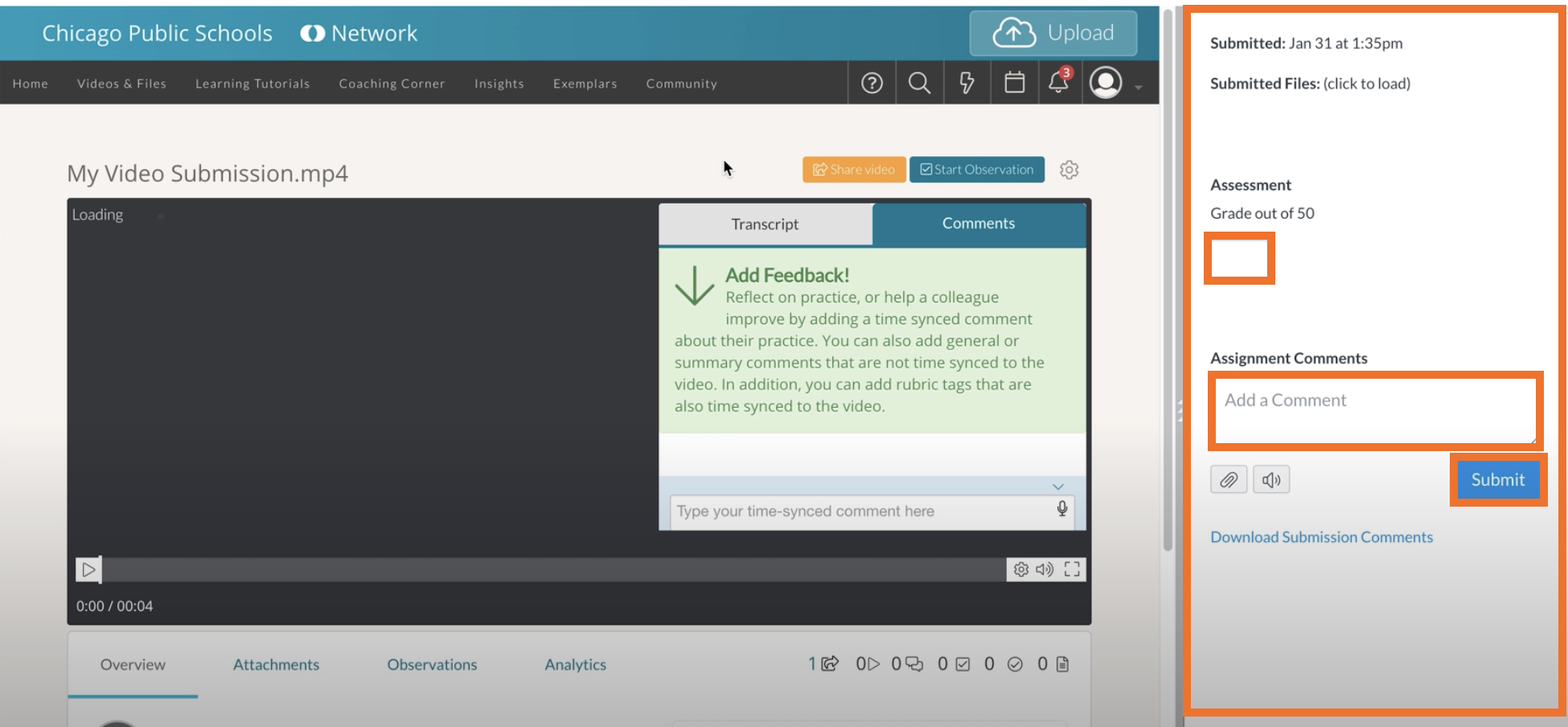
Lastly, to submit your grade, click 'Submit.'